How to build a Character in Pathbuilder:
Go to the site https://pathbuilder2e.com/ and press “Web Character Builder”
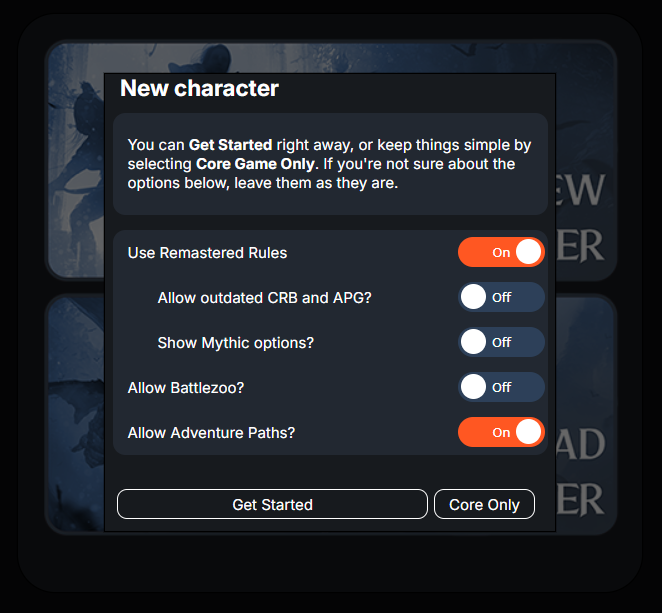
Press “New Character”
If you are a new player, we strongly recommend you click on "Core Only" as this will only let you use Core Rulebook 1 and 2.
If you want more complexity, press "Get Started"
If you have a paid pathbuilder license, which is a one time purchase of $6, go through step 4 and 5. Otherwise, you’ll have to do this manually in the foundry, skip to 6.
Go to the hamburger menu on the top left and click on character options.
Scroll down until you see the “Use Legacy GMG gradual Ability Boost Variant Rules”, and select the option.
We start with the ABC of character creation: Ancestry, Background, and Class. We will cover items and spells when we export this all to our Foundry. Press on “Ancestry” on the top left of your screen.
You will now see 8 ancestries. To see the rest you need to press the button “All Ancestries”. Choose an ancestry you like.
Note: 🟧Uncommon and 🟦Rare ancestries require Story Points. You can check this by looking at the color, orange is uncommon and blue is rare.Now we go to Backgrounds. On the left corner, below Ancestry, you can find the “Background” button.
Choose a background. If you want to see all backgrounds, which will also include those from specific campaigns, you nood the press the "All" button.
Note: Uncommon and Rare backgrounds require Story Points. You can check this by looking at the color, orange is uncommon and blue is rare.And last but not least, your class. Go to the upper left corner again, and press the “Class” button.
Choose your class. If you're looking for a class archetype you can find those under the "Class Archetypes" button on the right.
Note: Class archetypes are complex and are not recommended to beginners.
Note 2: Uncommon and Rare archetypes require Story Points. You can check this by looking at the color, orange is uncommon and blue is rare.Choose the remaining character options you want at level 1. We recommend picking up your heritage (subrace) first, then your abilities, then the rest.
Note: most classes create an extra option for a specialization. This isn’t shown hereIf you start at a higher level, set your level to the appropriate level¹, and select your character options²
You are now done with creating your character on pathbuilder, we will do the rest on the foundry. There are two ways to export your character to the foundry. The one using pathmuncher (which you will need a Gamemaster for), or the manual copy method.
For the copy method, skip to step 19.
Open the hamburger menu on the top right and select “Export JSON”You will get a window with 6 numbers, copy those numbers and note them down somewhere.
Open the hamburger menu again and click on “Share Copy of Character” and note down the link somewhere.
Go to foundry, select the actors tab on the right, and click on “Create Actor” and select the “New Characters” folders to put it in.
Go to the Domos discord, click on the #create-a-gamemaster-ticket channel¹, and open a ticket². Send the 6 numbers and the link you copied from pathbuilder in the ticket. A Gamemaster will import your character using pathmuncher.
You will still have to manually import spells and items, skip to step 21.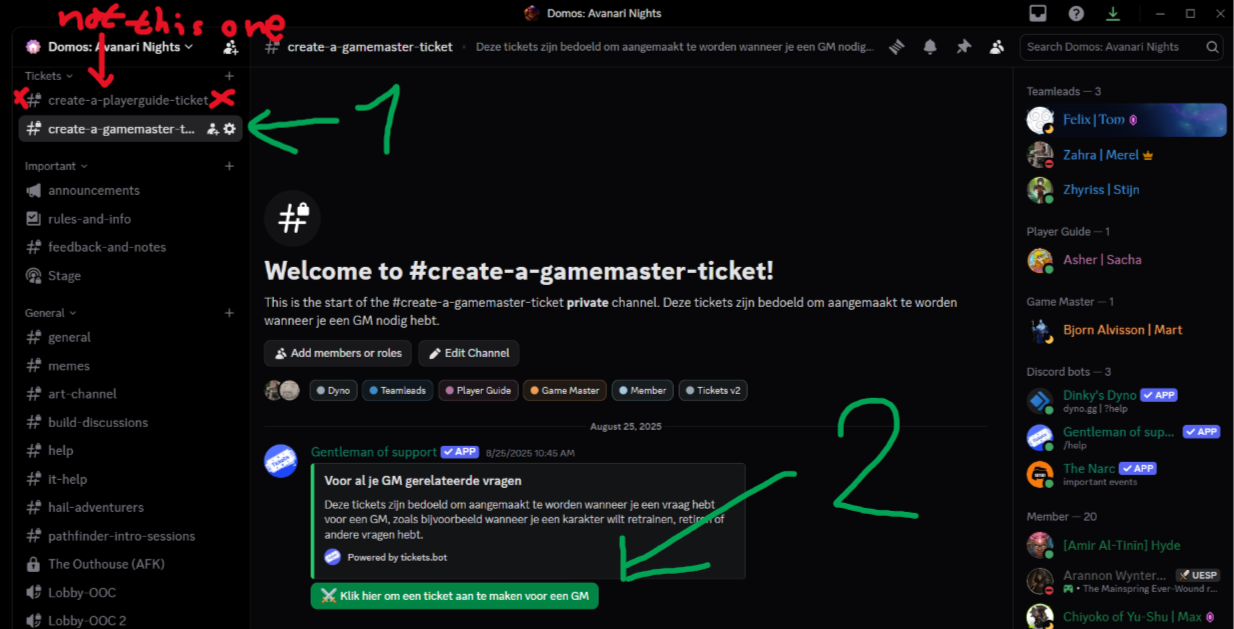
Open the PF2e Domos Foundry and click on “Create Actor” button. Give them the correct name, make sure they’re a player character, and put them in the folder “*New Character” folder.
Open the sheet, and select “Compendium Packs” on the right side. From there, drag every single character option onto your sheet. Features can be found by searching in the bar on the top. This means your class, ancestry, heritage, feats, etc.
When you have imported your character to Foundry, First assign your character to your account. you can do this by right clicking your account name in the bottom left,
select user configuration: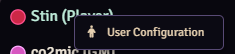
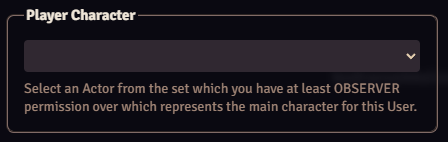
And selecting your character in the list at the bottom of the pop-up menu:
you can then pick your starting equipment. This equipment depends on what level your character is and if you choose to start with permanent items + currency or a lump sum of gold. The specific amount can be found here.
If you choose permanent items + currency, you get to choose permanent items based on the level and amount stated in the table. And you get to buy extra items with the amount of gold(currency) you have.
If you choose the lump sum, you get to buy all your items with the amount of gold(lump sum) you have.
Now that you have decided between these two options, you can start getting the items in your character sheet. To do this, you need to go to your character sheet to "Inventory". First, put the correct amount of coins in your inventory; in the previous step, you have chosen how many this would be.
Below the coins, you will find categories of equipment. These categories, like "weapons & shields", have a search glass on the right side of them. If you hover over this search glass, it should say "open inventory browser". In the inventory browser, you can look for the items you need. Check on the left side of the browser if you have filtered anything under "Inventory types"; if so, press on 'clear', which makes sure that you can see all the items that are available.
After you have found the item you need, you can either click on the hand emoticon, which says 'take item' if you hover over it, or the coin icon, which says 'buy item' if you hover over it. If this item is one of your permanent items, click on the hand. If you are buying this item, click on the coins. If you buy an item, it will also subtract the item's worth from your current coins.
If you do not have spells, you are now done with creating your character!
If your character casts spells, you will need to add a spellcasting entry. You can do so on your character sheet by navigating to the spells menu, indicated by the wand. From there, click on “Known Spells” and select “+ Add Spellcasting Entry”.
Your spellcasting type will differ depending on which class you play, so you should double-check. For this guide, we’re going to be assuming you are playing a prepared spellcaster, because spontaneous works the same, just with fewer steps. If you play a prepared spellcaster, don’t tick the “Flexible” box. For Proficiency select “Spell Attack Modifiers & DCs”. For your magic tradition and key attribute, select whatever corresponds with your class.
Your spellcasting type will differ depending on which class you play, so you should double-check. For this guide, we’re going to be assuming it’s prepared, because spontaneous works the same, just with fewer steps. If you play a prepared spellcaster, don’t tick the “Flexible” box. For Proficiency select “Spell Attack Modifiers & DCs”. For your magic tradition and key attribute, select whatever corresponds with your class.
Now that you’ve made a spellcasting entry, we have to fill it with spells. Before you do this, please read the rules for your class thoroughly. If you’re a prepared spellcaster, click on the “Spell Preparation” button. Once you have the window open, click on the hourglass by cantrips or 1st rank spells. This will open the spell compendium, which will allow you to add spells. If you’re a spontaneous spellcaster, you can do this directly into your spellcasting entry.
CONGRATS! YOU HAVE CREATED YOUR CHARACTER!


You can now return to Creating a Character!