As a writer myself, I wanted to share what an amazing tool LegendKeeper was. However, like any new program, it can be daunting so I wanted to make a starter project for writers to help you set up your stories, characters, worlds, etc. almost immediately. I've taken several templates designed by the LK community and tweaked them specifically for writers with lots of examples and inspiration to get you started.
This page is the Project Home, the entry-point to this project. Return home by pressing the home button in the top toolbar. You can set any page in your project as "Home" by clicking the 3 dots next to the page name and selecting "Set as project home". This turns that page into the first thing people see when visiting your project.
Project Privacy: What's visible and to whom
Public:
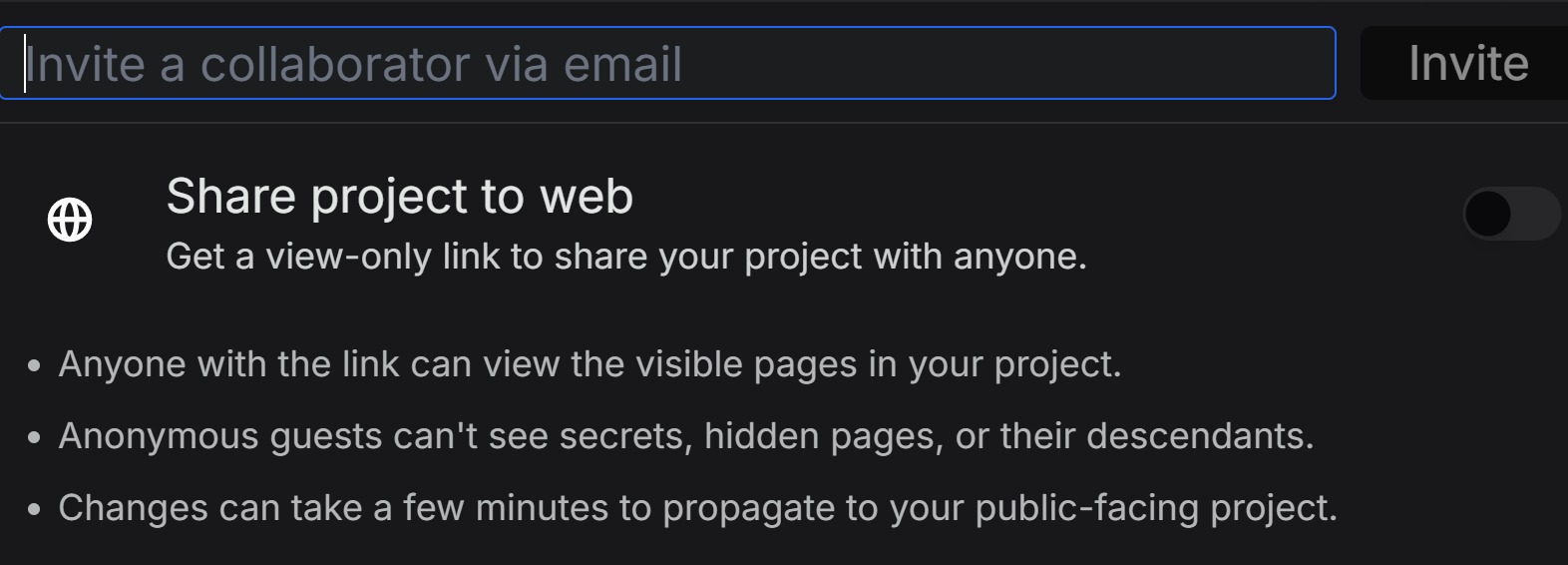
Your project is only visitable to the public if you allow it. On your project, if you click the "Share" button in the upper right-hand corner, you can toggle if the project is visible on the web. A link will appear when it's visible. You can share that link with whomever you wish.
Private:
If you don't toggle the option to make your project public, only you and the people you invite, can see any part of the project. It's not visible on the web unless you are a collaborator and logged in.
Collaborators & Guests:
When you click the "Share" button it shows you the option of inviting collaborators. These are people you are granting access to the project but not necessarily the ability to edit anything. You can control how much access they have and what they can do while here (see "Permissions" in the next section). This option is great for alpha/beta readers and co-writers.
Secrets:
Secrets are created on a page by typing "/secret" (without the quotes) anywhere on a page. A purple box with a dash outline will appear with "Secret" at the top. You can type anything in here you don't want anyone but you to see. Only admins can see secrets.
I find these incredibly useful for adding notes while writing a story. I use them as reminders to circle back and add something that I couldn't quite work out while writing such as dialog or descriptions. I also use them to add links to other pages within my LK for more information on locations, objects, people, events, etc. Secrets are great for anything you want highlighted and not seen by others.
Hidden Pages :
On your project, if you hover over a page in the left-hand column, an icon of an eye appears next to it. This allows you to hide the page from everyone but you and whomever you set permissions to see it (see "Permissions" section below on how to add others to view these pages).
This is extremely useful tool to keep your story spoiler free while still world building. You can set individual page permissions (see below section) to allow specific members to view or edit them.
Examples: I hide the world building pages I have that haven't been mentioned in the story yet. I also have a specific page that my readers can edit to add any grammatical mistakes they notice in the writing.
Permissions: How to allow others to edit specific pages
LK has 3 types of permissions: Project permissions, page permissions, and member permissions.
Member Permissions:
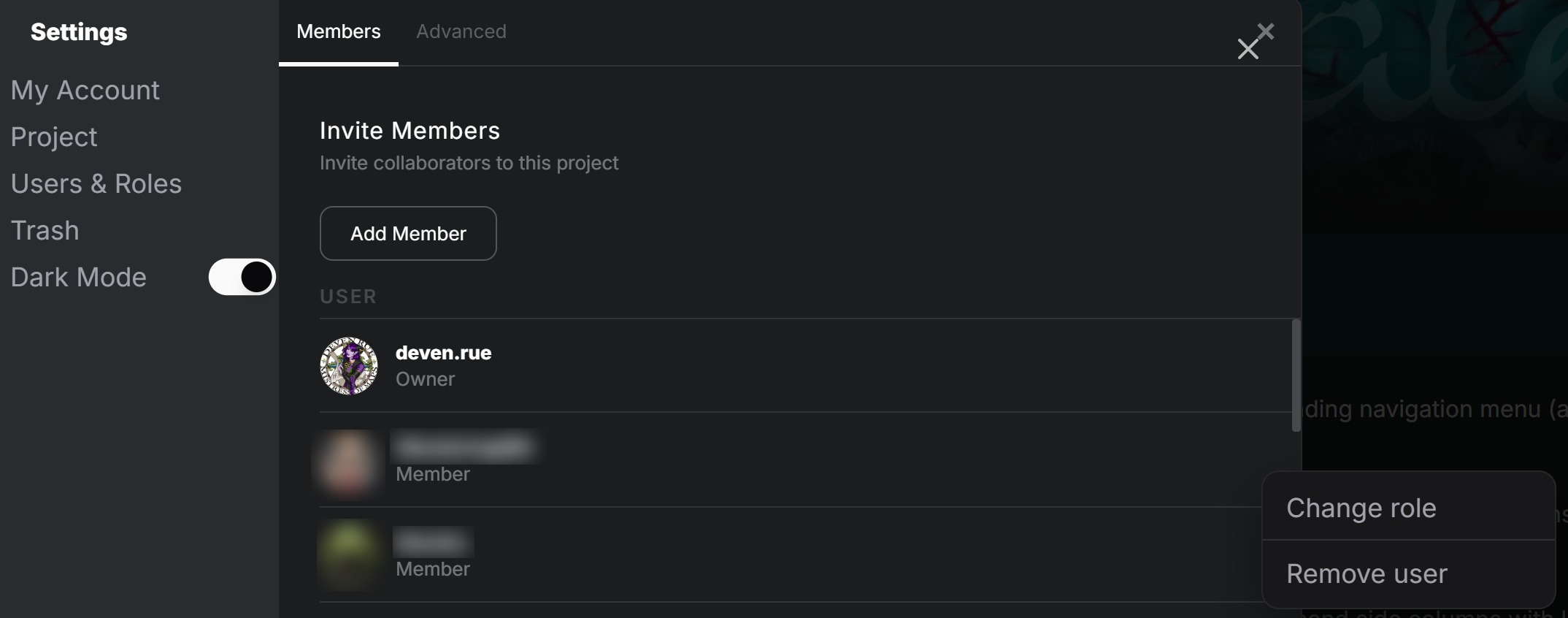
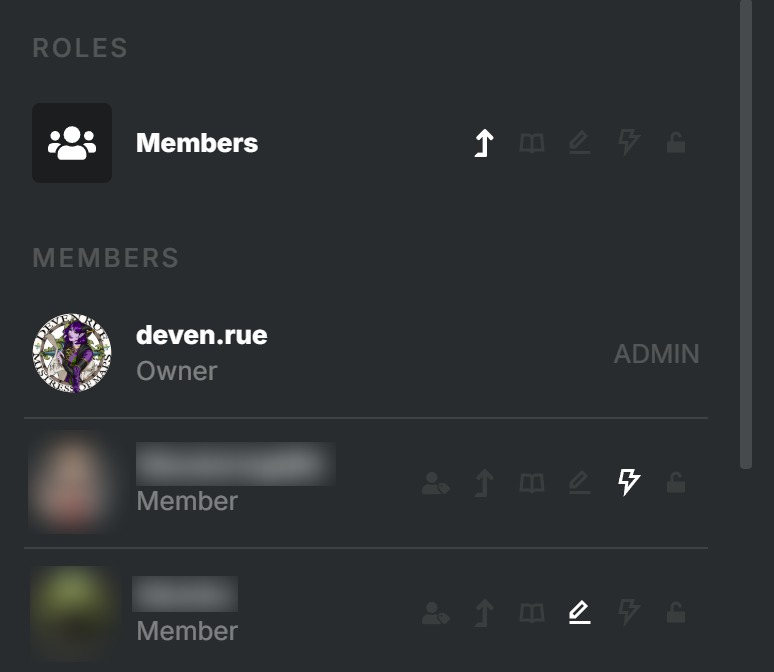
This is set by clicking the down-arrow next to "LK" in the upper left-hand column of your project and selecting "Settings" then "Users & Roles". Here you can see everyone that you've invited to your project and what role they have. Everyone is a member when they accept your invitation. You can make them an admin of your project along with you (just remember they can then see secrets and hidden pages).
Project Permissions:
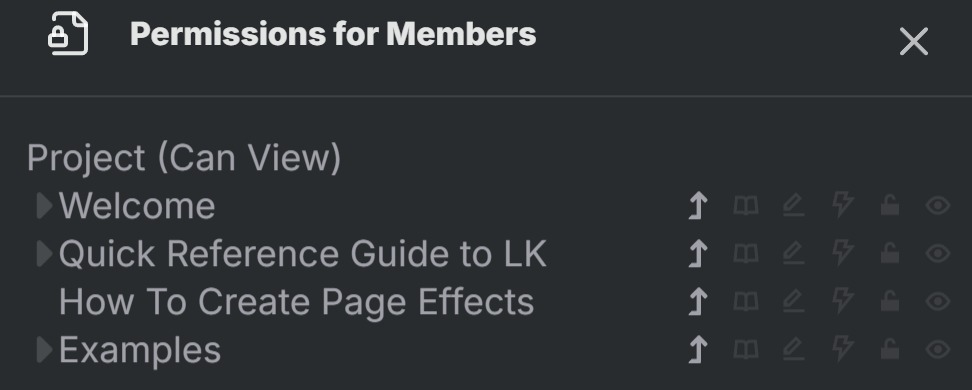
This is set by clicking the down-arrow next to "LK" in the upper left-hand column of your project and selecting "Permissions Overview". You can set each category in your project to have a different view/edit permission to members if you wish. However, you can still set an individual page to a different permission within a category if needed.
Page Permissions:
Individual page permissions override the above two options. If you hover over a page and click the 3 dots next to it when they appear, then select "Edit Permissions" a new panel options that allows you to change the permissions of that page for all members or just specific ones. This is great for giving editing permissions of specific pages to collaborators, artists, cowriters, editors, etc.