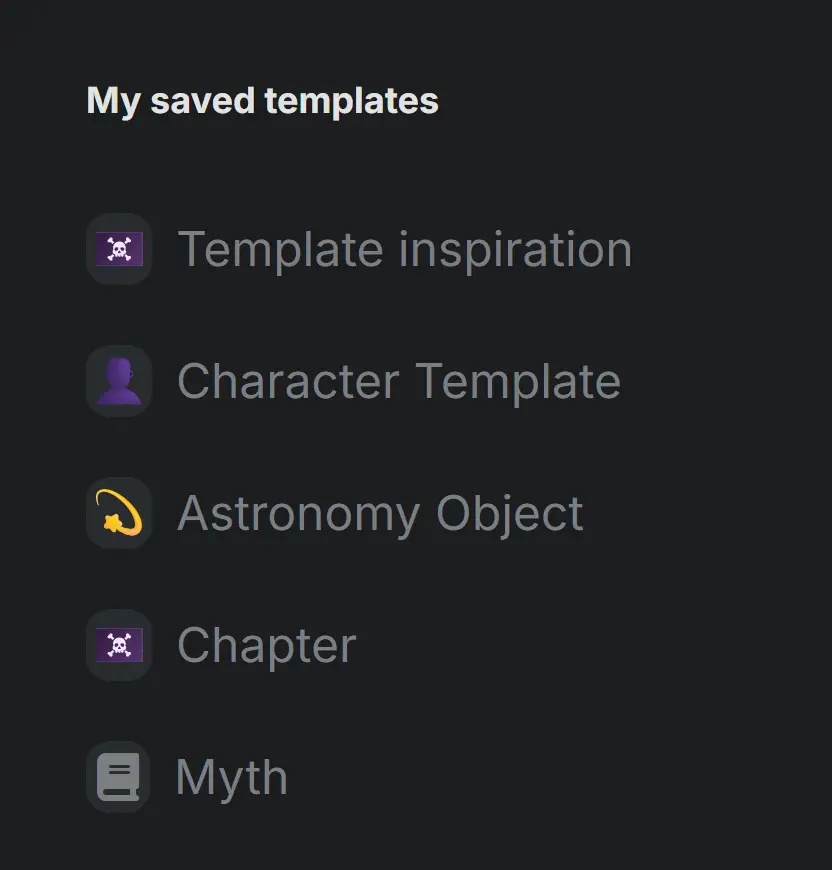
Nestled Pages or Subpages:
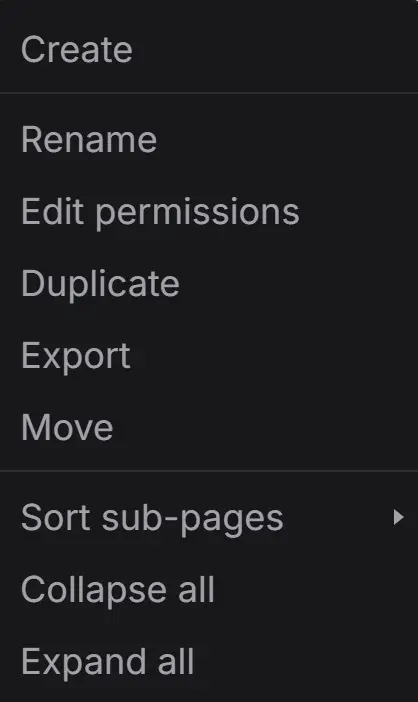
To create any type of page, you can hover over an existing page, click the 3 dots and select "Create" to make a page nestled under that page.
Alternatively, you can drag any page onto another to nestle them.
You can have numerous bundles of nestled pages under several other nestled pages if you wish.
Independent or Category Pages:
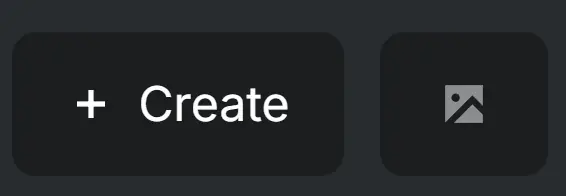
You can create an independent page by clicking the "Create" button at the bottom of the left-hand column on your project.
You can un-nestle any page by dragging it out from under the page it's nestled under.
Any page can be moved by dragging it above, below, or onto (nestles the page under the one you drag it onto) any other page.
Page Types
When you create a page by either of the above methods, a new page opens. You can name it right away or leave it "Untitled" until you're ready. You will then see options to pick the type of page or to use a template (templates are covered in the "Templates" section below).
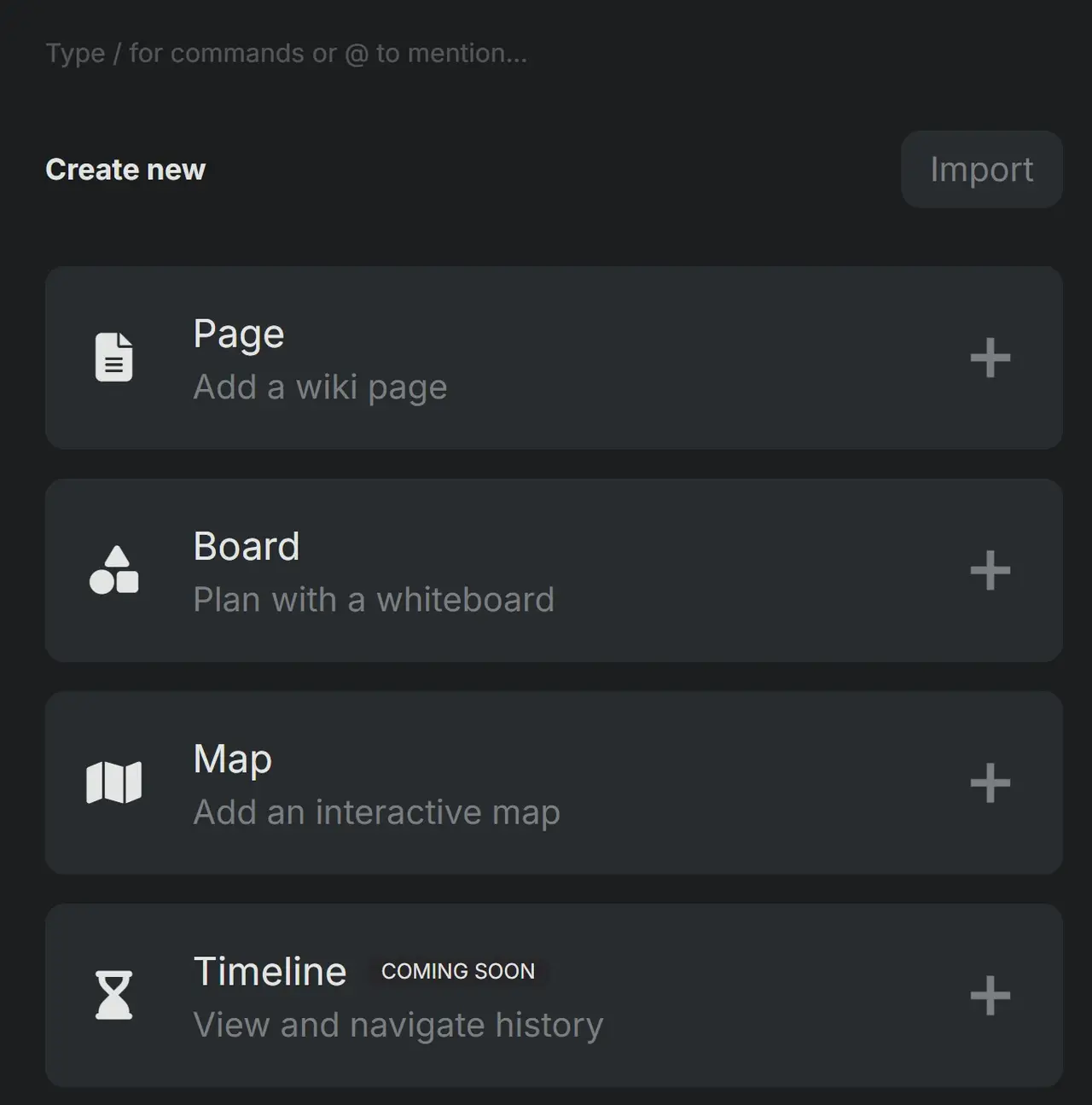
Pages are what you are currently looking at. A page that you can add text, headers, images, etc.
A board is space where you can layout story blocks and elements that you can rearrange, draw, add text, add images, etc. to build an extensive story board that you can change as your writing progresses.
A map is exactly as it sounds, a place for you to add a map either of your world,
A timeline allows you to create pages along a horizontal or vertical line that are linked to events, characters, or whatever you want to link.
Page Tabs
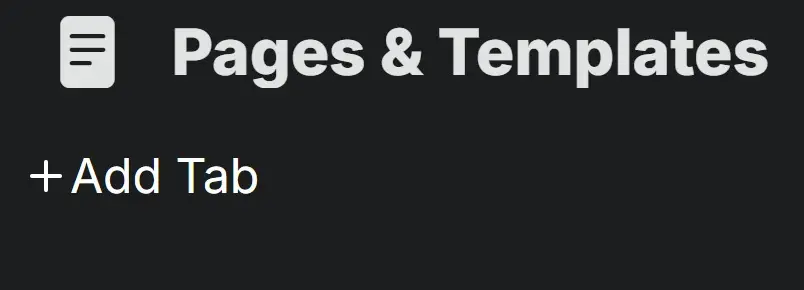
To create a tab, click on the page you want to add the tab and hover under the page's title. A "+Add Tab" appears, click it to add a tab. You will have the same options to create a page, board, map, timeline, or use a template as you do on regular pages. You can name the tab as well and even rearrange the order of your tabs by dragging them from one spot to another.
Click here to see this page's tab on tabs.
Sidebars
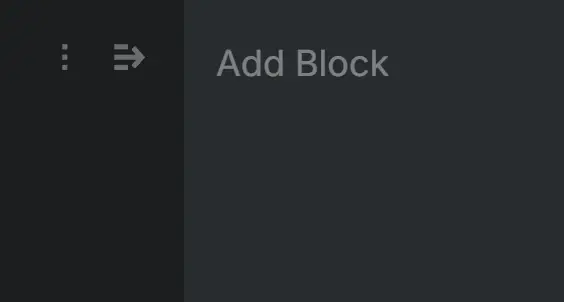
Every page on LegendKeeper has an option to add a right-handed sidebar. Clicking the hamburger icon in the upper right-hand corner of your page will open a panel allowing you to "Add block". This is great for images, playlists, text boxes, links to other pages or maps, etc.
You have the option of always having the sidebar open or closed when someone visits the page.
Click here to learn more about sidebars.
Templates
Templates are pages that are set up a certain way to be consistent. Underneath your page options, you can choose to create a page based on a template.
Click here to learn more about creating & importing templates.