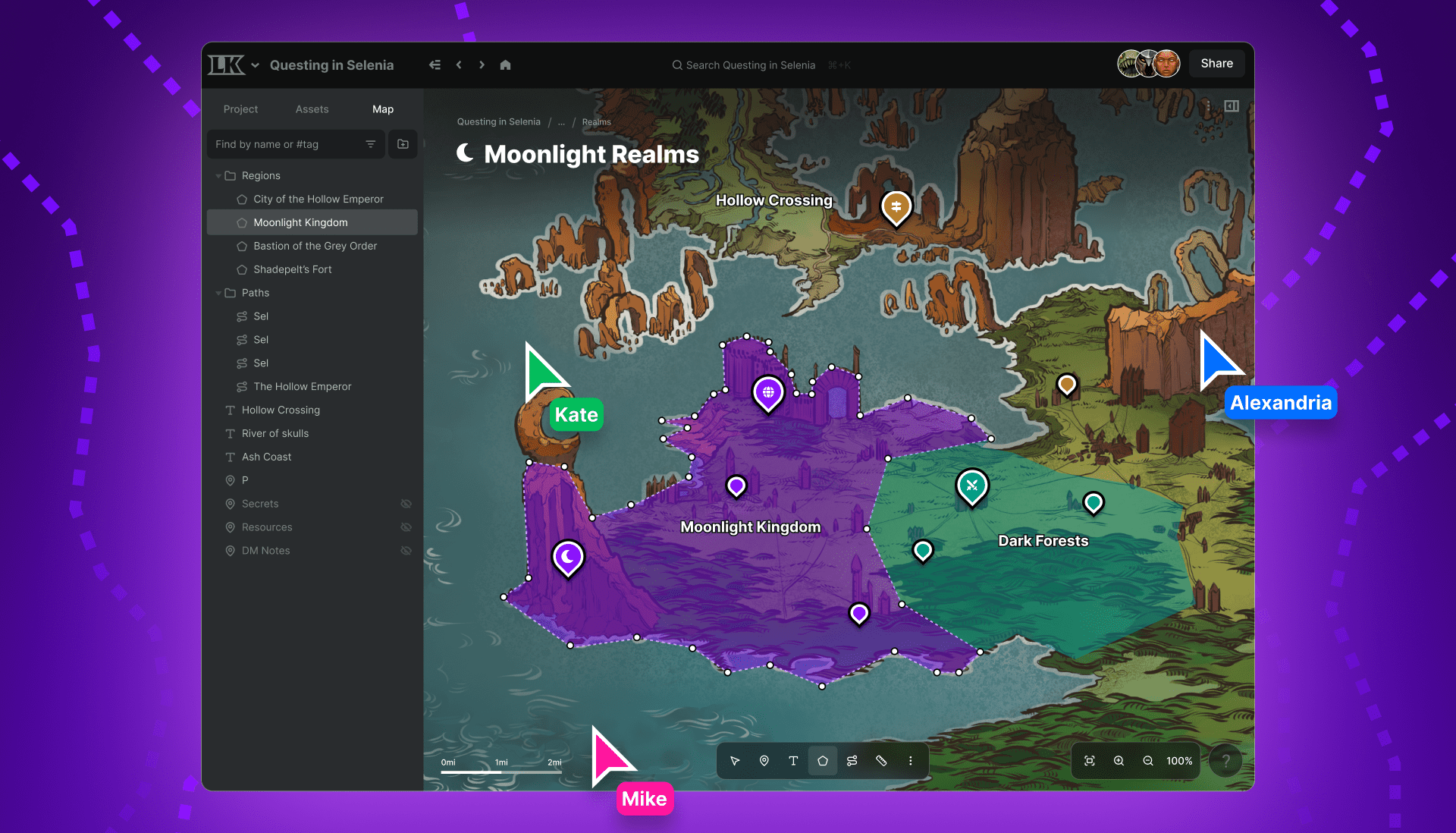
Create even more detailed maps with LegendKeeper’s Region, Pathway, and Label features
Maps are a fundamental tool for creating your own fictional worlds and tabletop roleplaying campaigns - with more details allowing you to add more useful information.
Your RPG maps can provide a geographical overview of your world - showing where cities, towns, villages, and key landmarks are in relation to each other. Great maps can also be a useful tool for your tabletop rpg players, showing them where their adventuring party can travel to in their campaign. Game masters can also use maps to track where your players currently are in your world, and what options you might have for storytelling with that.
Creating a more detailed map can add even more definition to your world and campaign. Imagine if you could show exactly how locations are connected to each other, where different regions begin-and-end, and be able to highlight important points of interest at a glance? You can now make a high-quality map that fulfills all of these things using LegendKeeper’s latest features.

Outline different regions, key areas, and boundaries
With the new Regions map tool you can now draw out regions on your map, designating where key borders begin-and-end. Adding regions to your map designs will enable you to establish the borders of different countries, the location of certain climates, and where environmental effects start-and-finish. Regions can be a crucial tool for determining where certain characters and groups are welcome, and where they’ll face trouble.
How to create a Region
- Start by selecting the Region button from the bottom menu.
- Left-click to place your first point, then place your next point wherever you need to change the trajectory of your line.
- You can erase the last point placed with right-click.
- To finish drawing your region, place a point wherever you put your first point, thereby circling your region around.
- You can then add a region name in the submenu, select a font, and a text size.
- Choose when the region name appears from a dropdown menu: whether it’s always visible over the region, whether it appears when you hover your mouse over it, or if it’s never visible.
- You can also select a color for your region, as well as its level of opacity, and a pattern.
- Using the Zoom Visibility menu, you can alter when your region is visible based on how far you’re zoomed into your map.
- You can also link a map region to a separate page - such as a wiki page - in your LegendKeeper world, to provide additional information and context for that region.

Draw paths connecting different locations on your map
The Path tool allows you to draw networks across your map, indicating which locations are linked and how. By drawing paths on your dnd maps, you can illustrate how cities, towns, villages, and key locations are connected to each other. This serves both worldbuilding purposes and campaign purposes, showing just how people in your world get around.
How to create paths
- Start by selecting the Path button from the menu below.
- Left-click to place your first point, then place a point wherever you need to change the trajectory of your line.
- Right-click to erase the last point placed on the map.
- You can either double-click or press enter to place your last point.
- Give your path a name from the submenu, change the font, and text size.
- You can also choose when your path names are visible: whether always, when hovering your mouse over them, or never.
- Select from different colors and patterns.
- Change when your paths are visible, depending on how far you’re zoomed in using the Zoom Visibility menu.
- You can also link a path to a separate page - such as a wiki page - in your LegendKeeper world, to provide additional information and context to that region.

Navigate between key locations
You can use Paths to calculate the distance between locations, as well as provide directions for how to get there. To do this, you’ll need to calibrate measurements on your map using the Measure Distance tool - which allows you to input how many miles there are between two locations, to determine how measurements are calculated across your TTRPG map.
You can then use the Navigation Mode (selected from the three dots on the bottom menu), to choose two pins placed on your map: with the submenu showing the distance between the two pins, as well as the route you need to take to navigate there (which will be based on the pathways you’ve placed.) If you input the speed travelled, it will also tell you how long it’ll take to get there, making it the perfect tool for running a role-playing game campaign.

Add labels to easily highlight key landmarks
The Labels tool will allow you to create an overview of your fantasy map from a glance, highlighting key landmarks in your world at a distance. Labels are ideal for indicating the location of larger environmental elements like mountain ranges, lakes, and coastlines. Dungeon Masters can also use labels to highlight where current events are happening - such as active battles or zones with lots of bandit ambushes - or where certain characters are located.
How to place labels
- Start by selecting the Add Text button from the menu below.
- Click where you’d like to place your label.
- Enter your label name, choose between three different fonts and text sizes.
- You can choose from a range of different colors for both the fill and outline.
- Use the Zoom Visibility tool to decide when labels appear based on how zoomed in you’re in.
- You can also link a label to a separate page - such as a wiki page - in your LegendKeeper world, to provide additional information and context to that region.