
LegendKeeper in 60 seconds
A one-minute tour of LegendKeeper: pages, maps and pins, nested maps, the wiki, timelines and boards.
Guides and videos for using LegendKeeper.
A quick tour of LegendKeeper.
Write pages, link them together and keep long pages easy to navigate.
Type / on any line to insert a block, such as a callout, table, map or embed.
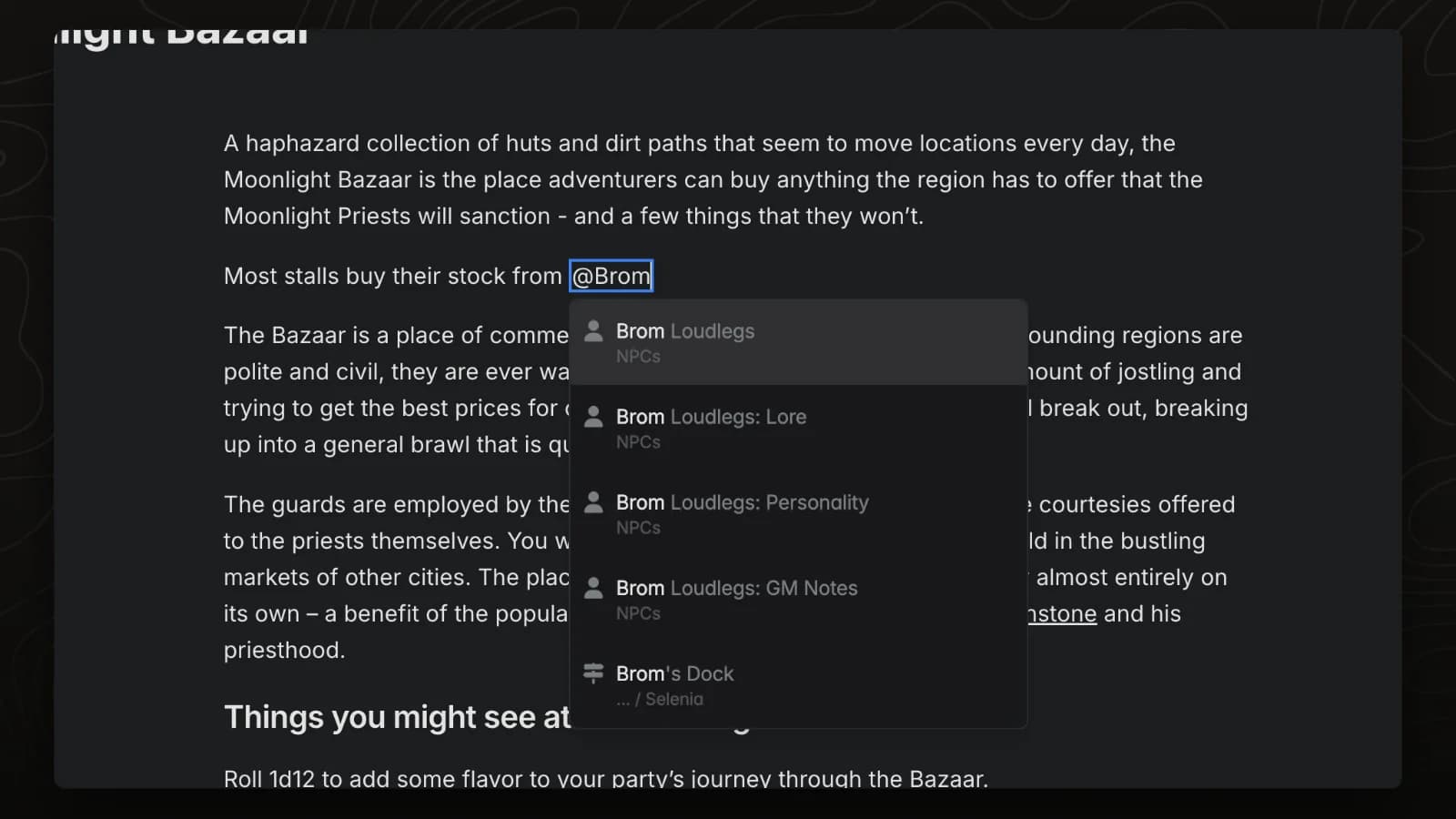
Type @ and a page name to link to any page in your world. Hover the link to preview the page.
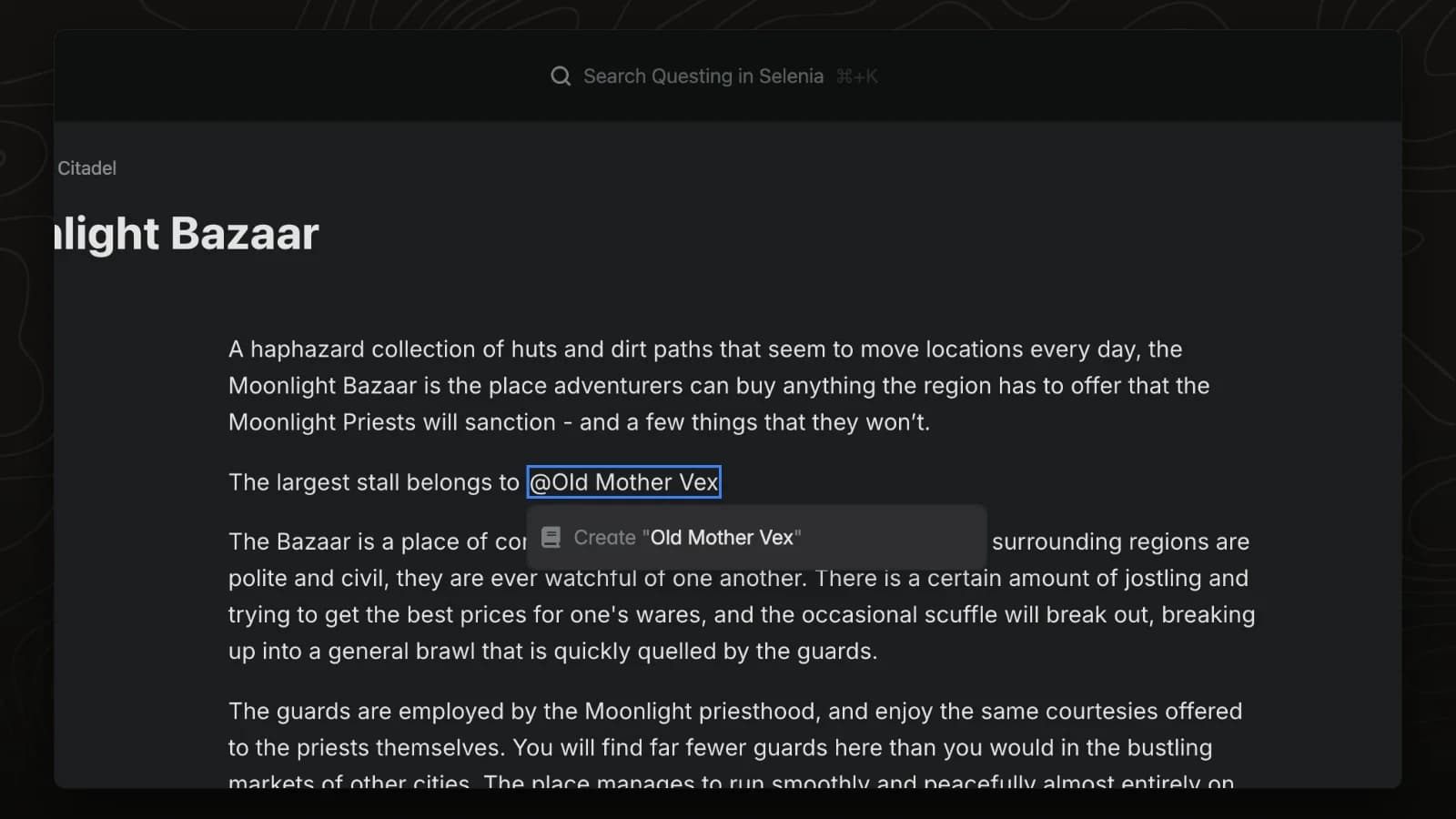
Mention a page that does not exist yet and LegendKeeper creates it from the mention menu.
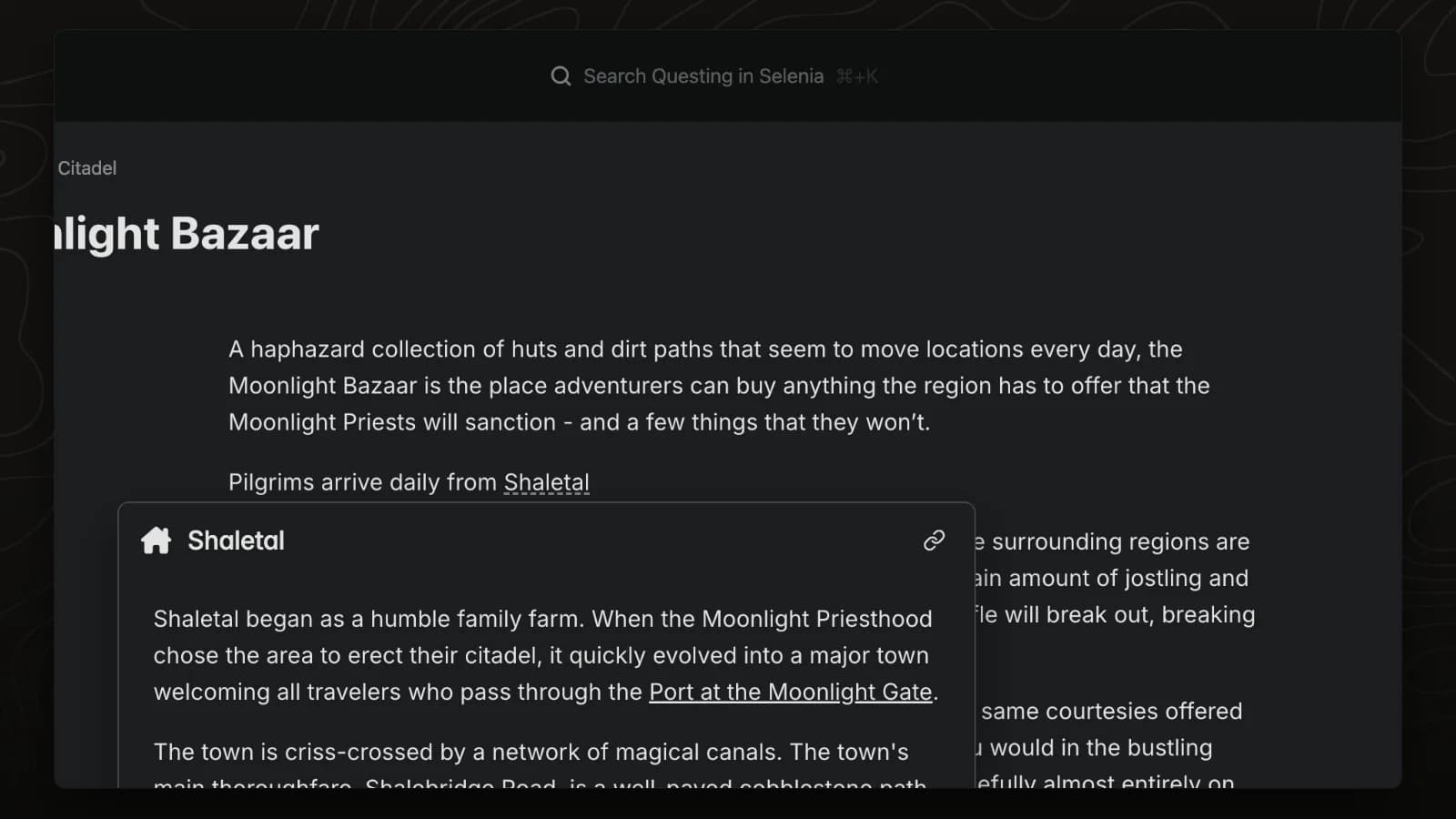
LegendKeeper marks the names of existing pages as you type them. Hover a marked name and click the link button to turn it into a link.
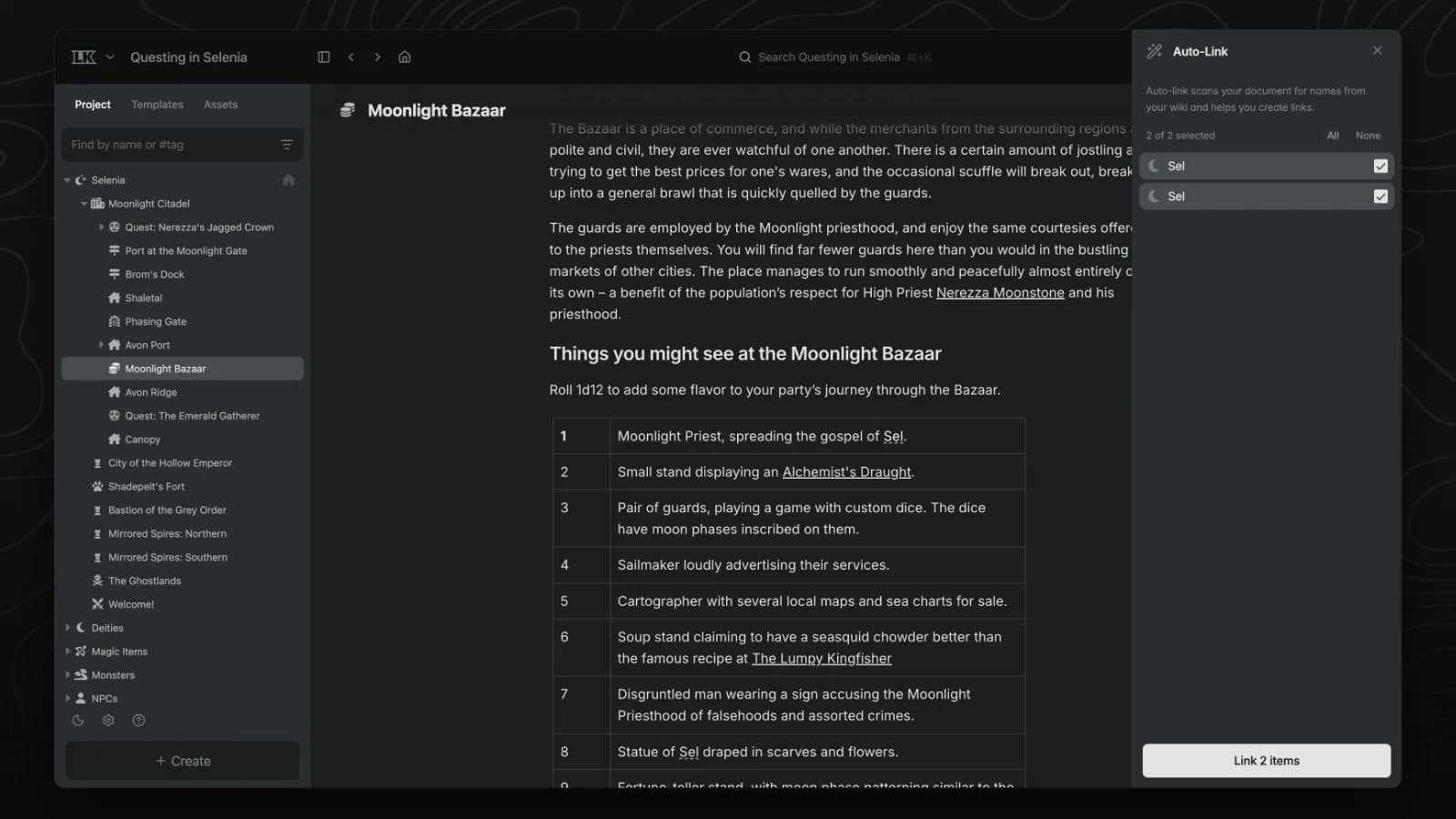
Bulk auto-link scans a page for the names of other pages in your world and turns every match into a link in one step.
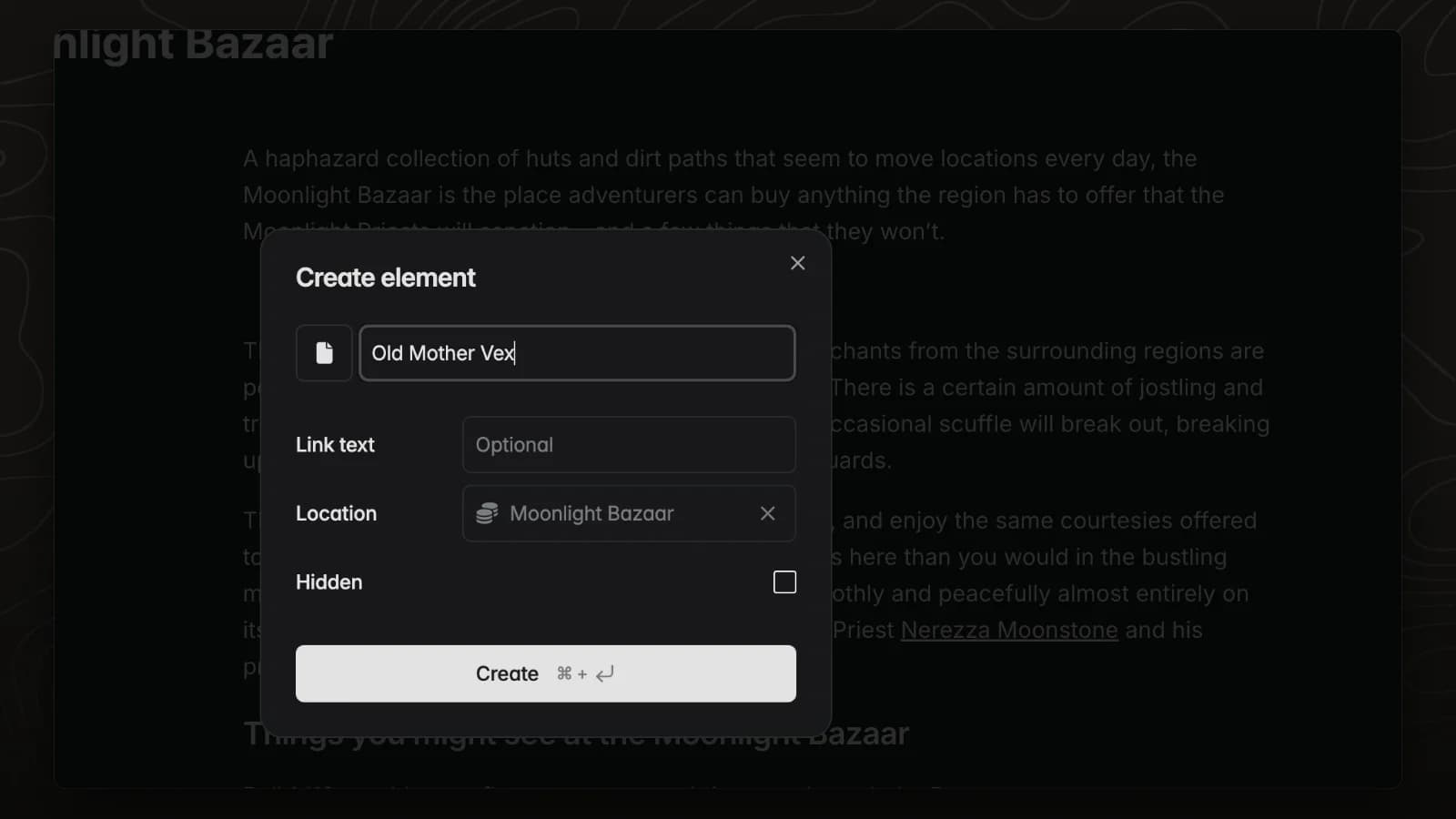
The /element command creates a new page and links it where you are typing, so you never lose your place.
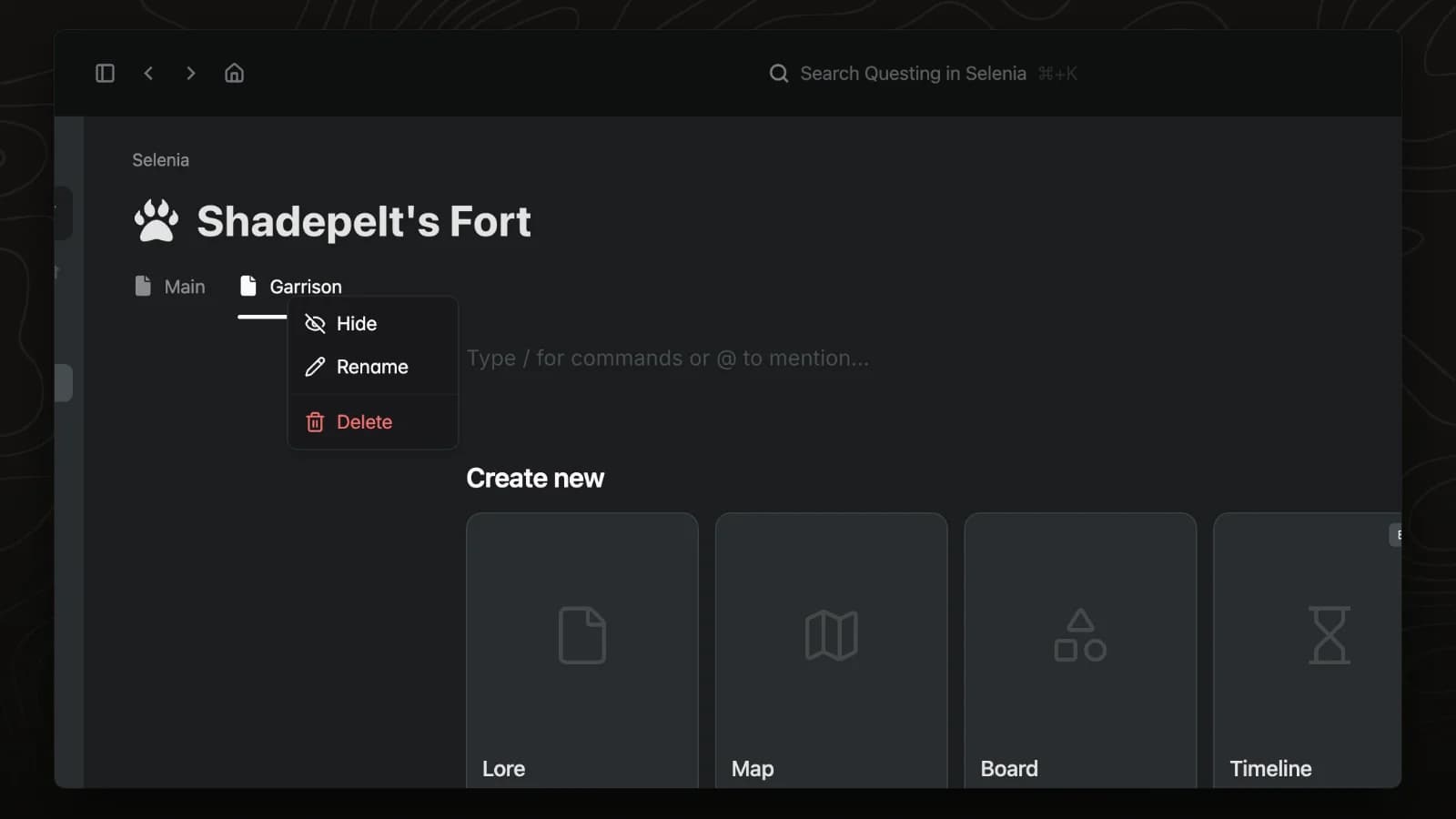
Tabs split one page into sections, such as lore, stats and GM notes. Any tab can be hidden from players.
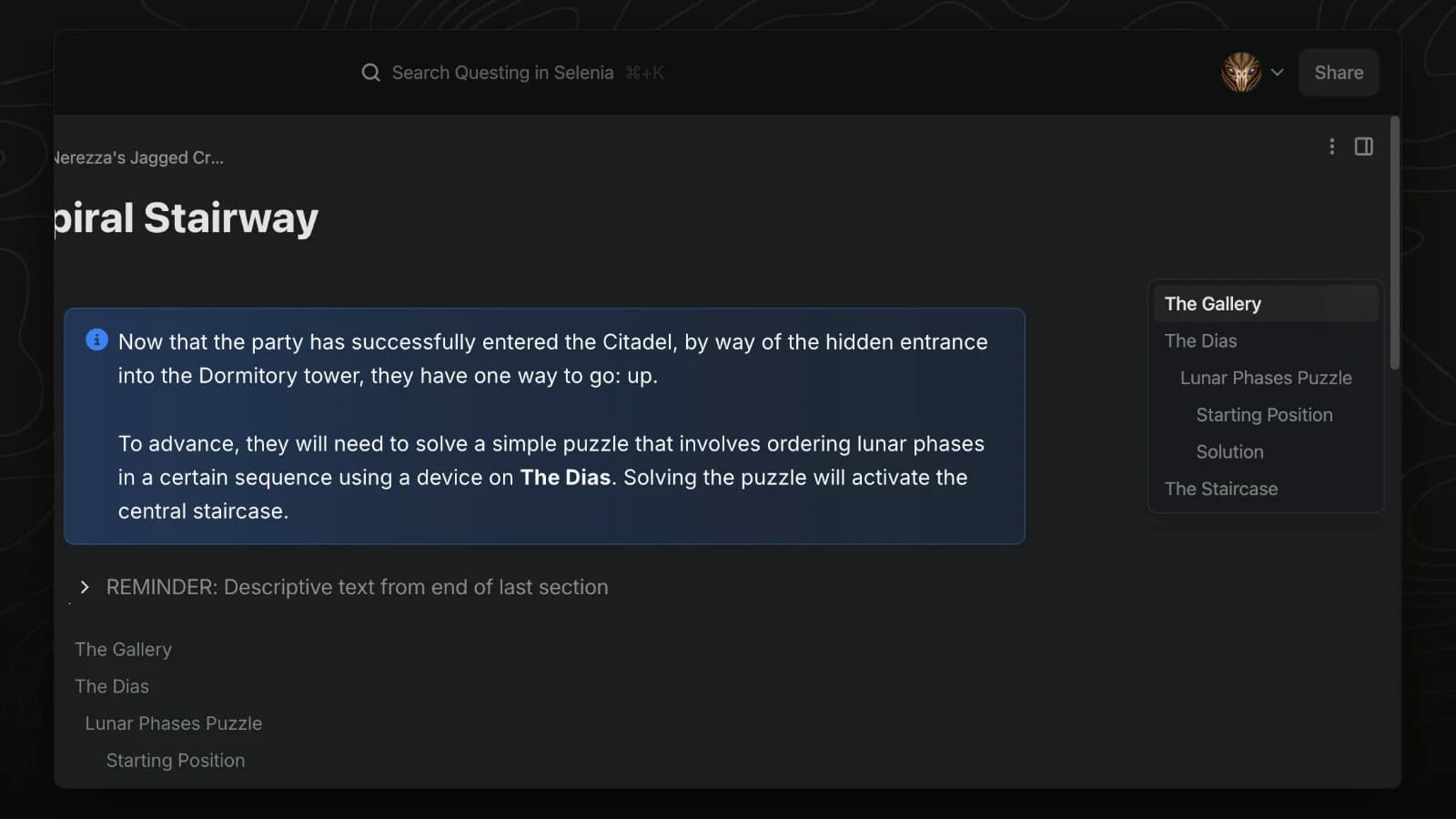
Pages with headings get a table of contents automatically. Hover it to jump to any section.
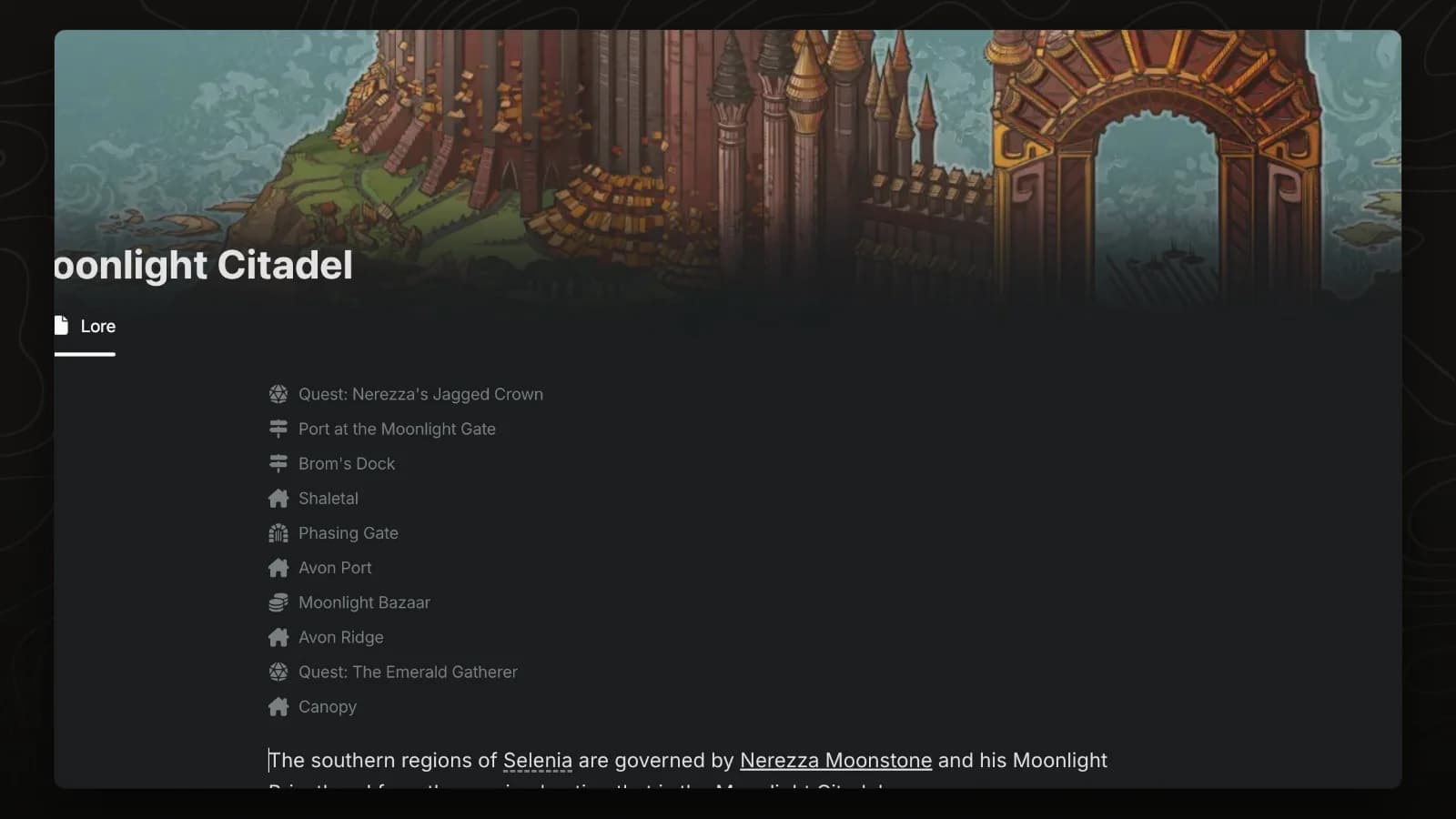
The subpage index lists and links every page inside the current page and stays up to date as pages are added.
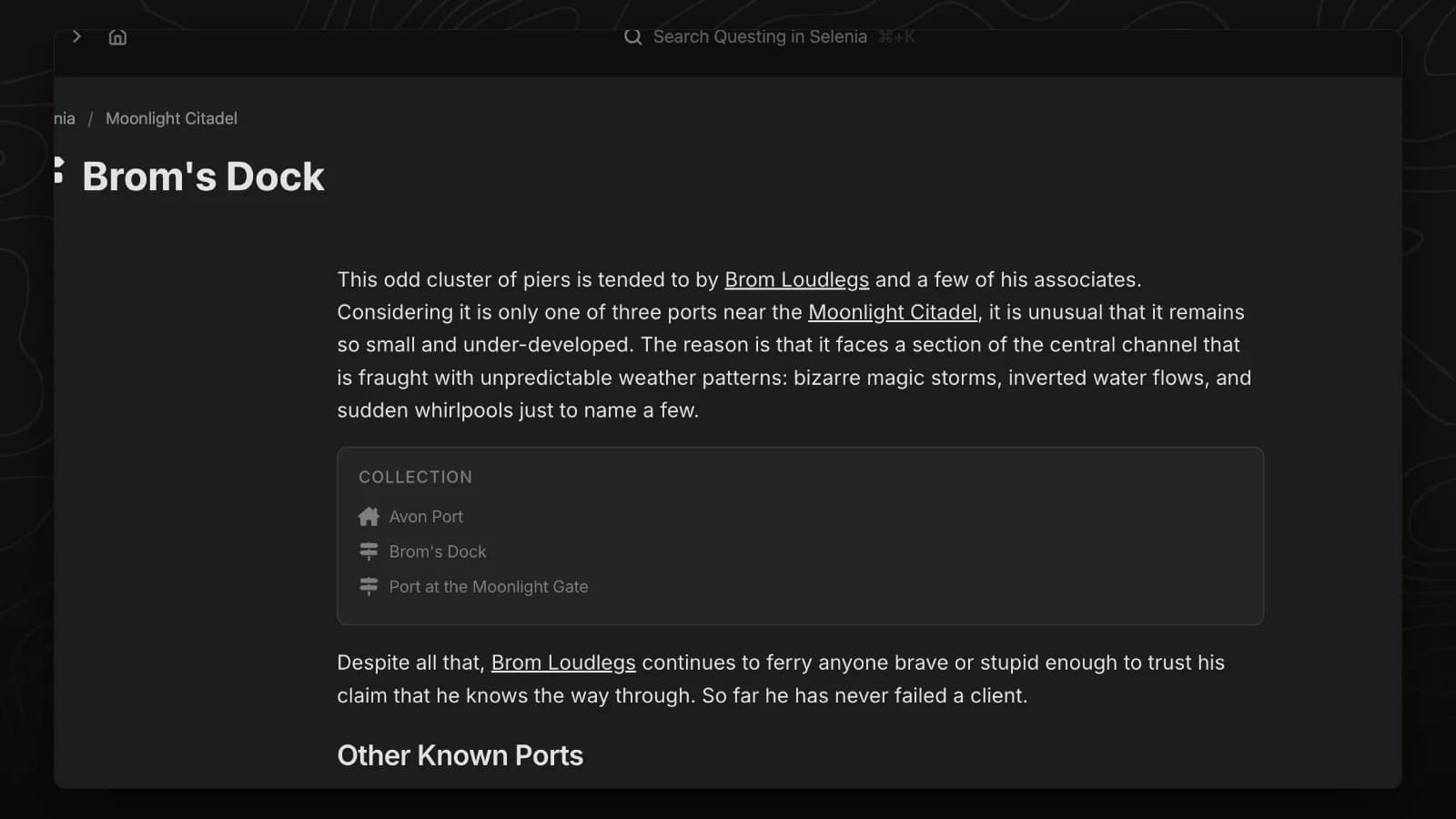
A tag index collects every page with the tags you choose, such as all ports or all taverns.
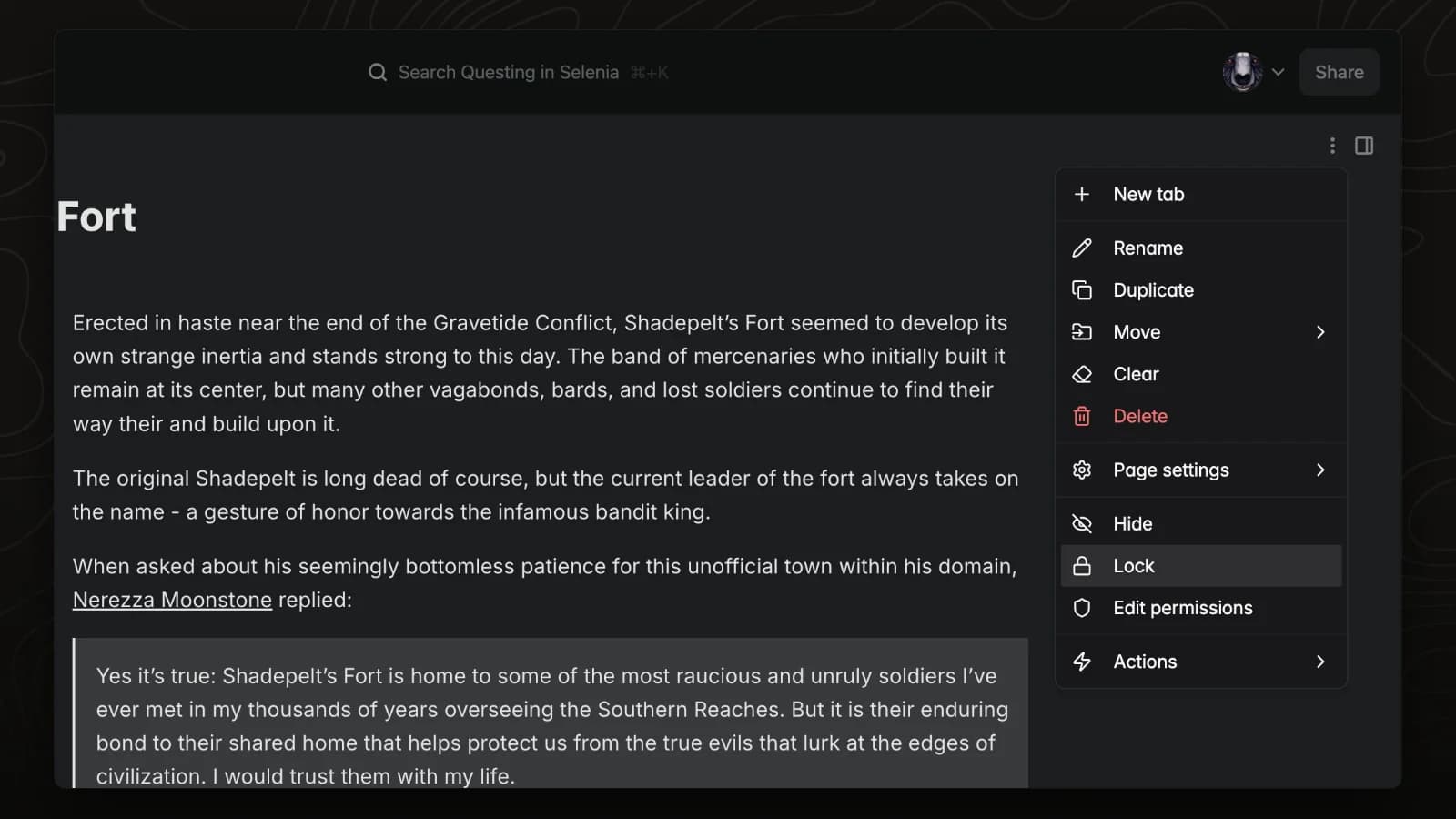
Locking a page prevents accidental edits while you read or present it.
Callouts, infoboxes, meters, images, embeds and the other blocks you can add to a page.
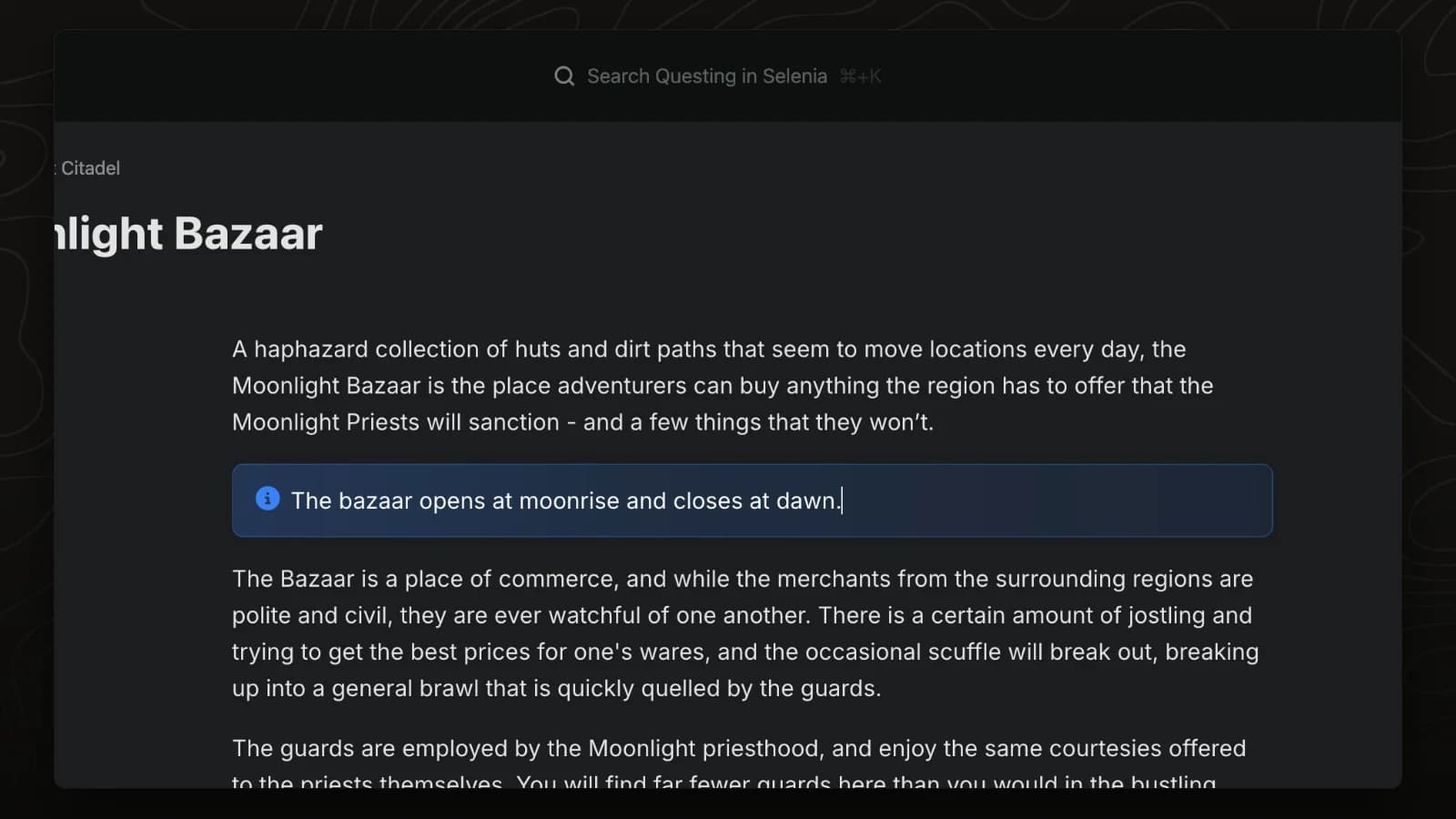
Callouts highlight a detail you do not want players or co-authors to miss, such as a warning, a rule or a key clue.
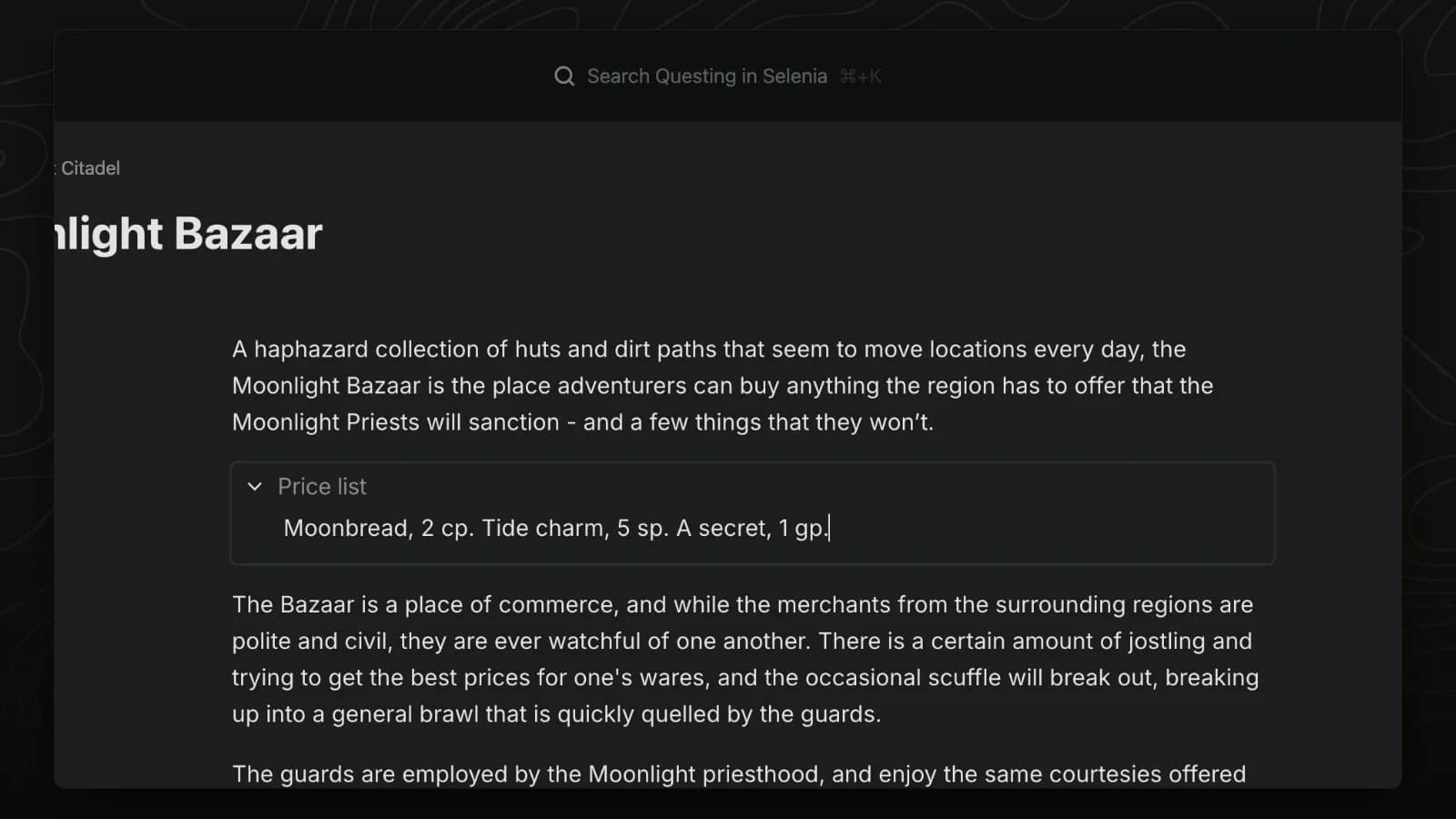
Expand blocks fold content away behind a title, keeping long pages readable at the table.
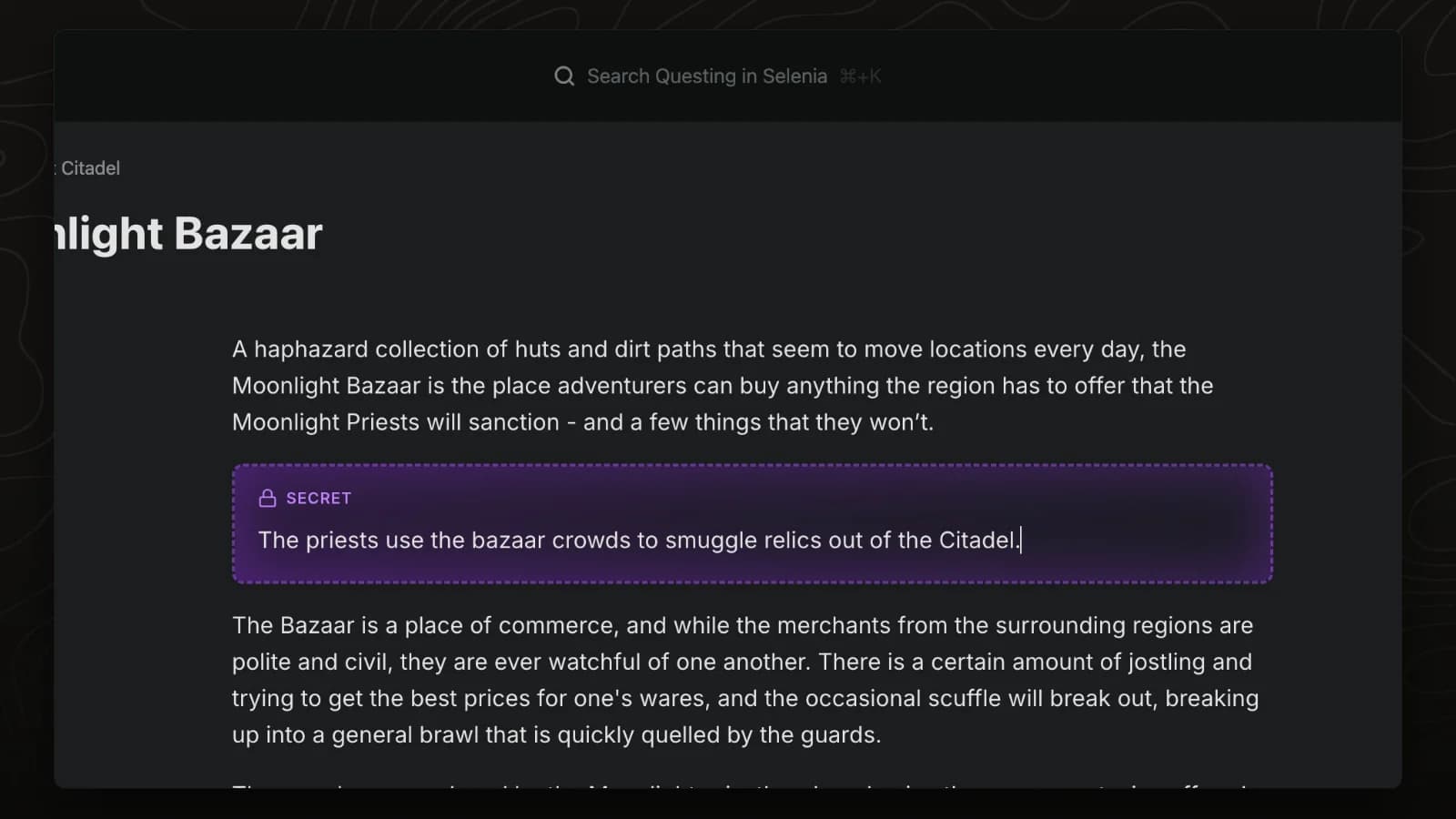
Secret blocks hold notes that only admins can see, inside pages your players can read.
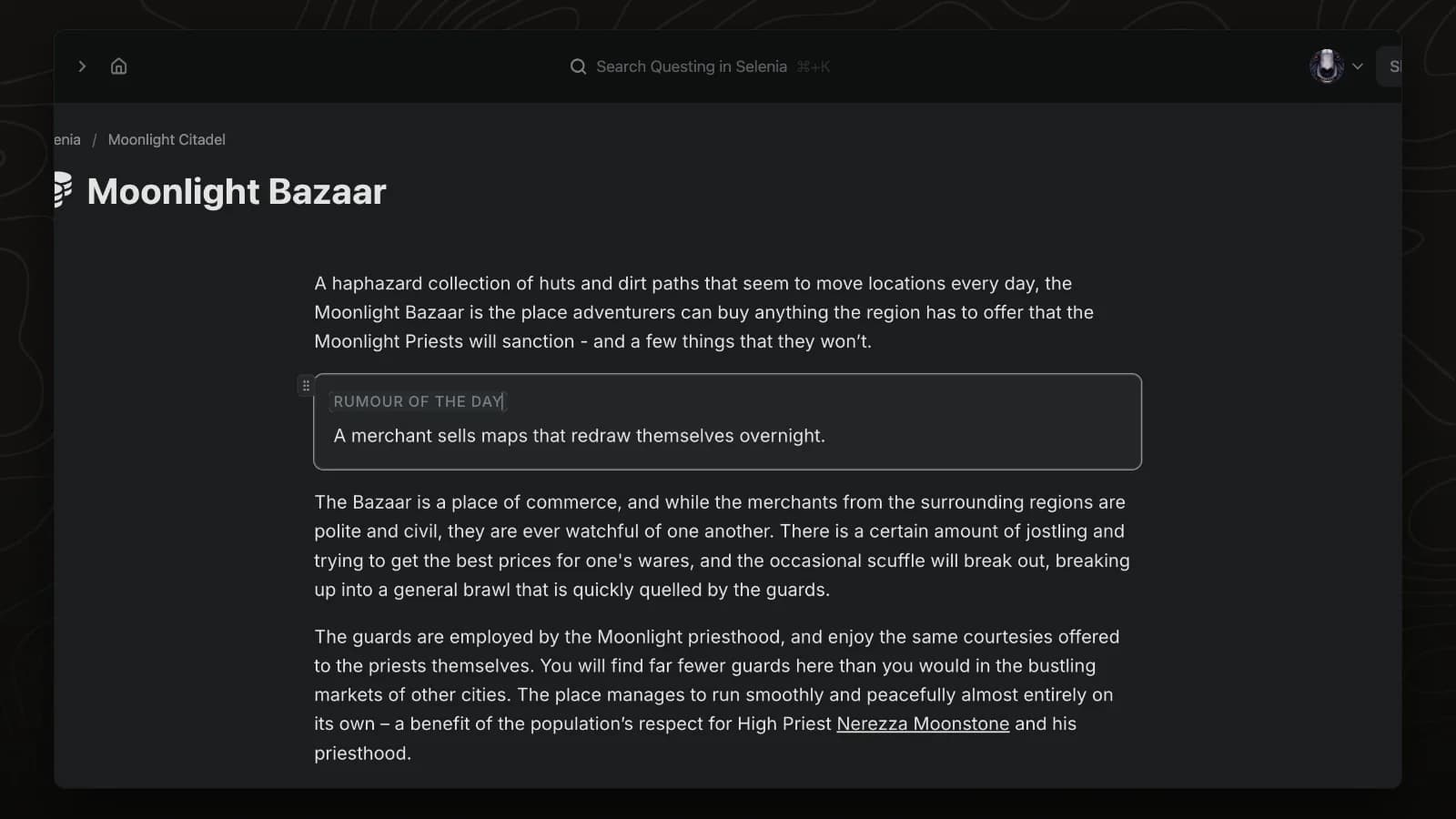
Text boxes are labelled fields inside a page, useful for rumours, read-aloud text or quick notes.
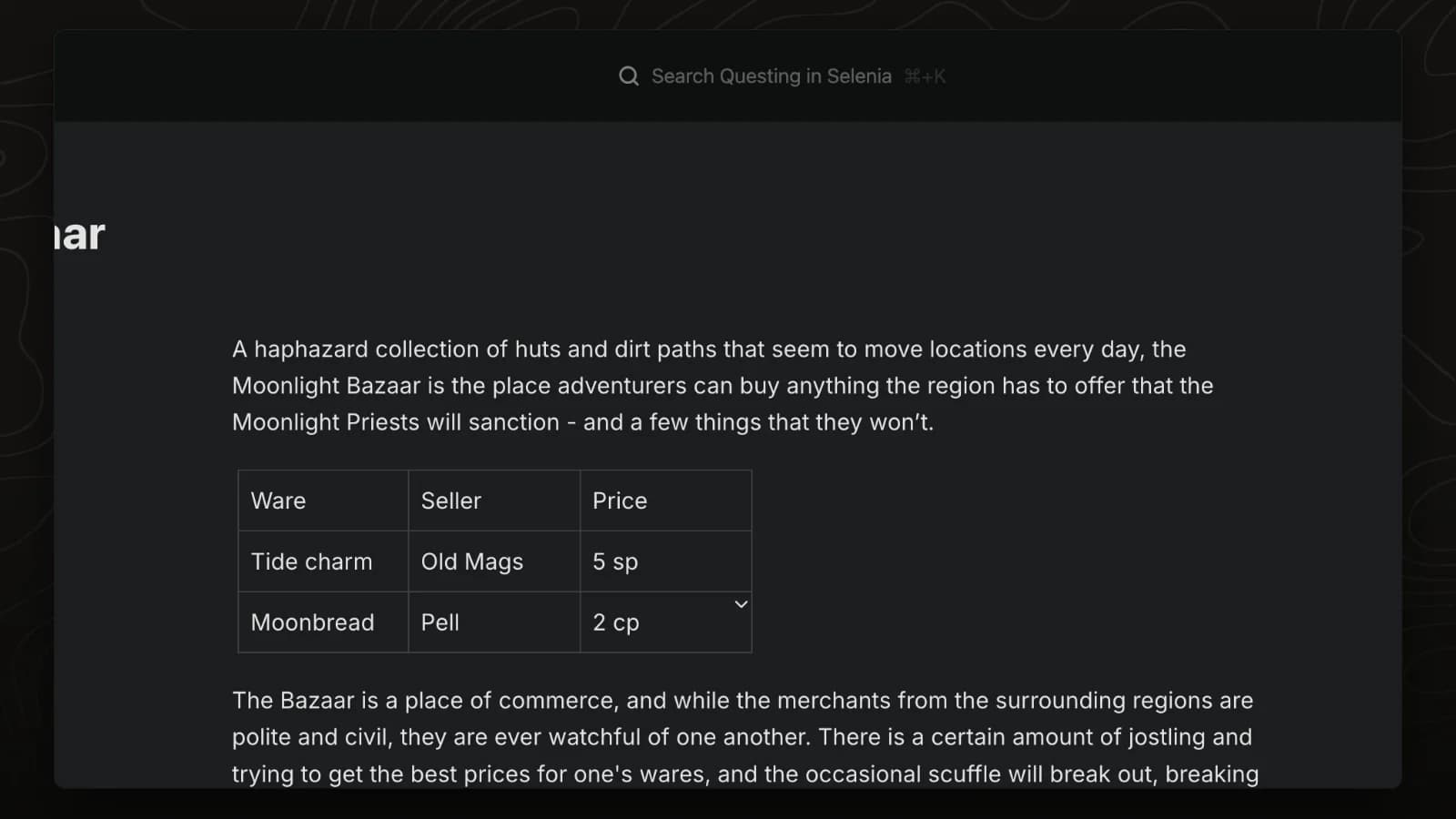
Tables hold details that line up in rows and columns, such as prices, travel times or loot. The menu in each cell adds and removes rows and columns.
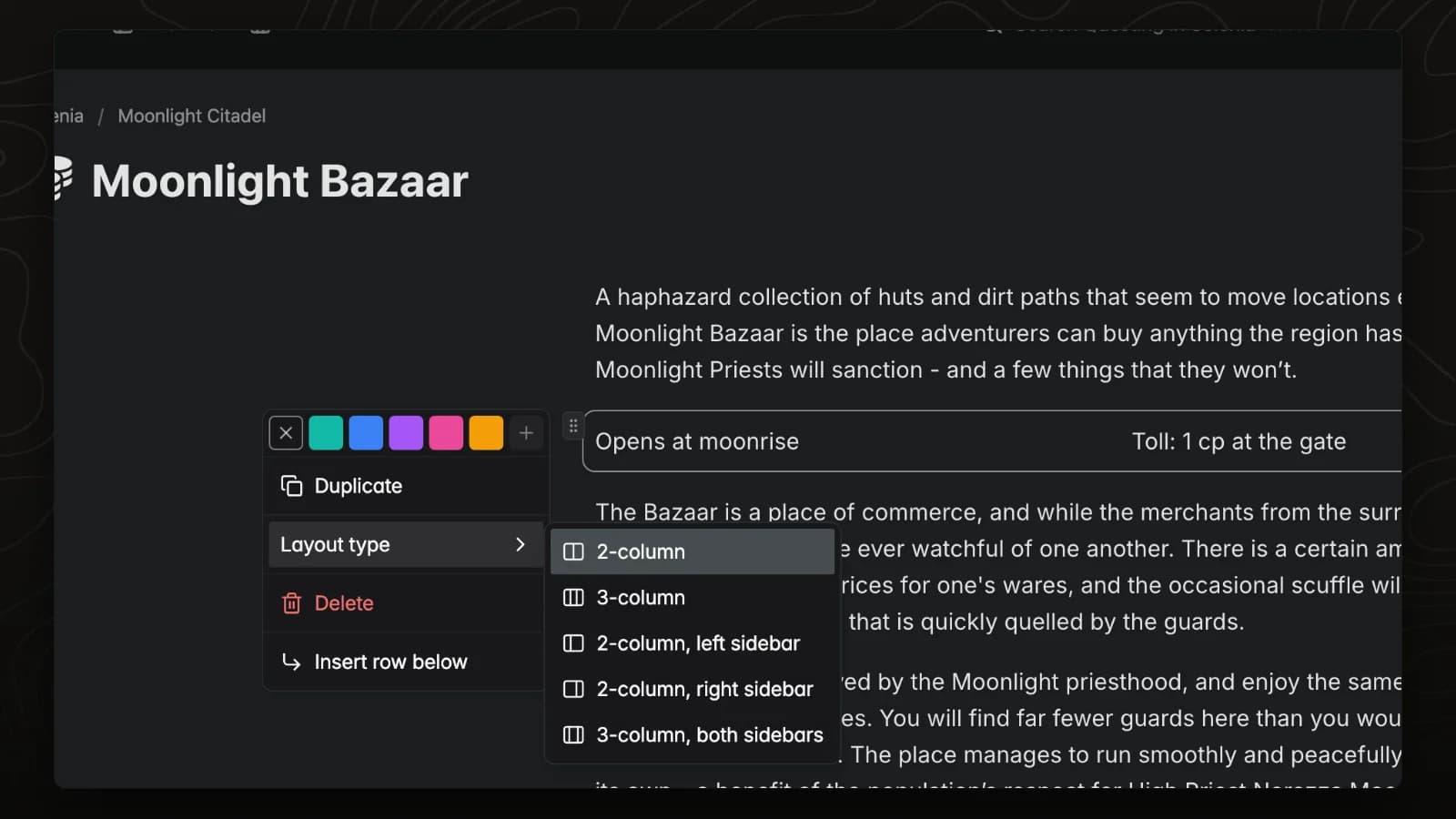
Layout blocks split part of a page into columns. The block menu switches between two and three columns and sidebar layouts.
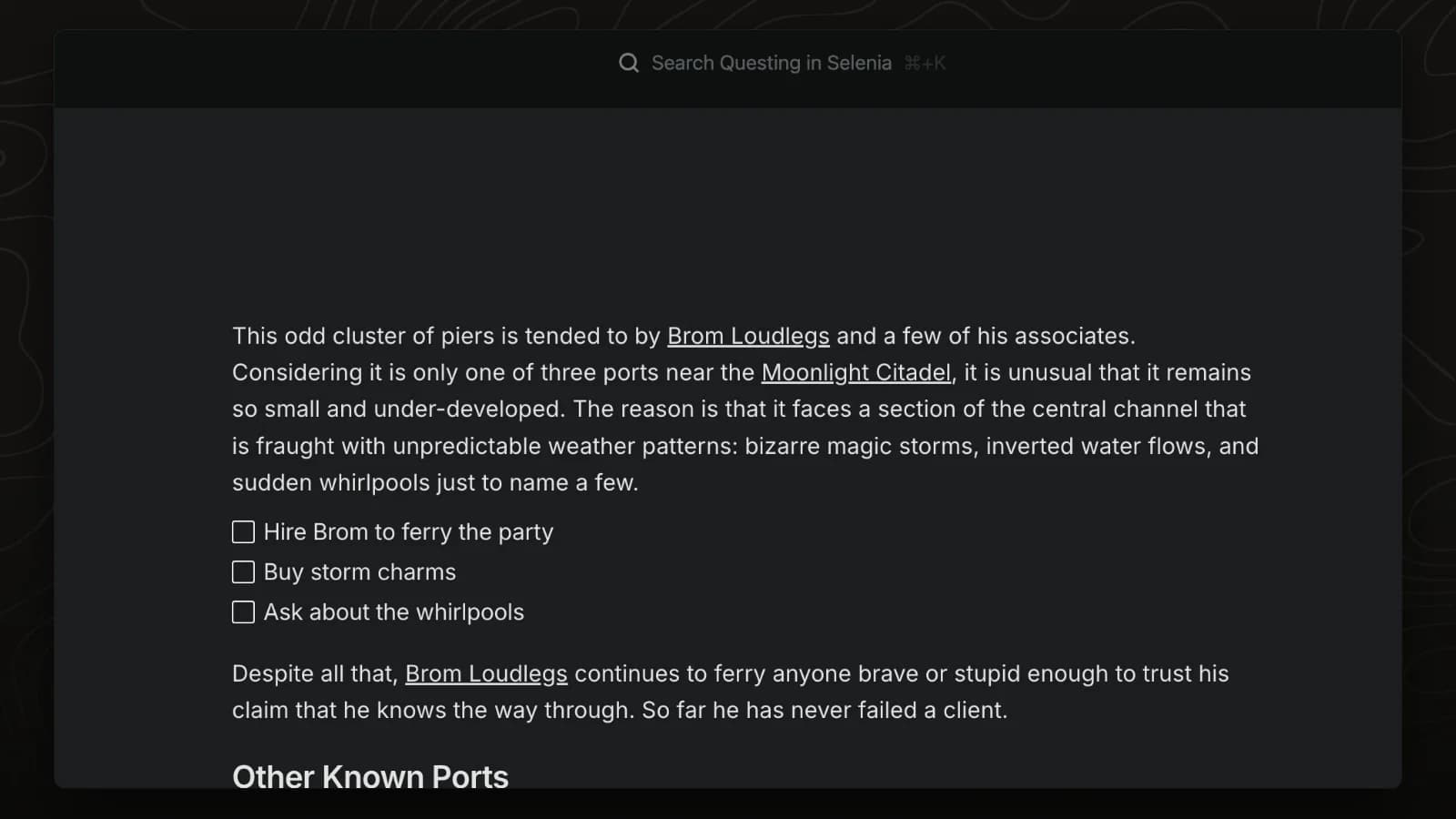
To-do lists hold items with checkboxes. Tick an item when it is done.
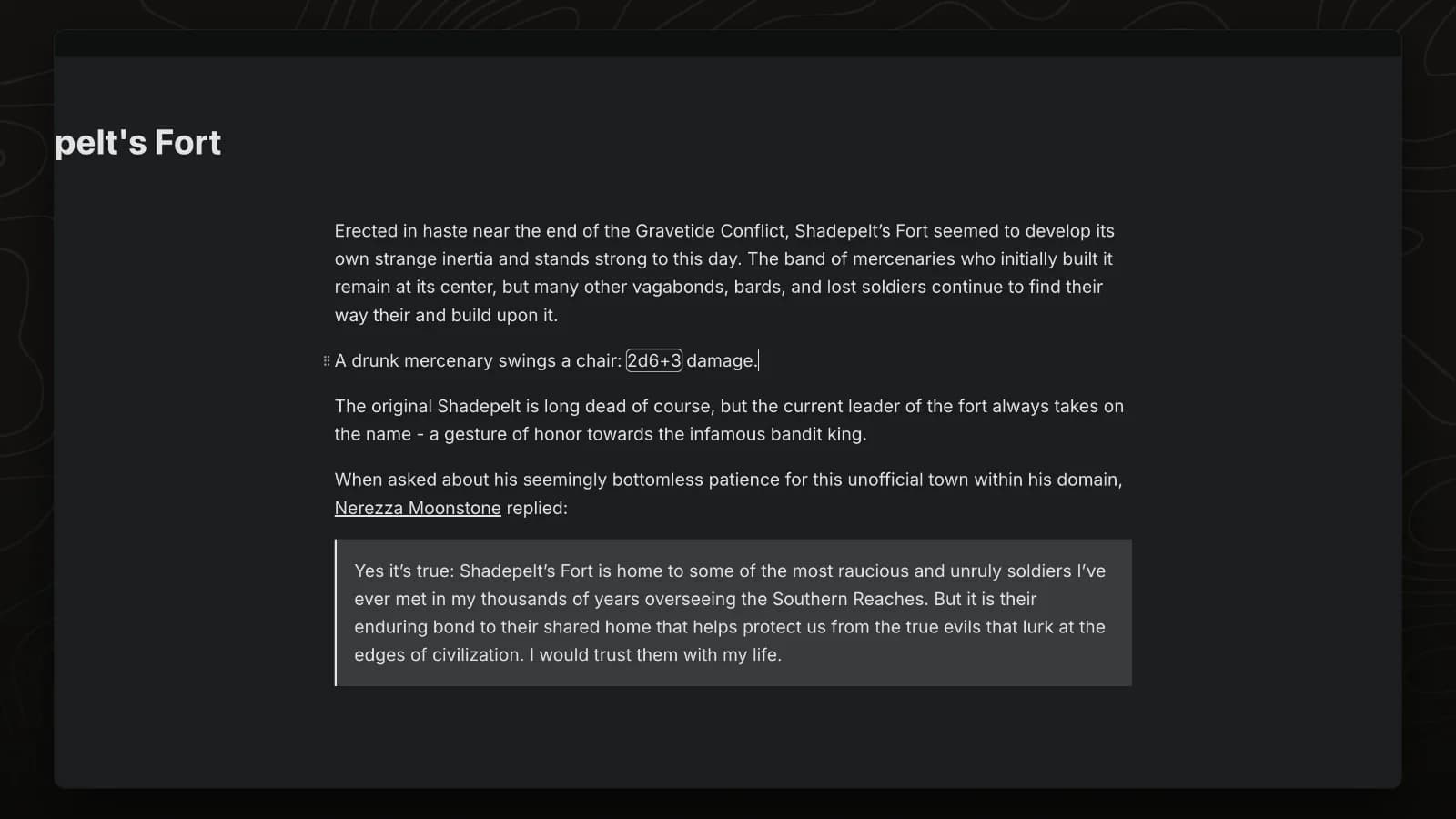
Dice notation such as 2d6+3 or d20 in page text turns into a button. Click it to roll 3D dice.
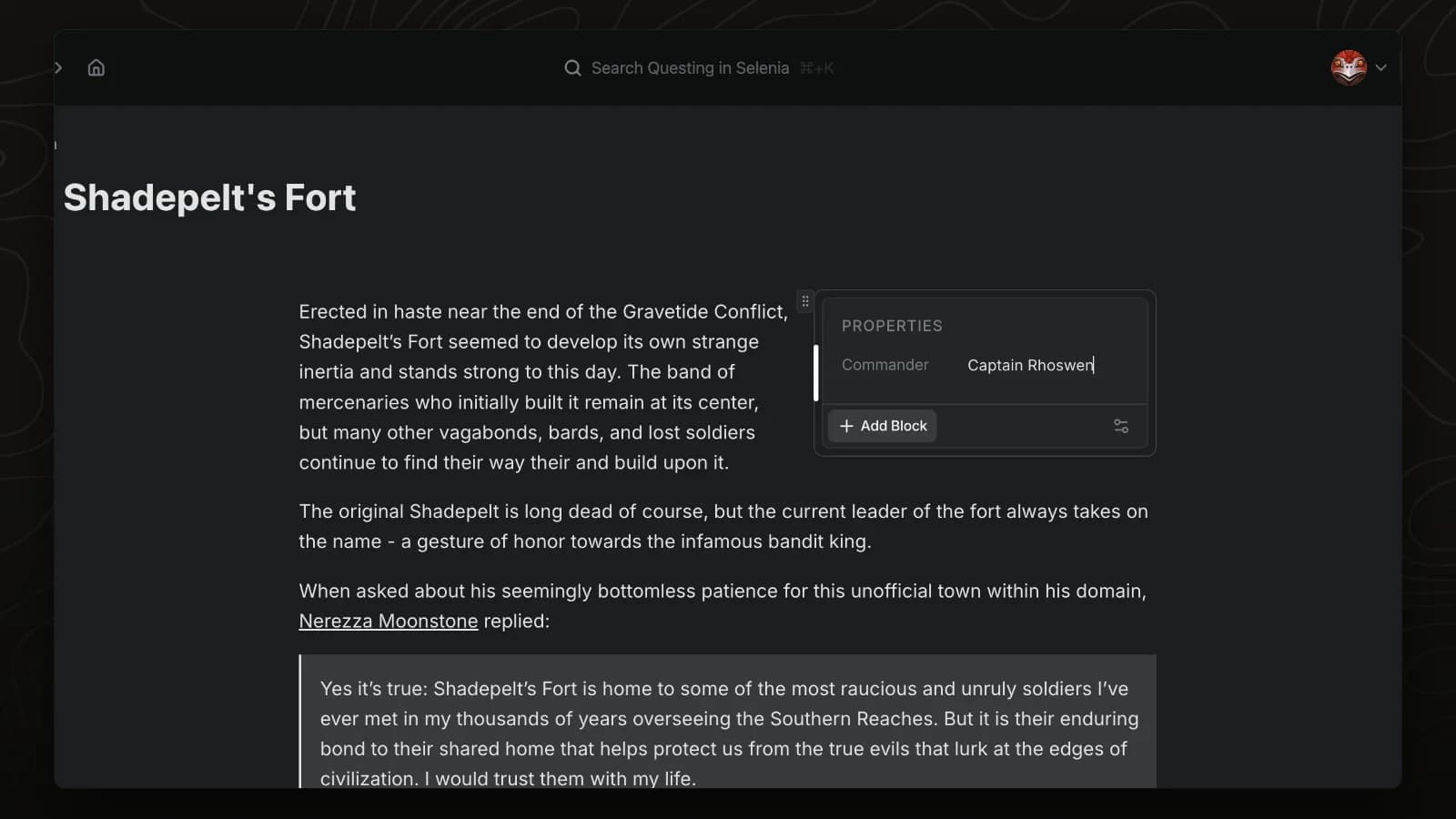
Infoboxes hold wiki-style facts beside a page's text, such as population, ruler or allegiance.
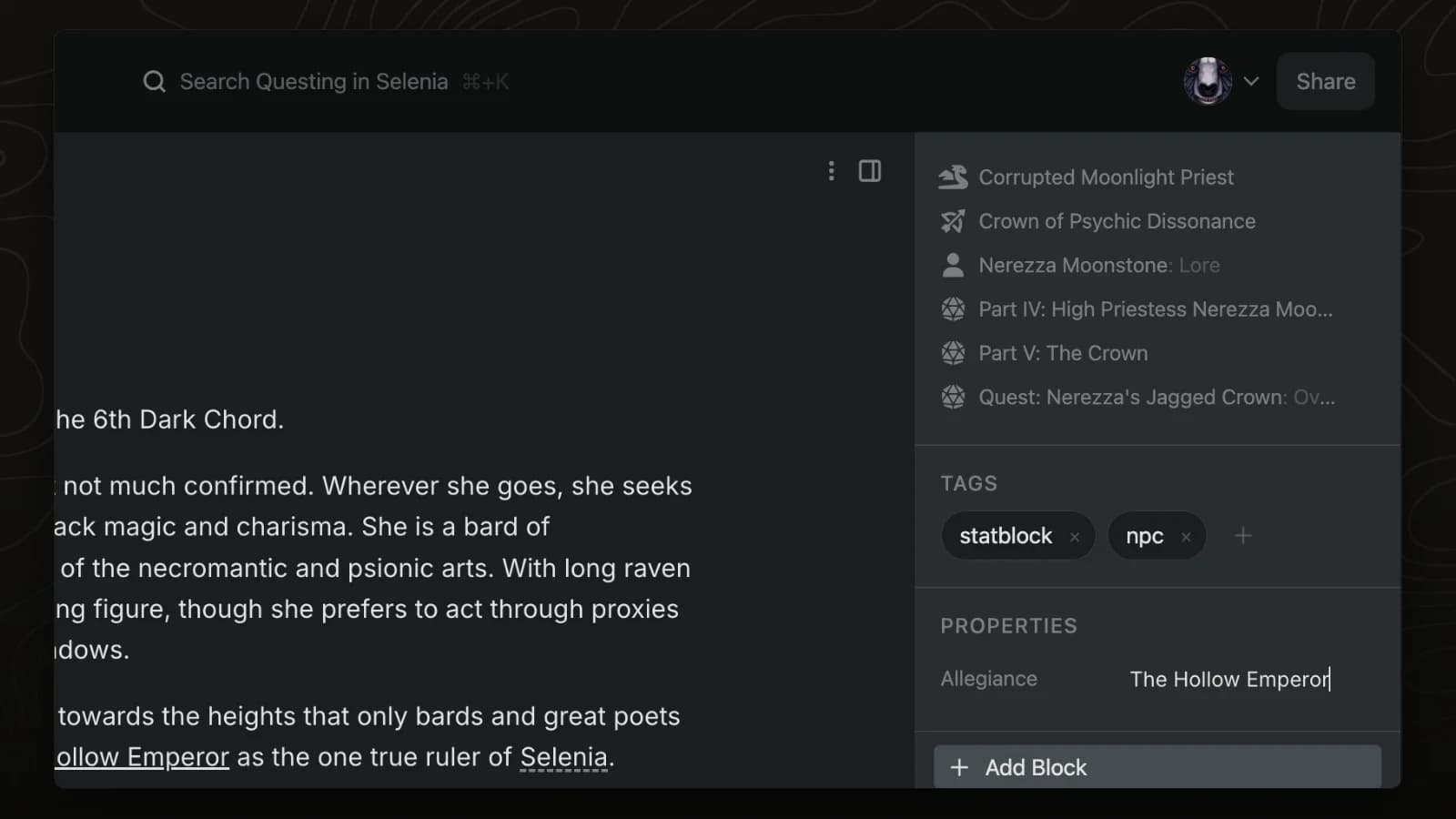
Key-value properties record quick facts, such as allegiance, age or location, in the page sidebar.
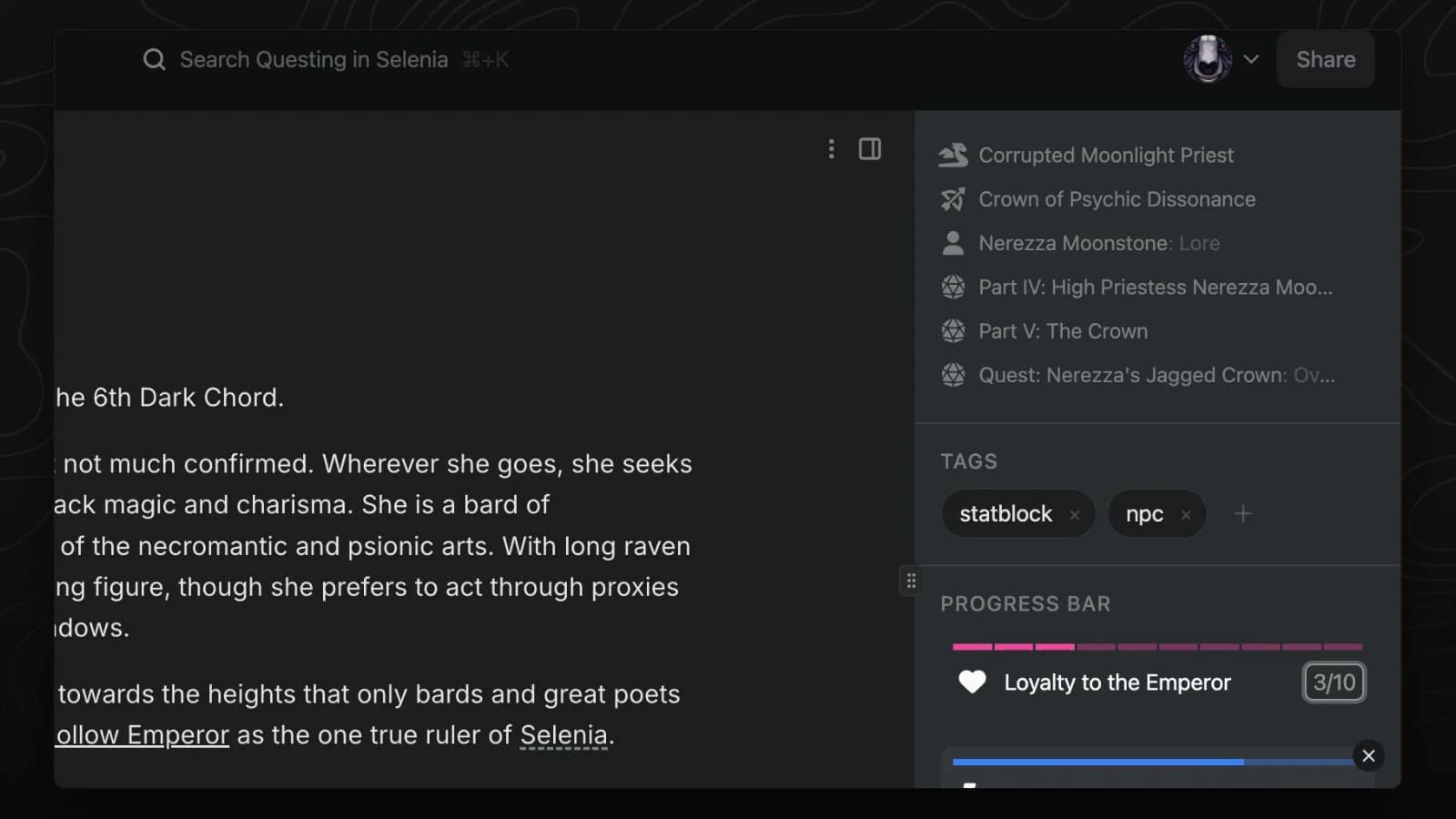
Meters track a value out of a maximum, such as loyalty, health or a faction clock.
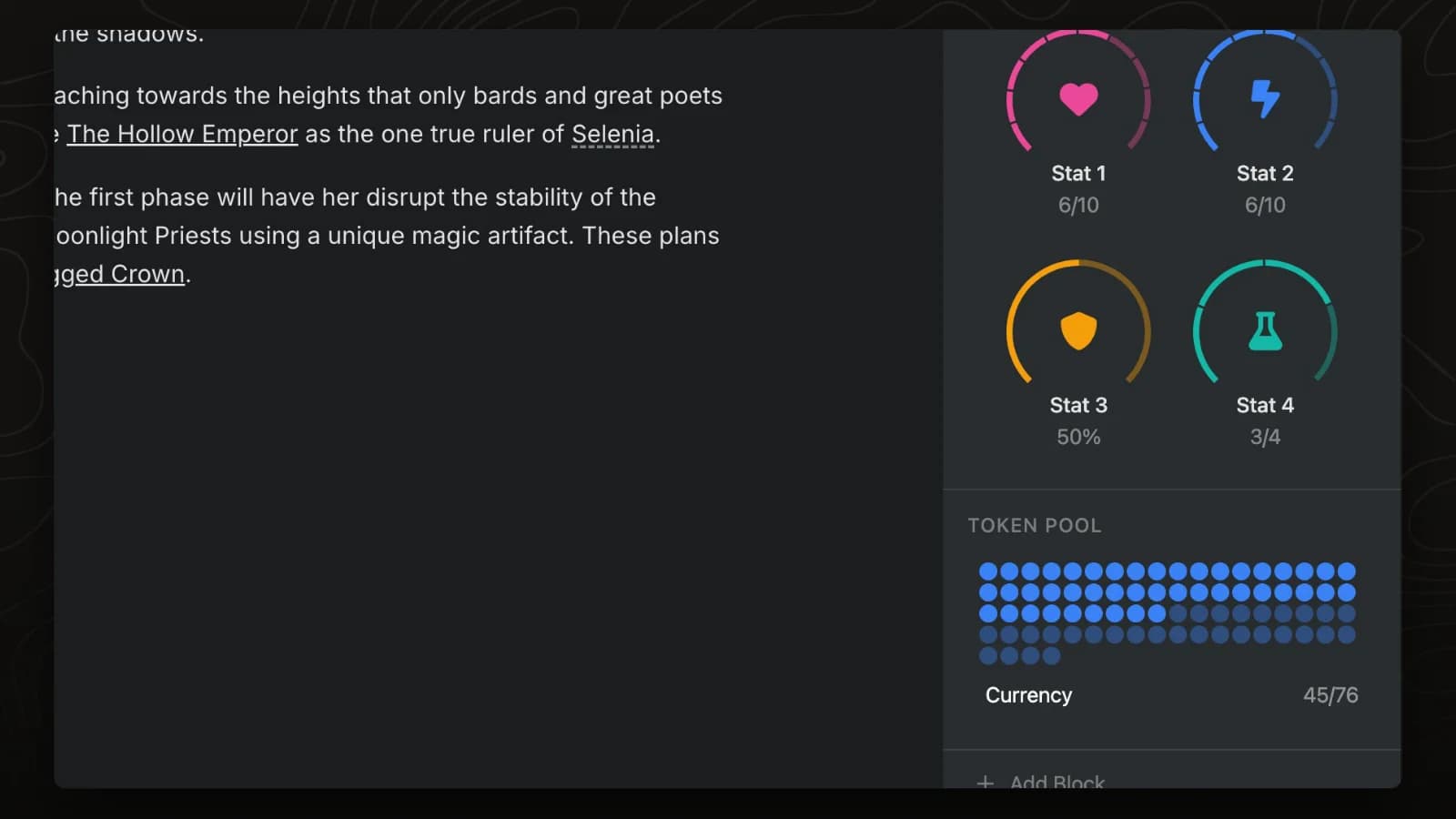
Meters come as progress bars, gauges, ratings, circles and token pools, for tracking anything from health to reputation.
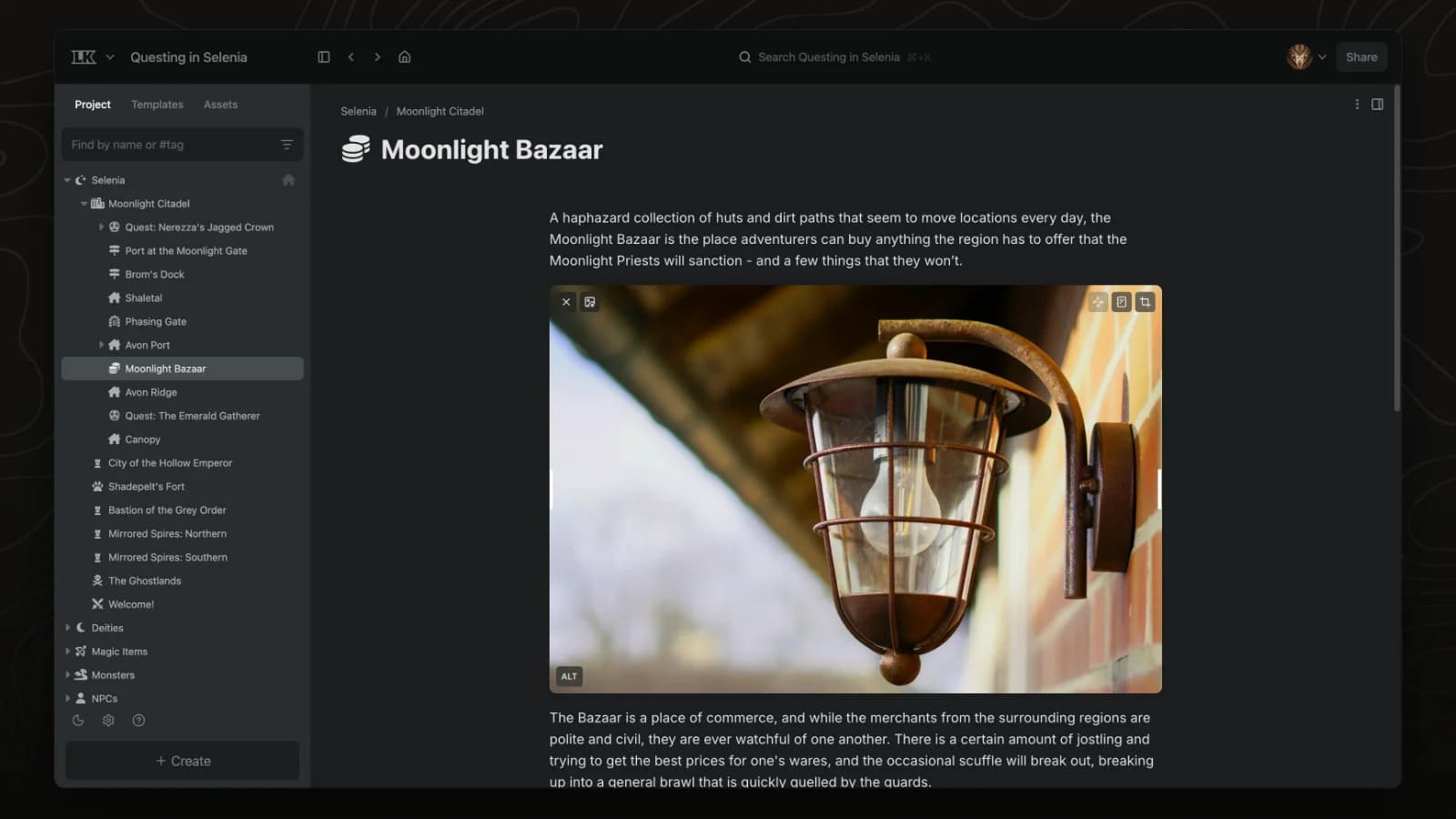
The image block adds art from your uploaded files or from Unsplash's free photo library.
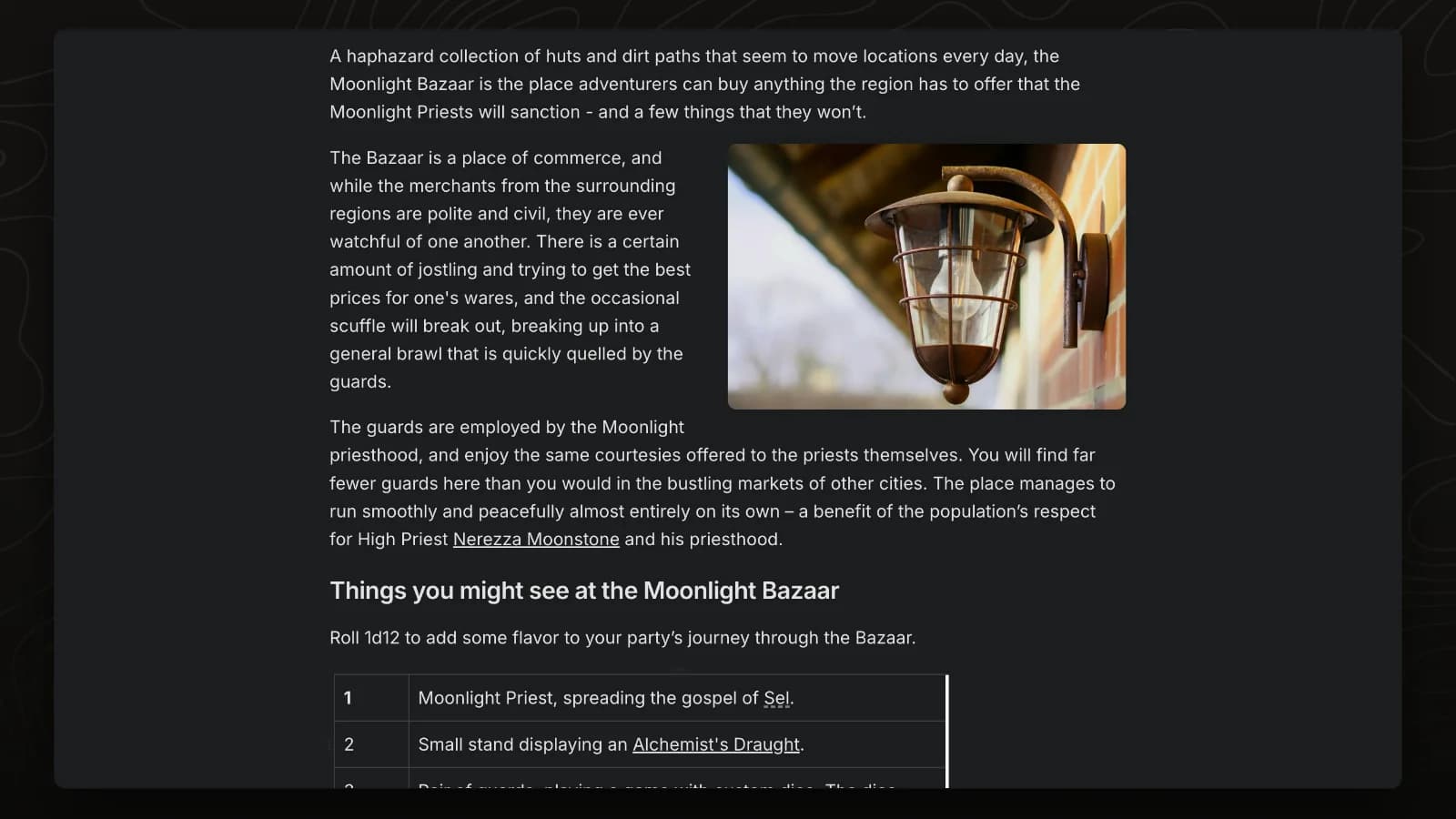
Float an image to the left or right of a page and the surrounding text flows beside it.
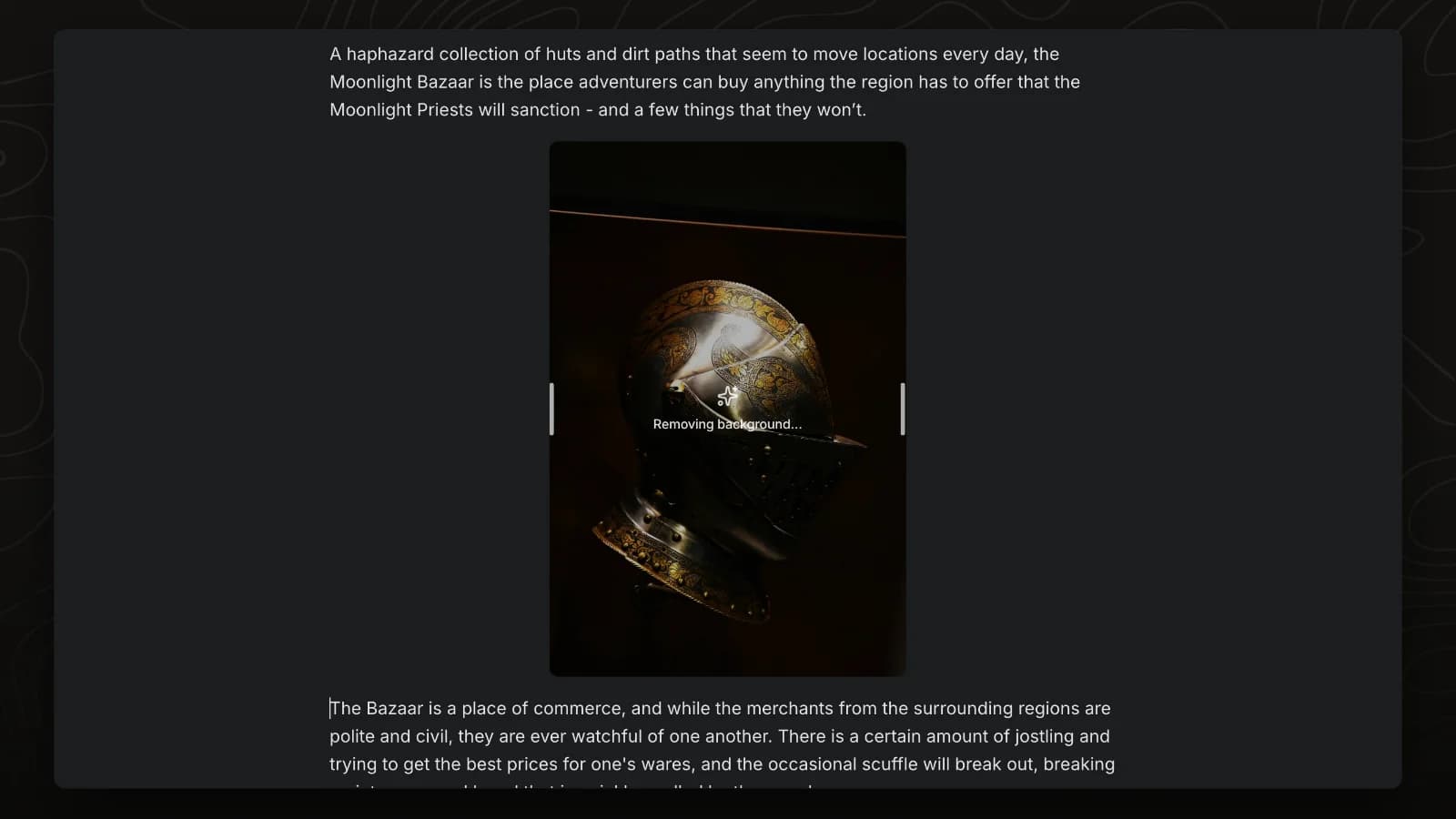
LegendKeeper removes image backgrounds on your own device, which is useful for character portraits, tokens and item art.
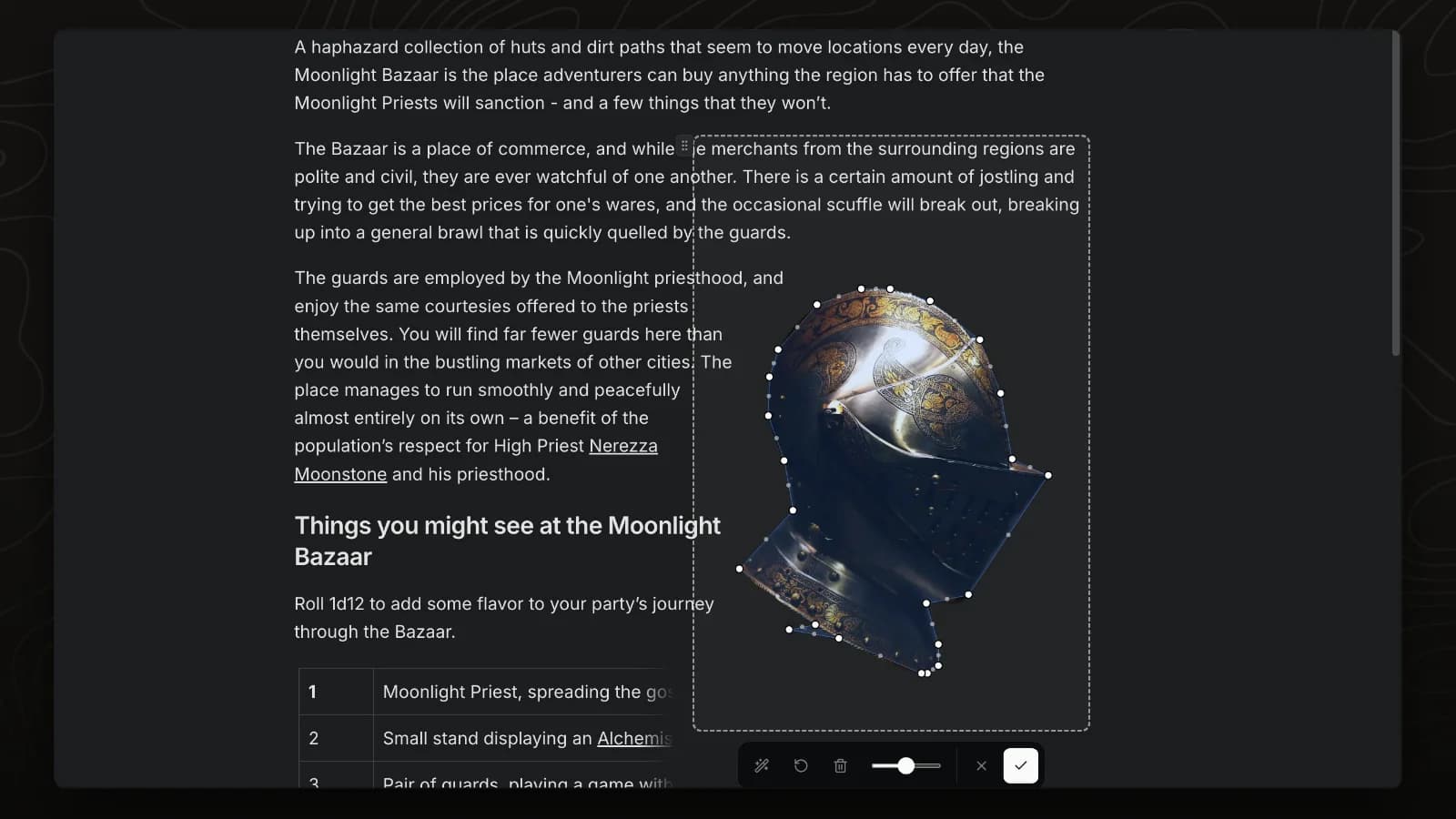
Auto-trace detects the outline of an image so text wraps around its shape.
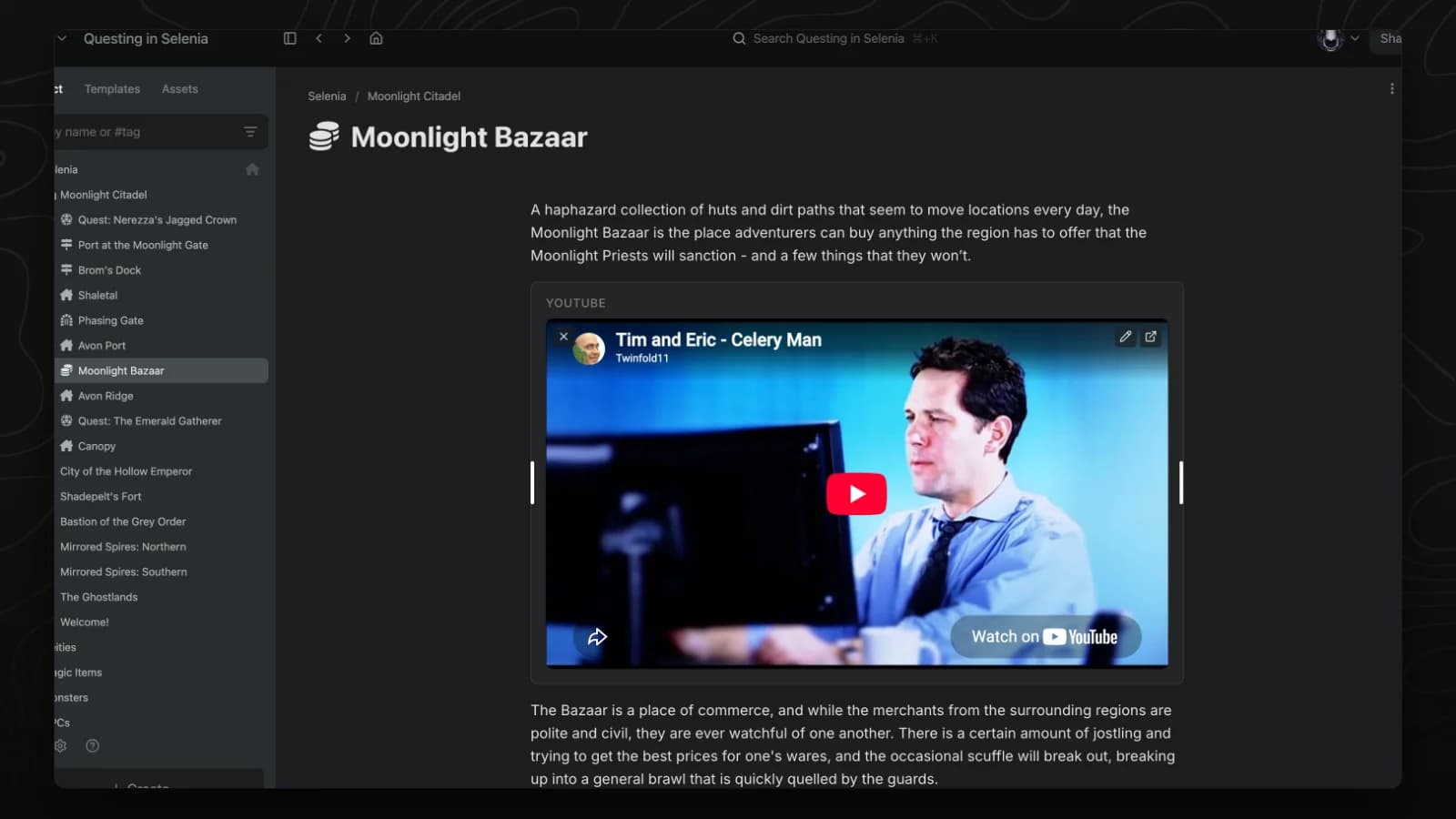
Embed a YouTube video on any page, such as ambience, a reference or a recap.
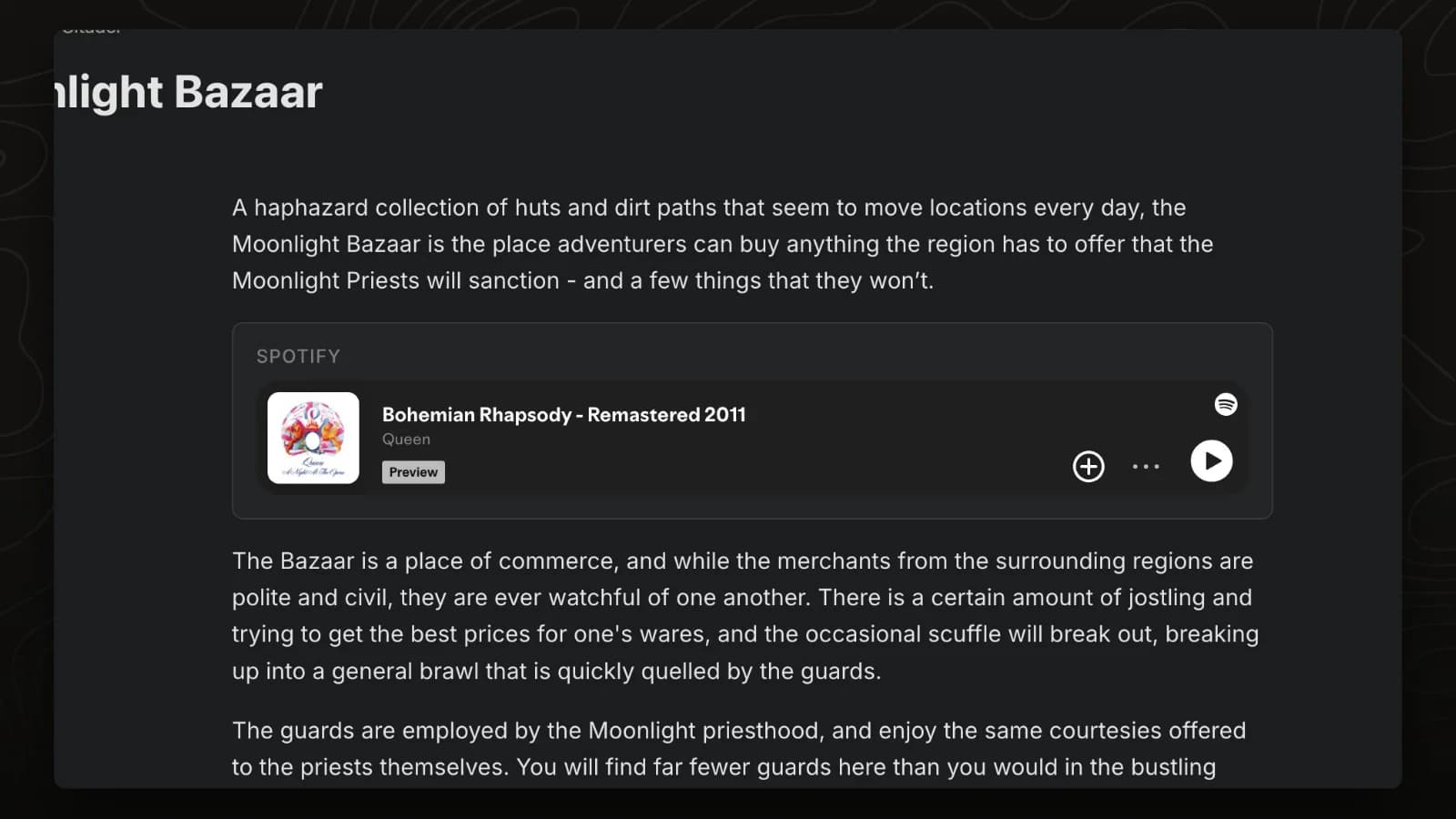
Embed a Spotify track on any page to give each scene its music.
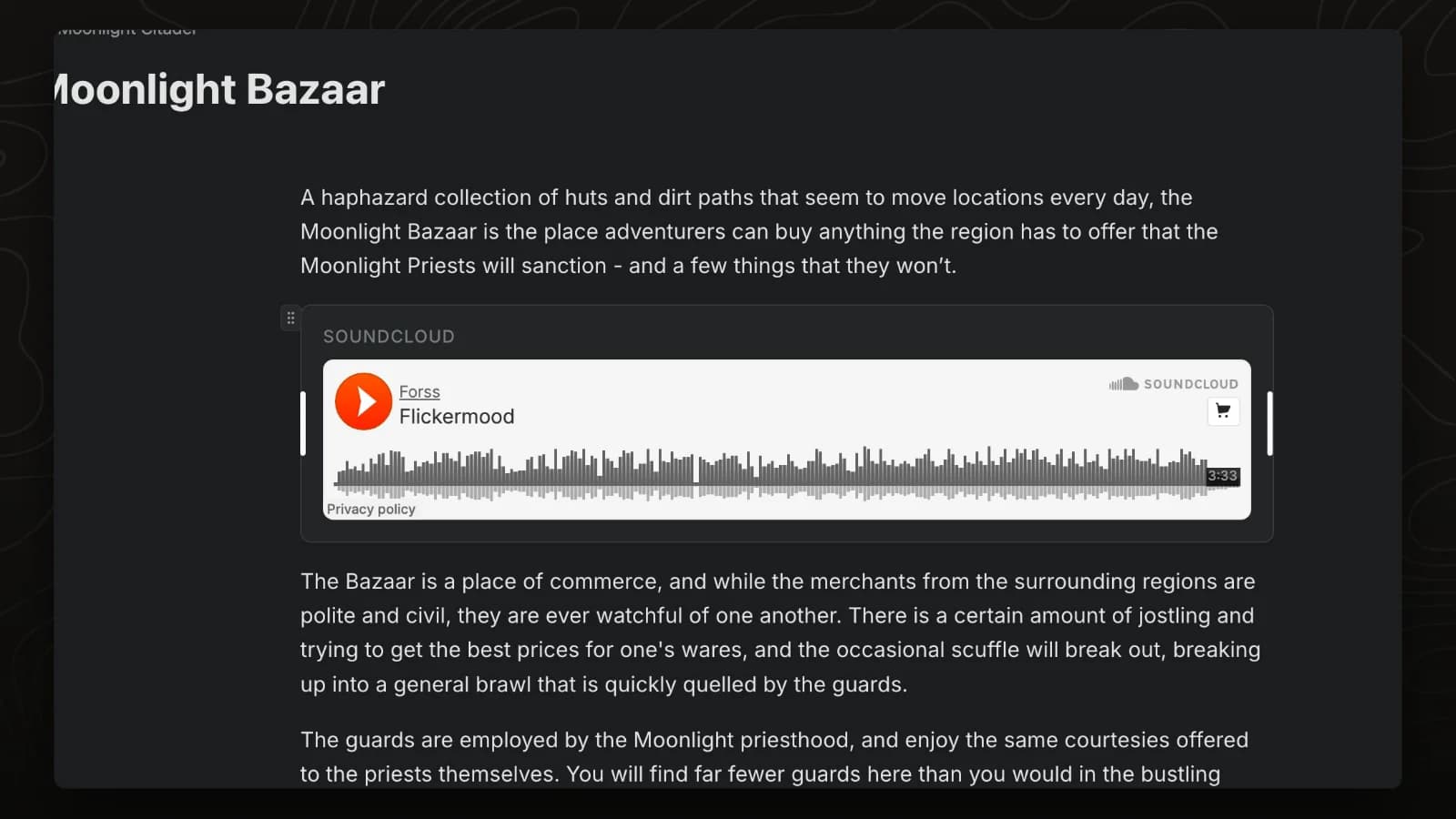
Embed a SoundCloud track on any page to set the atmosphere for a scene.
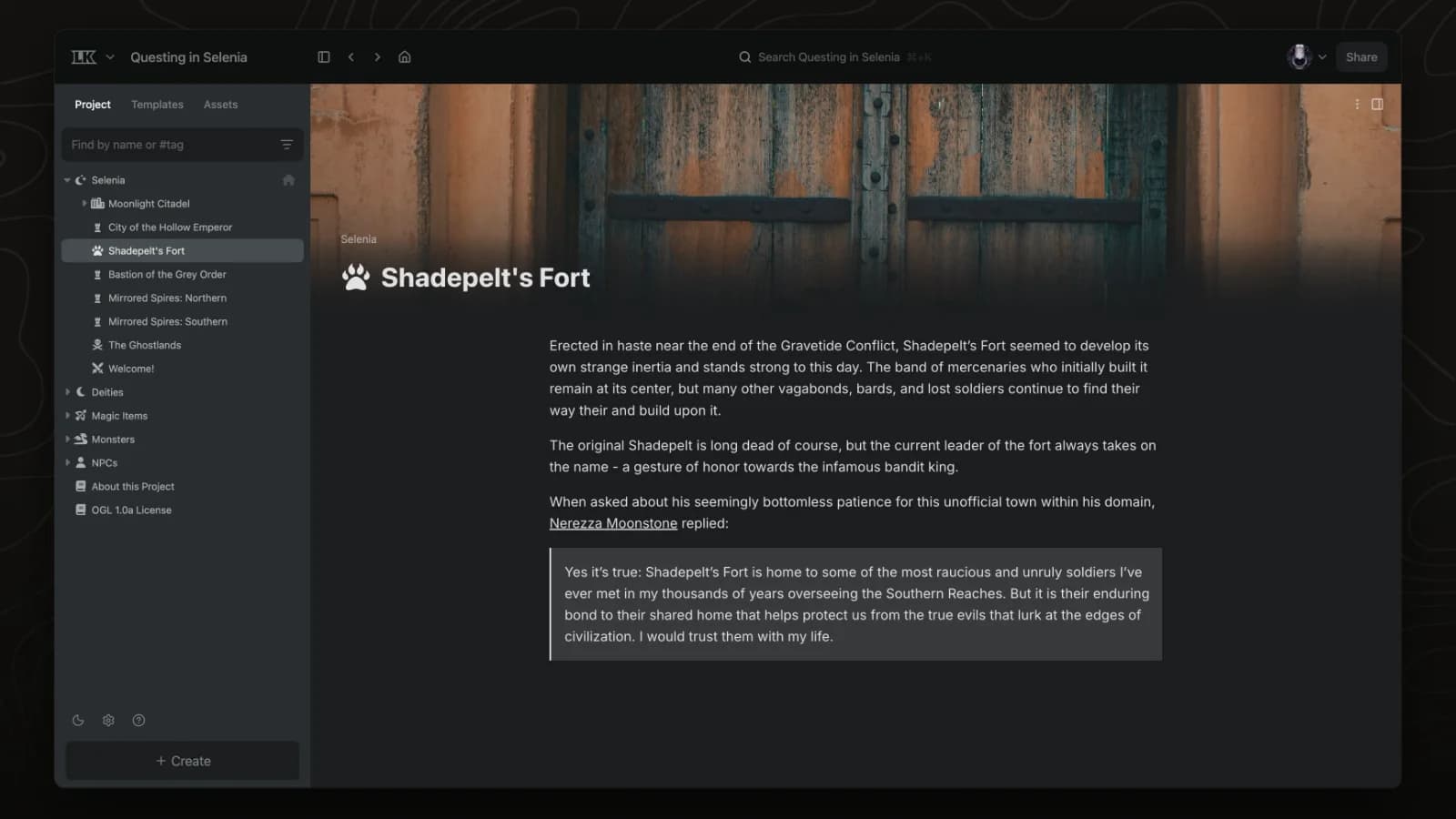
Banners set the tone of a page. You can pick one from your own files or search Unsplash's free photo library without leaving the page.
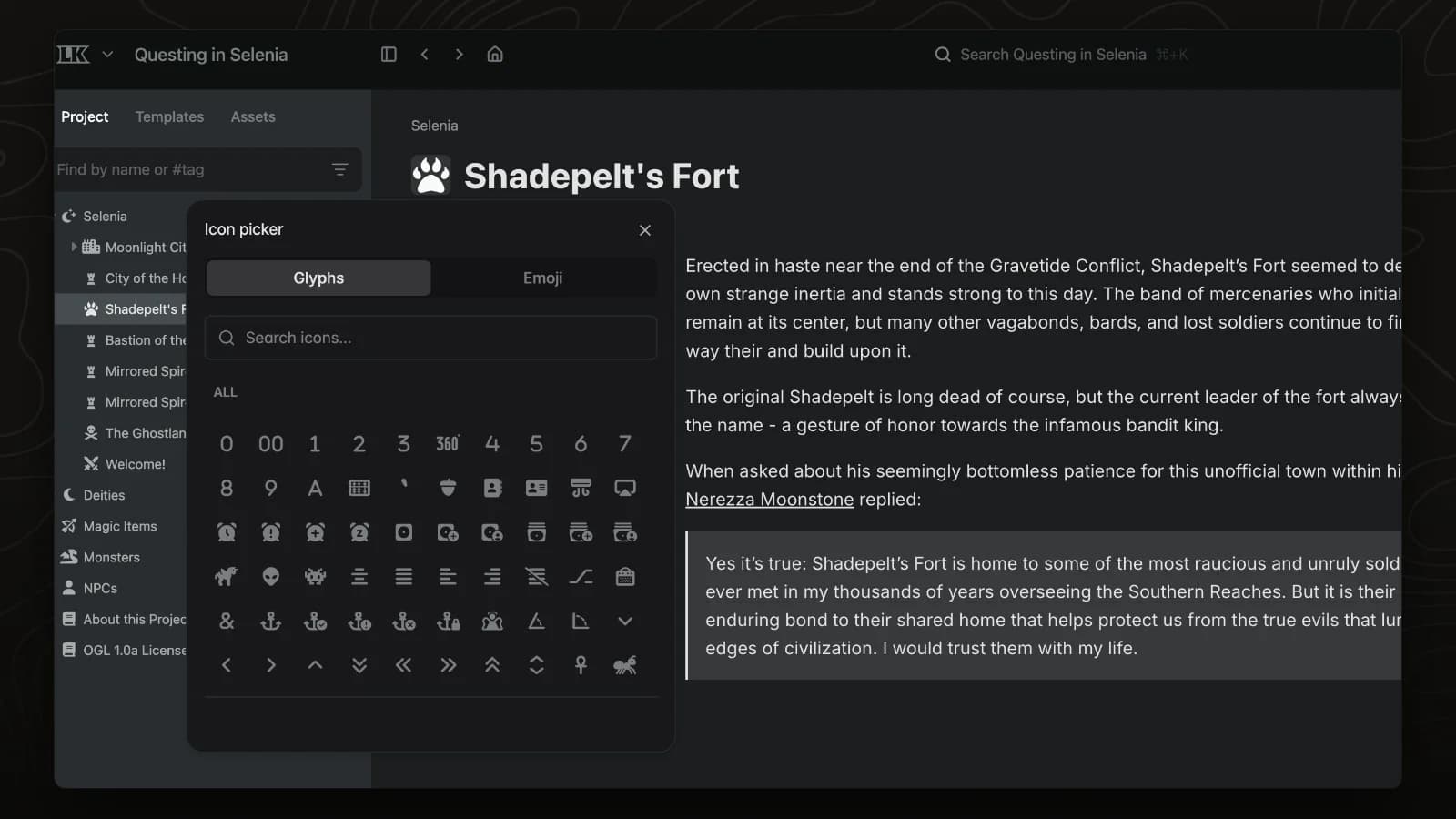
Every page has an icon that appears in the sidebar, in links and on map pins. Search the icon library to find one that fits.
Reuse the structure of a page for new pages.
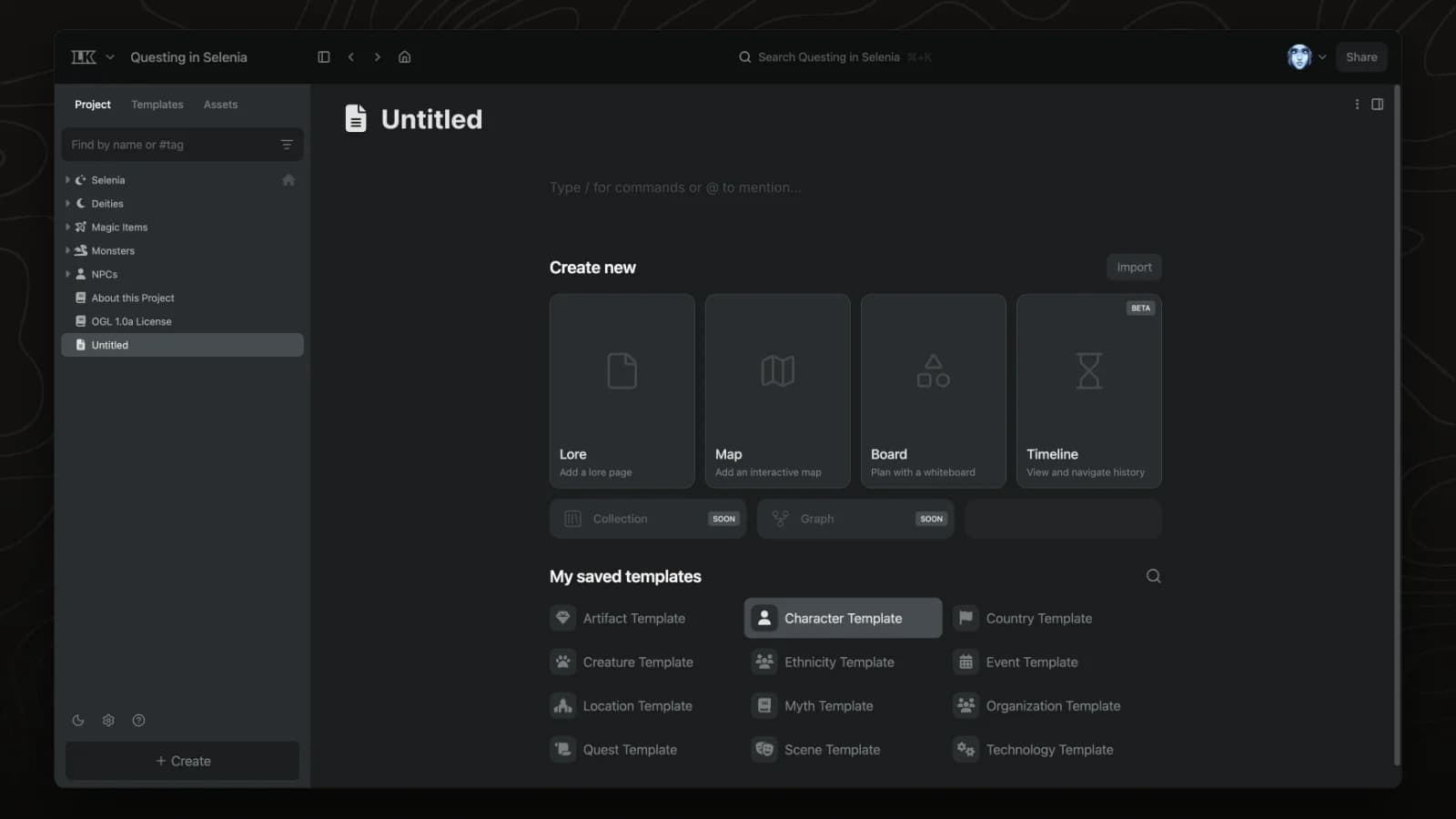
Templates give new pages a ready-made structure, such as a character sheet or location outline.
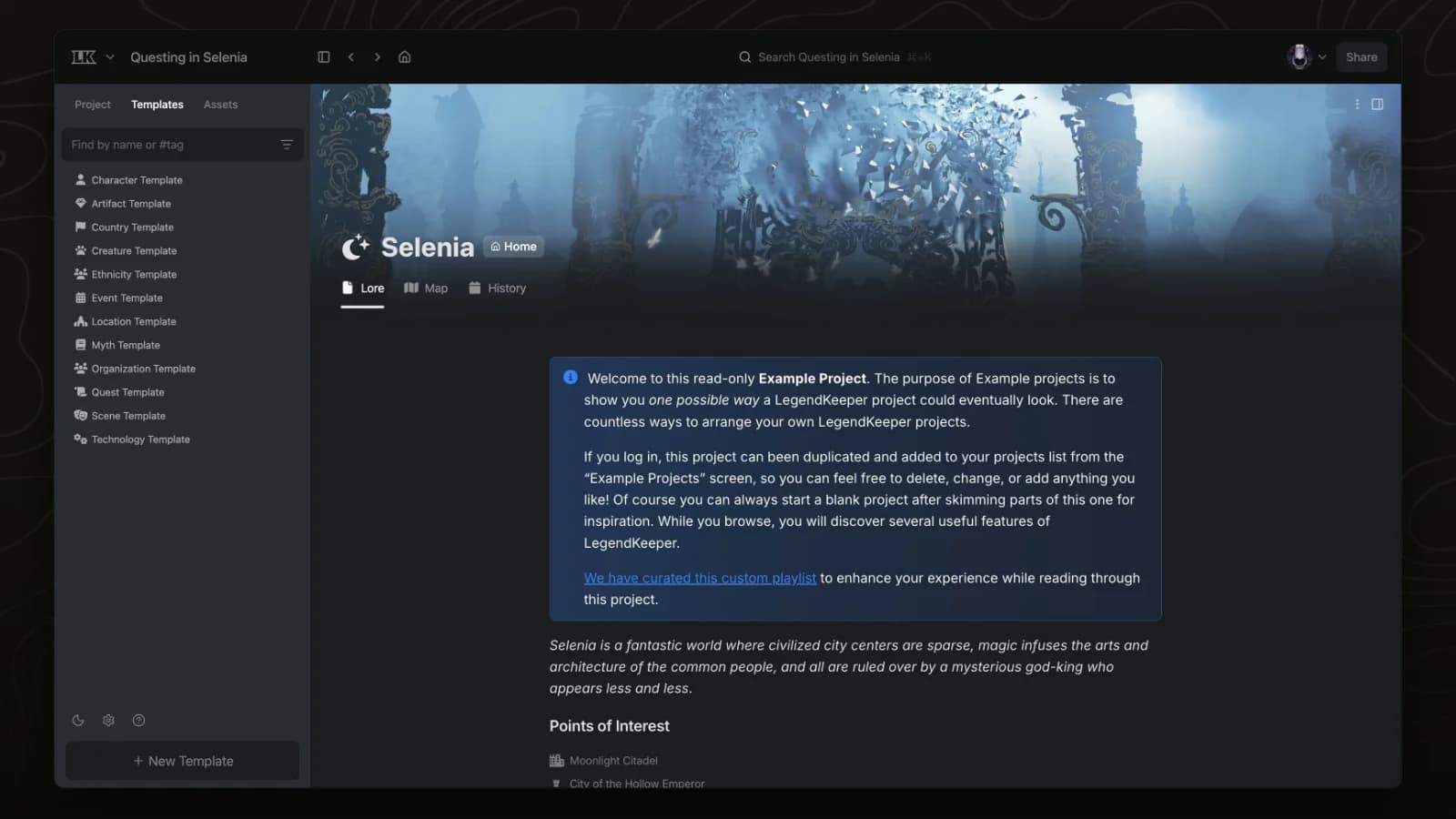
The Templates tab lists every template in a project. Templates are pages, so you edit them the same way.
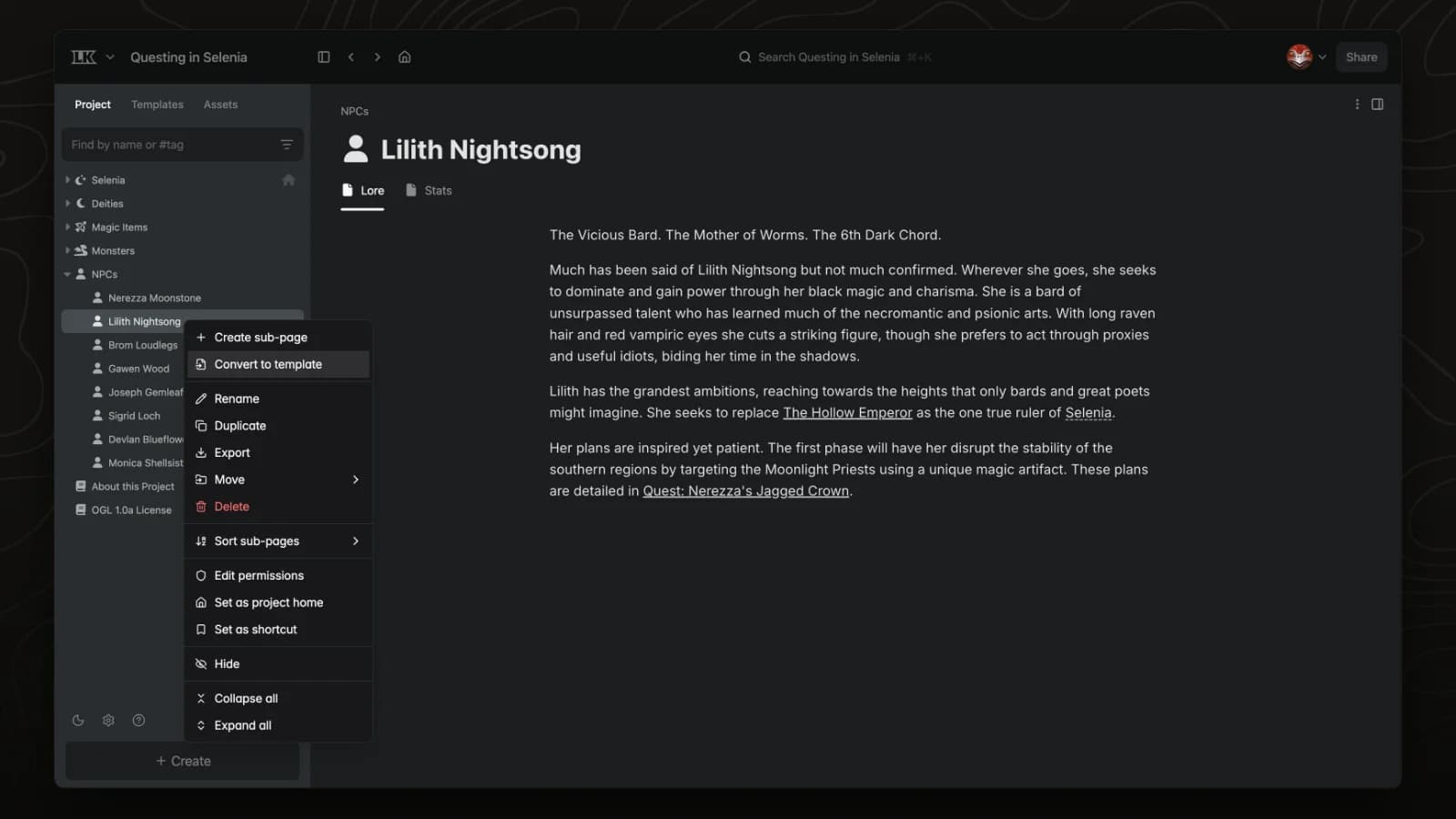
Any page can become a template. New pages created from it start with its structure and content.
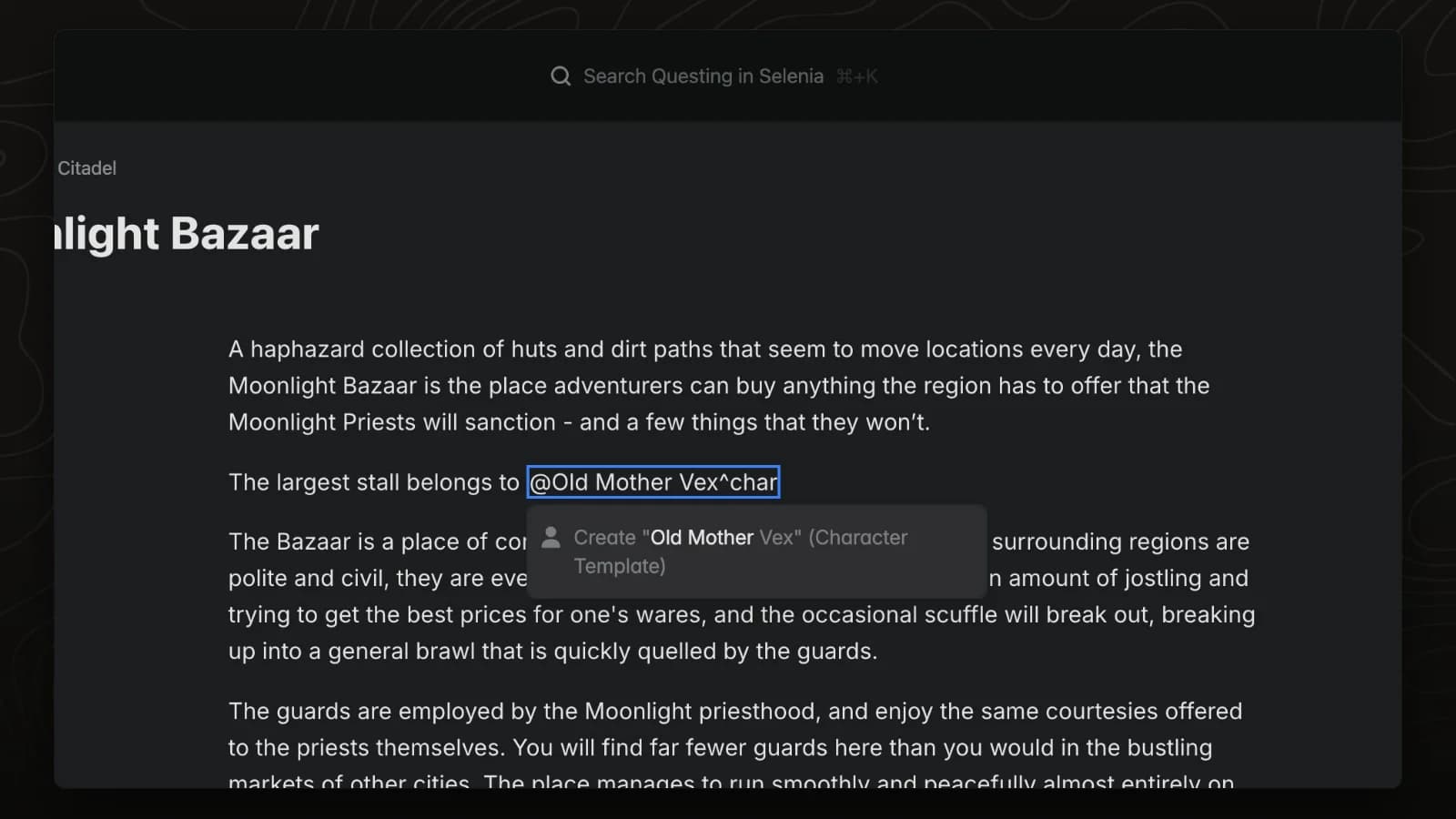
Quick template mode: type @ and a new name, then ^, to pick a template for the page you are creating.
Pins, paths, regions, labels, measuring and routes on your maps.
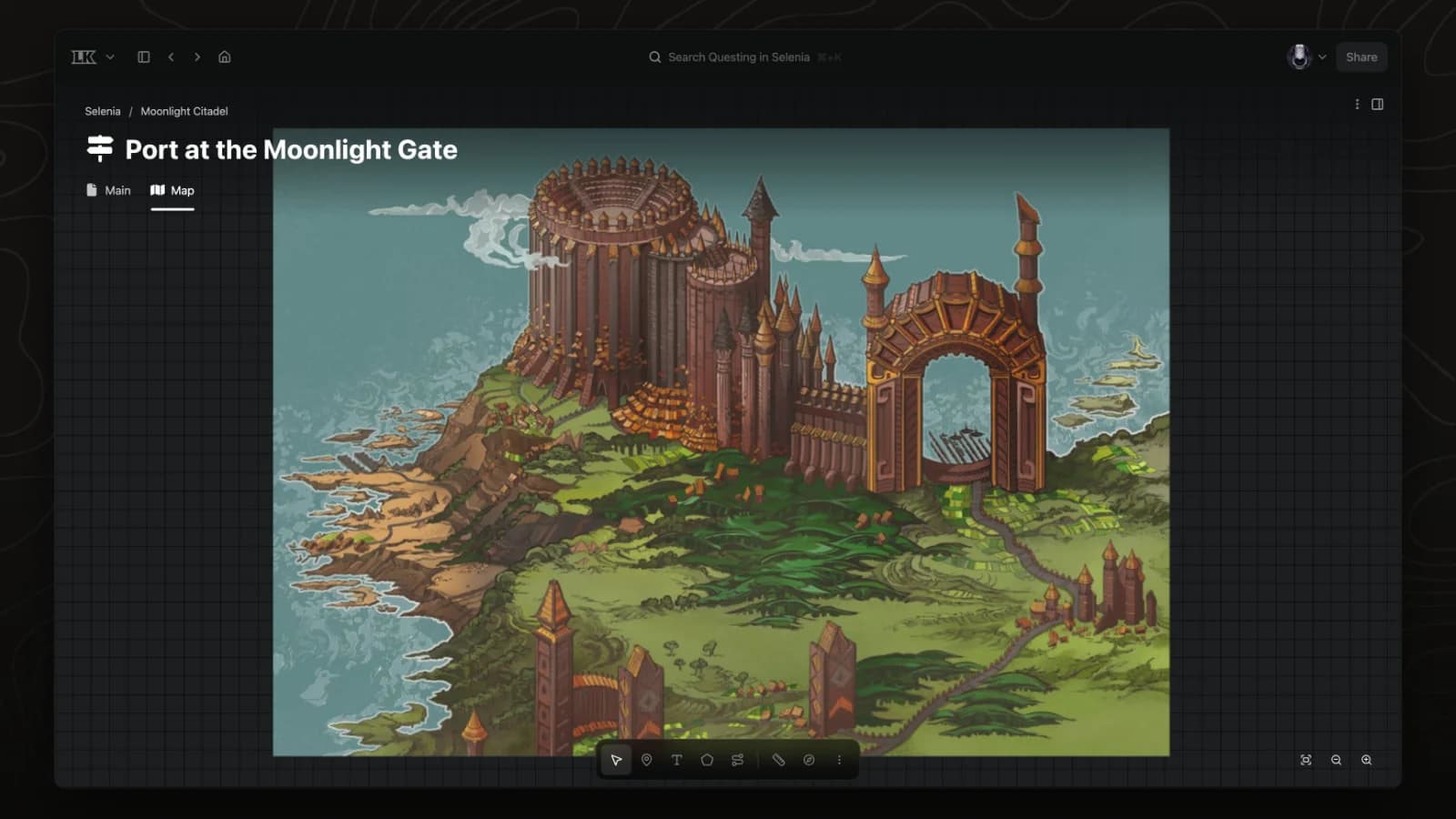
Any image can become an interactive map. Add a Map tab to a page, upload the image, and add pins, regions and paths on top.
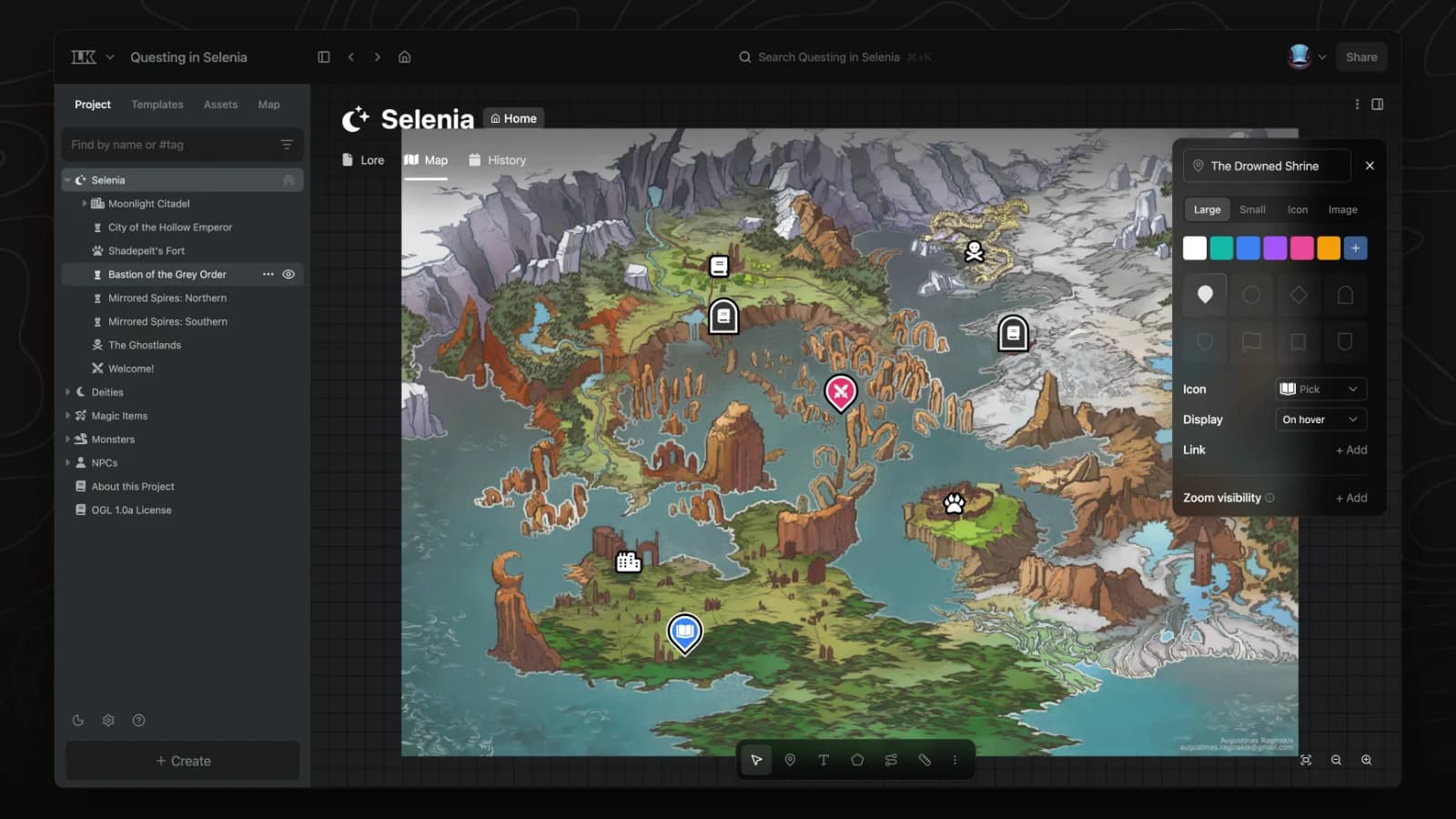
Pins mark places on a map. Link a pin to a page to connect the map to your wiki.
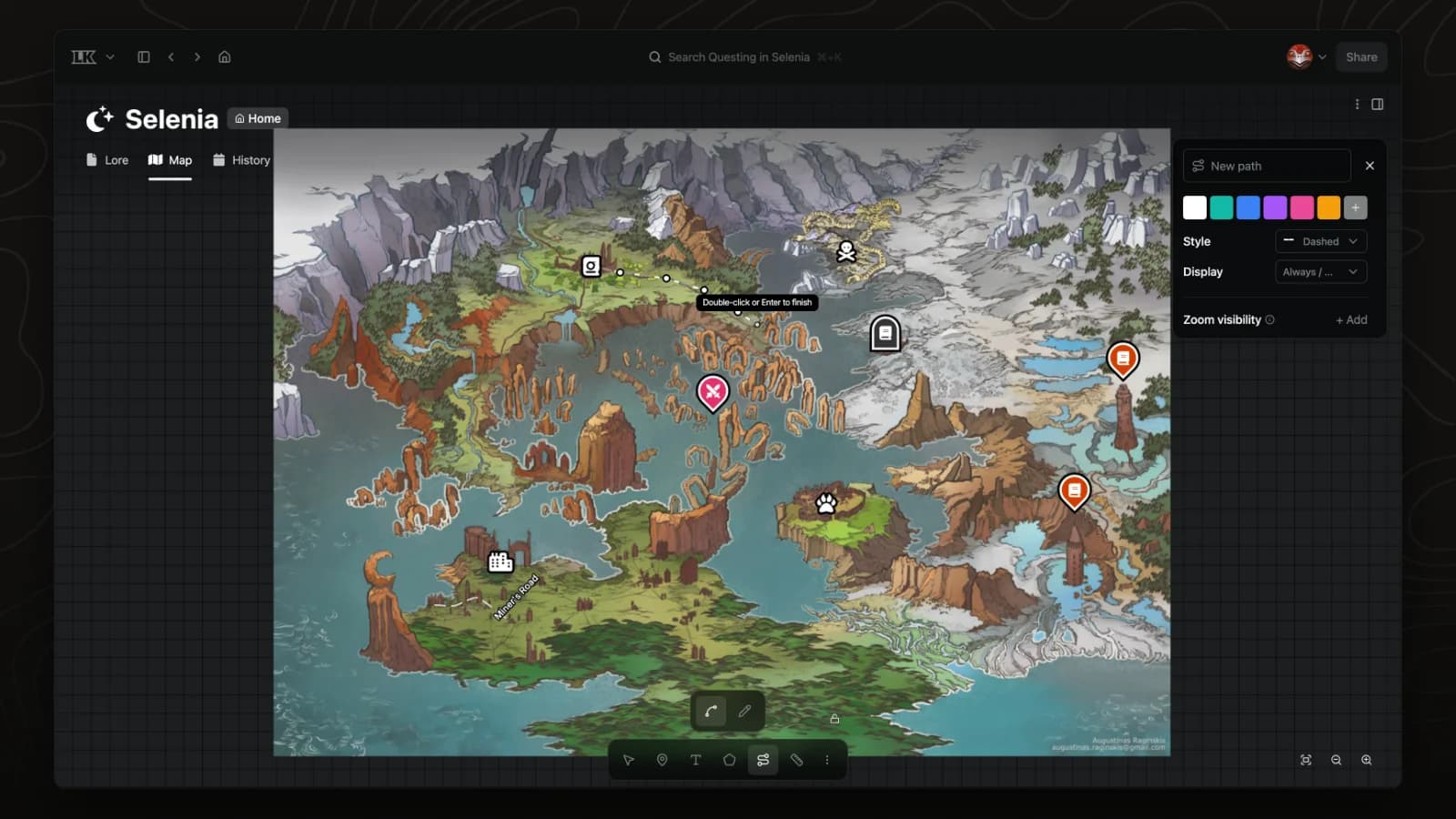
The path tool draws roads, rivers and travel routes on a map.
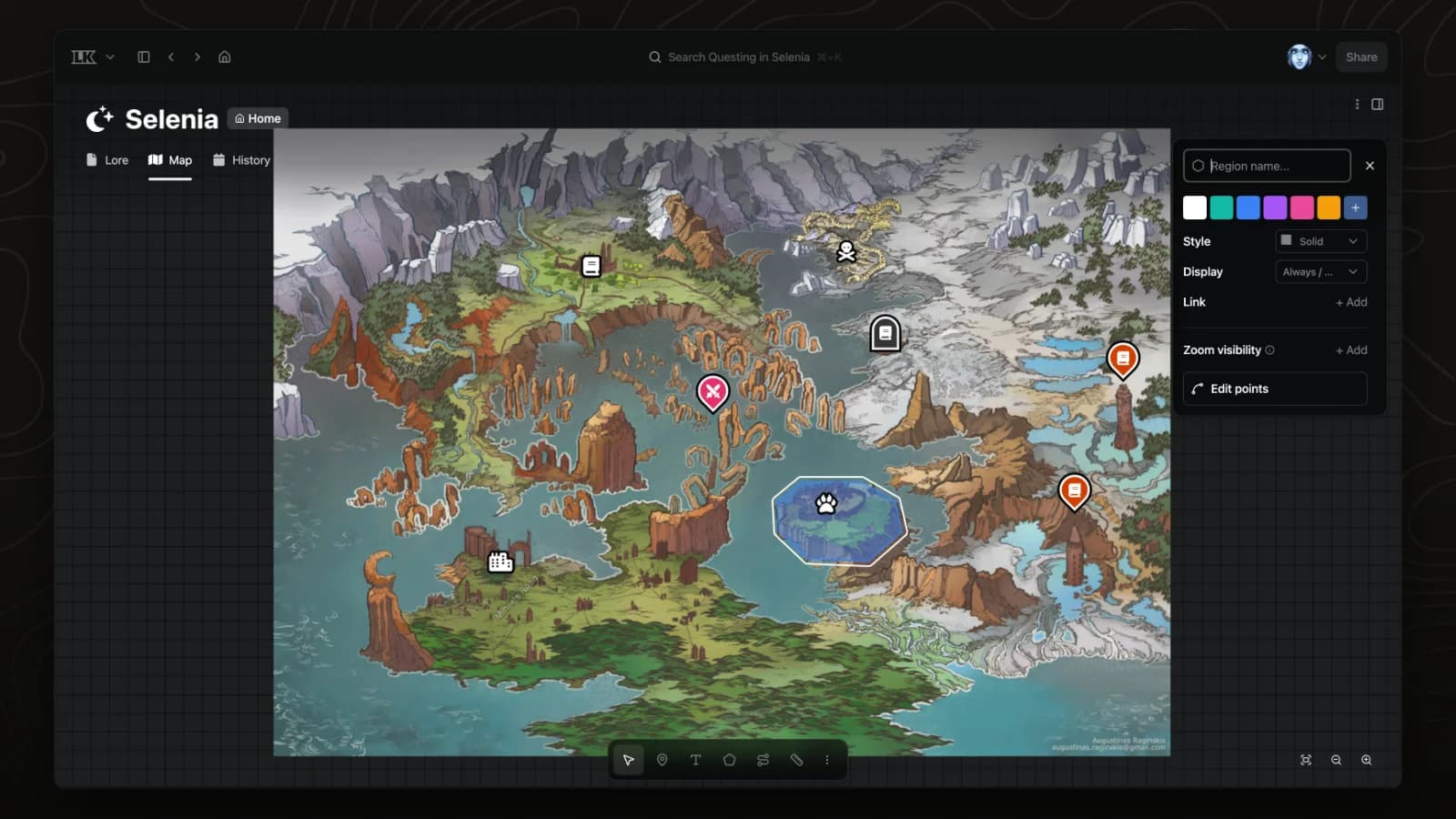
The region tool outlines territories, borders and areas of interest on a map.
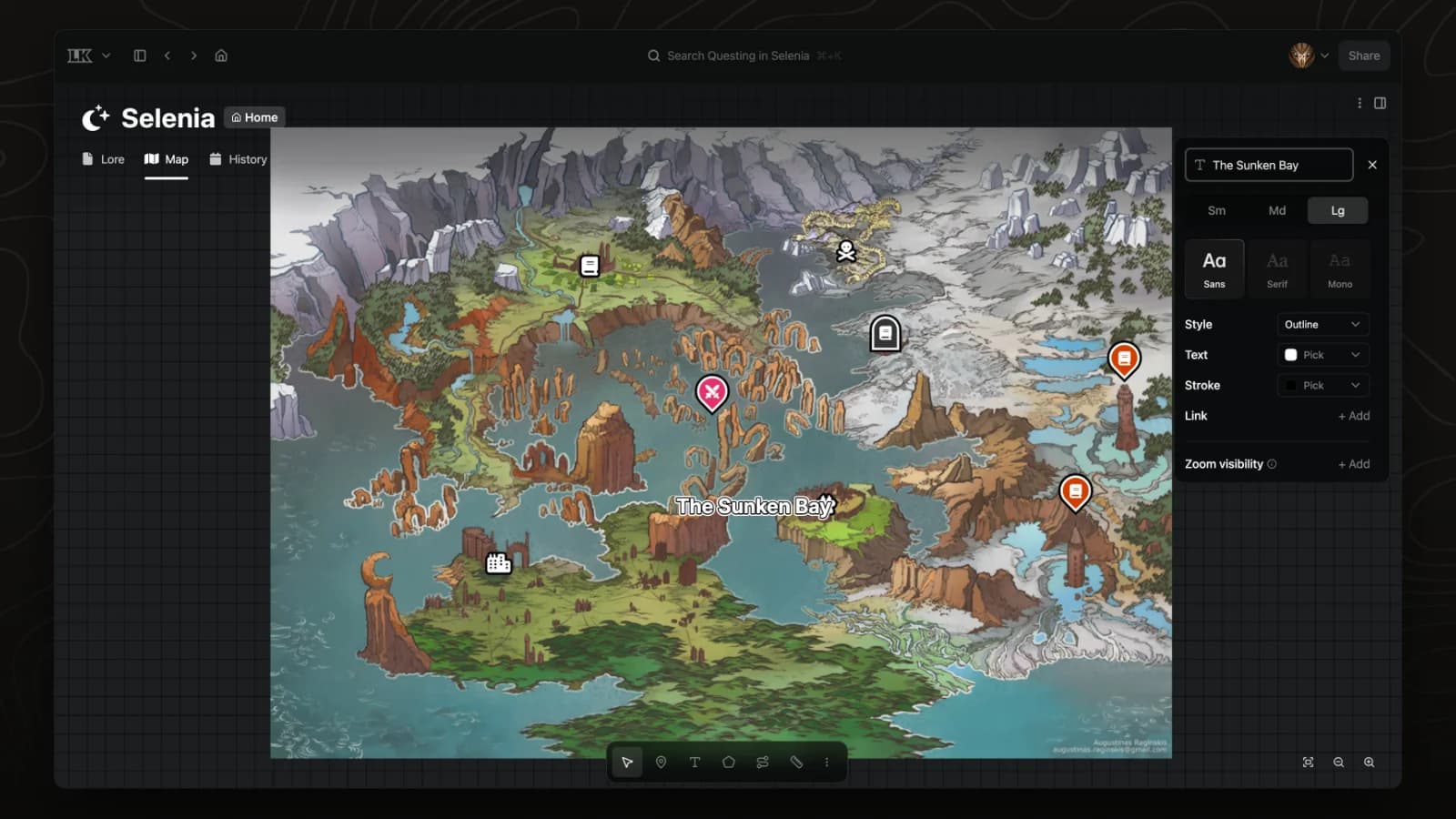
Labels name seas, regions and roads directly on a map.
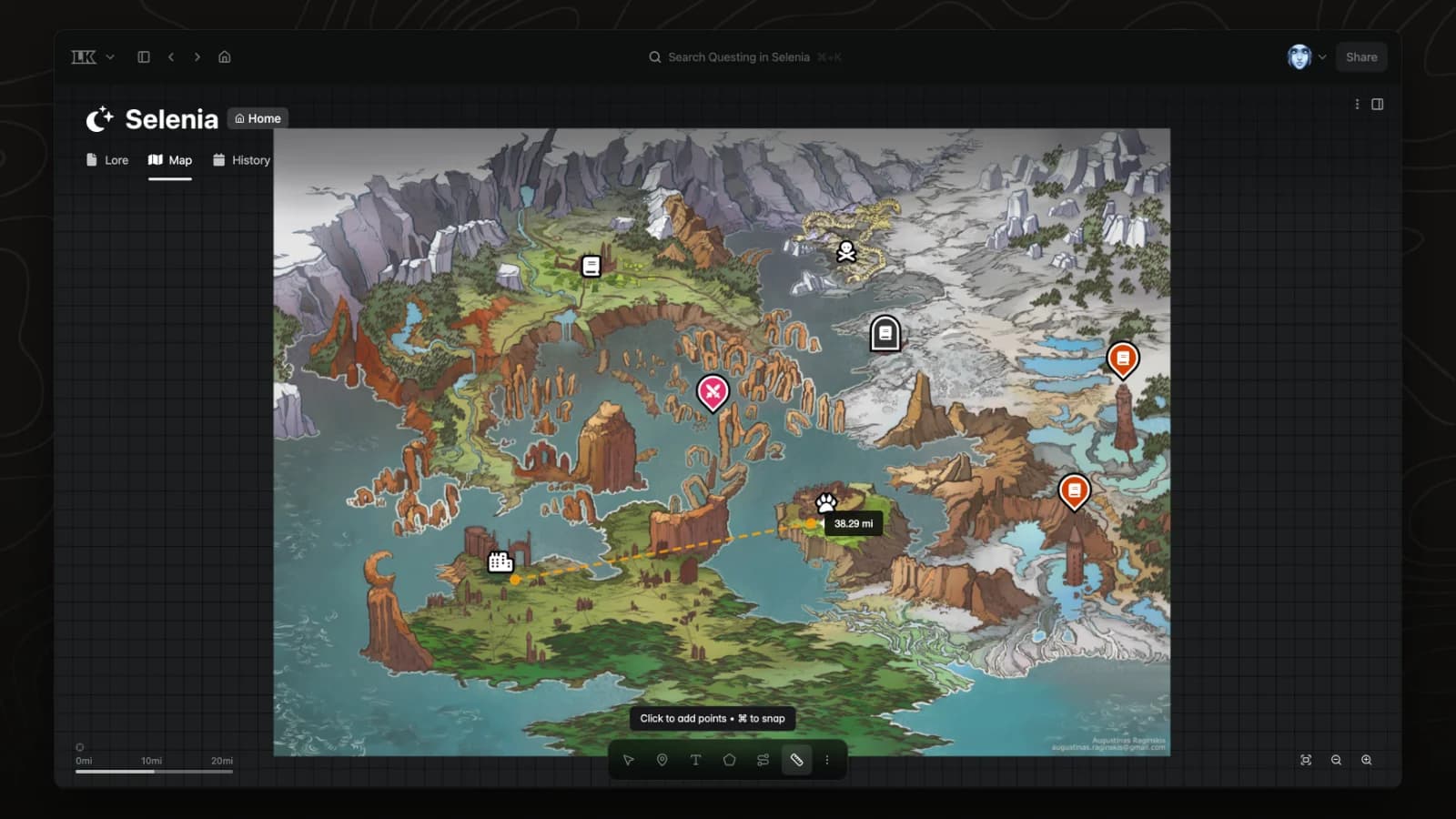
Calibrate a map once with a known distance, then measure travel distances anywhere on it.
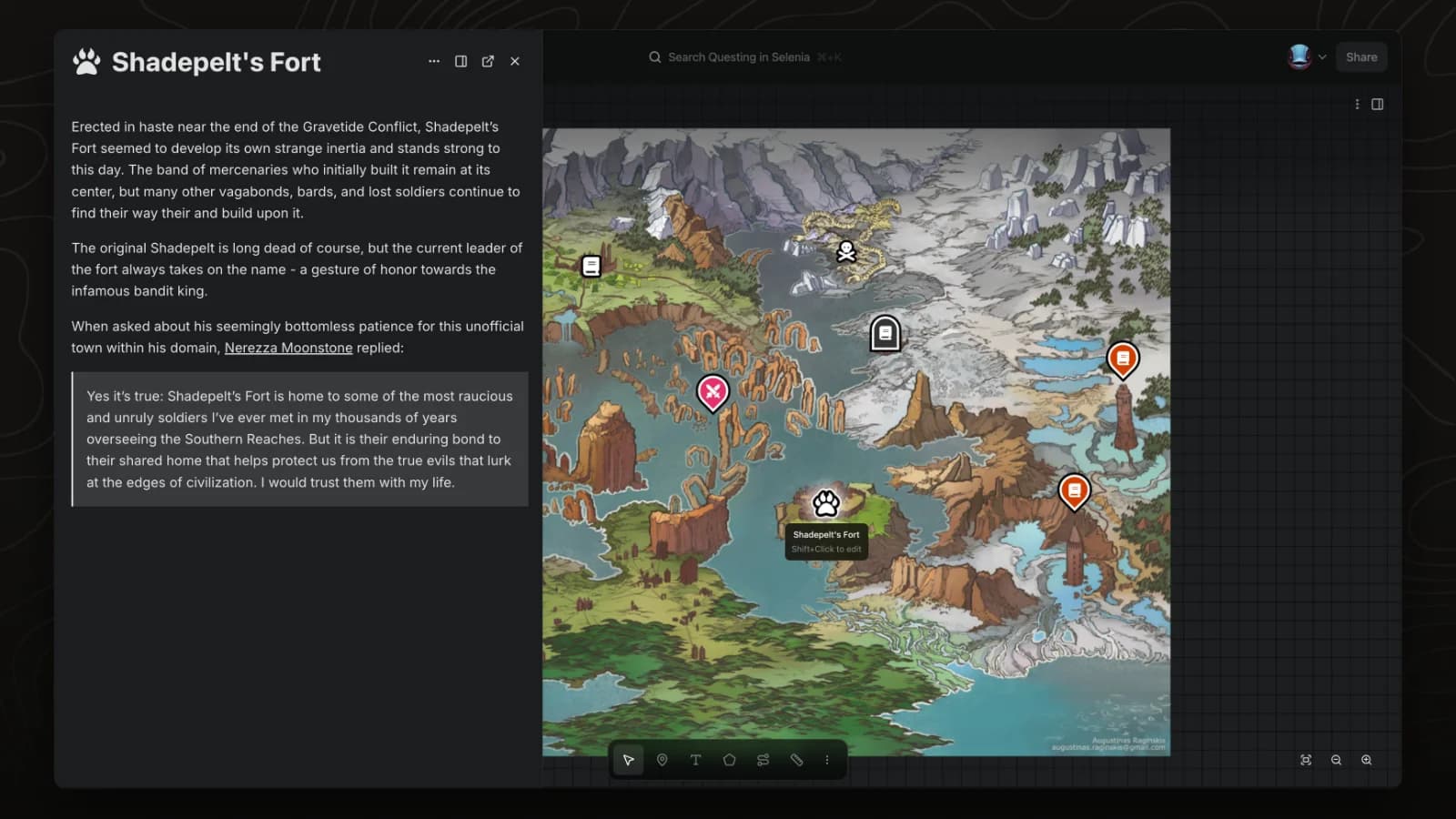
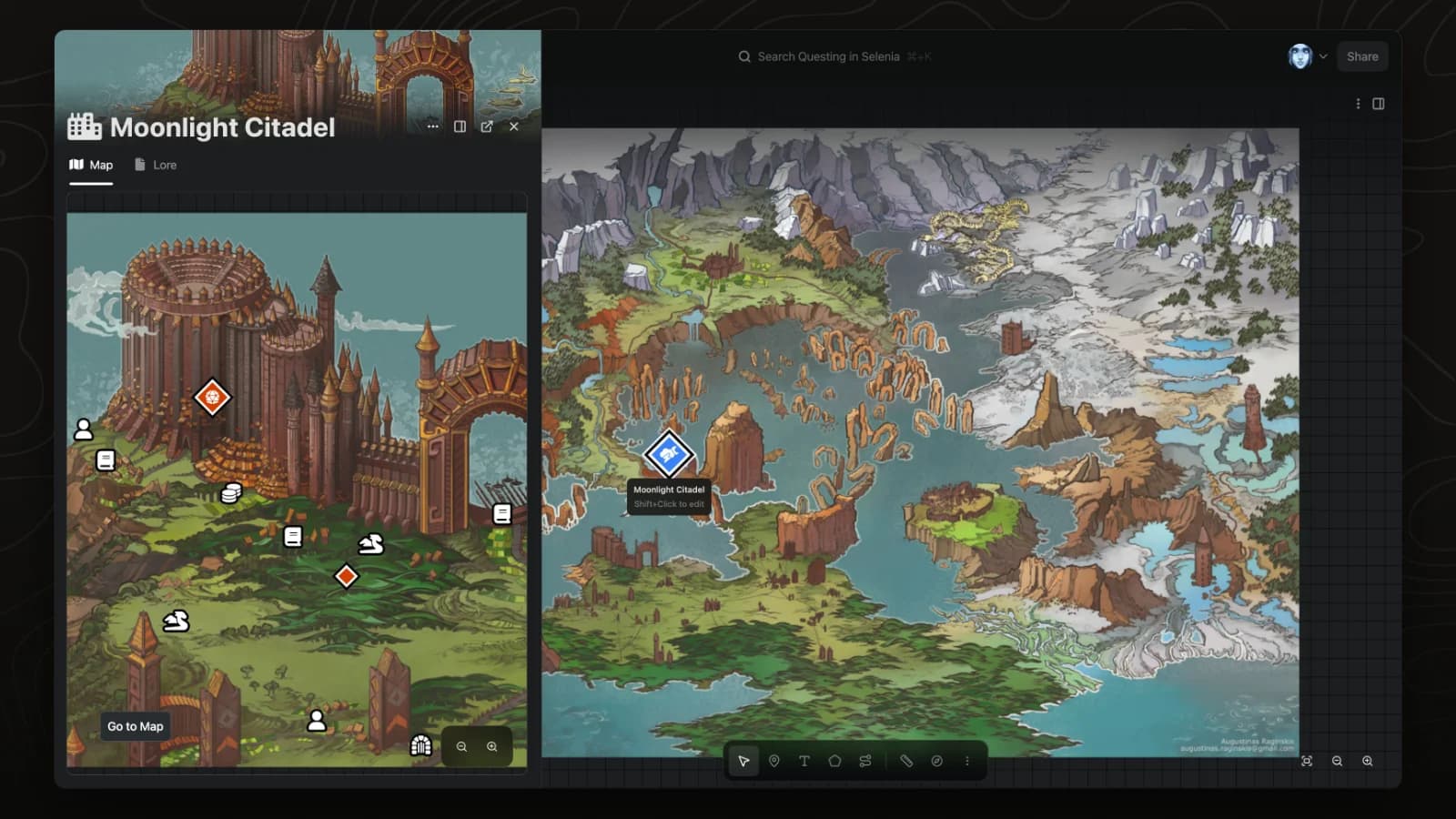
Peek opens a pin's page in a side panel so you can read it without leaving the map.
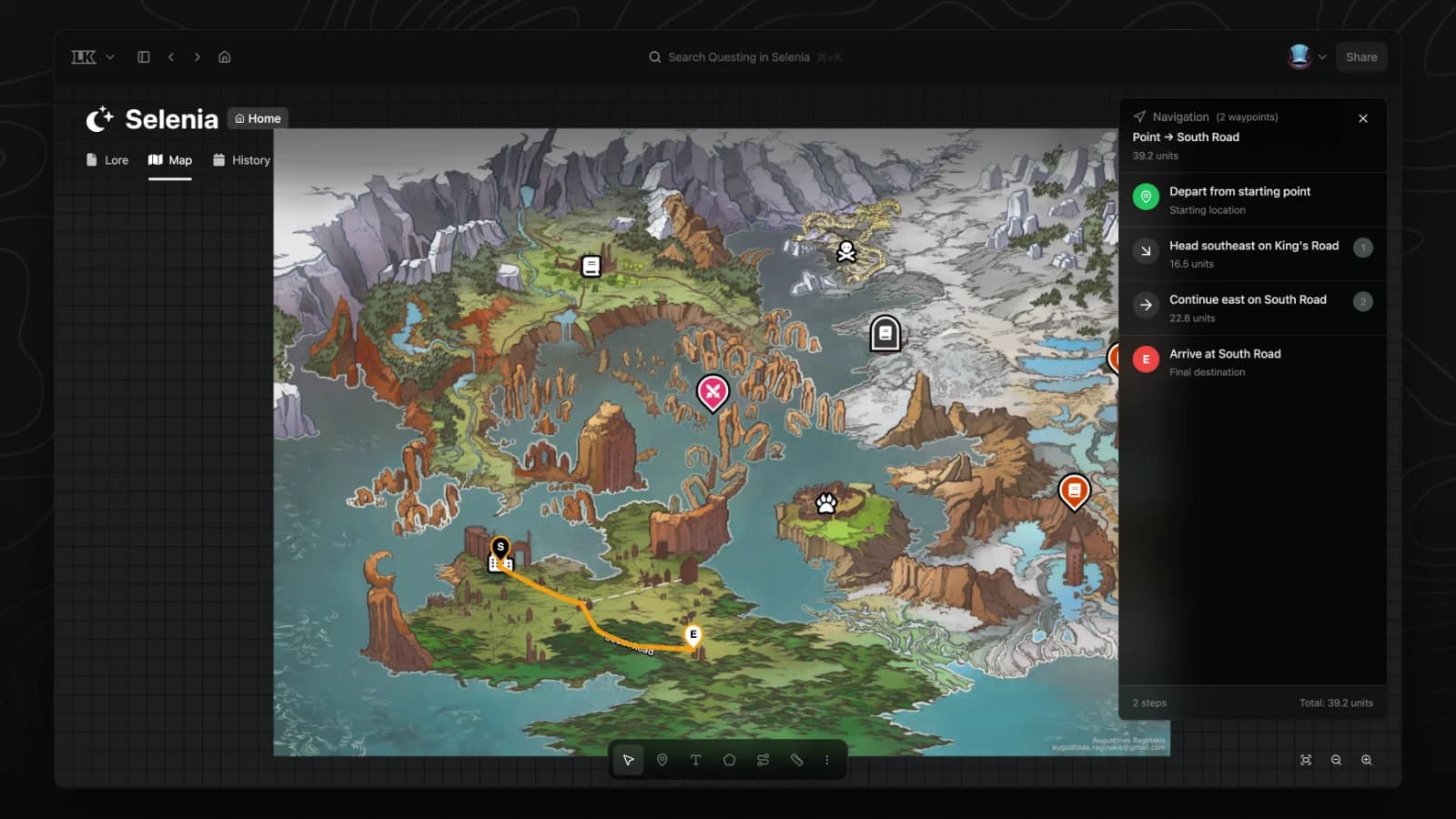
Navigation mode finds a route between two points on a map and lists the directions.
Record your world's history and view it as a list, a timeline or a calendar.
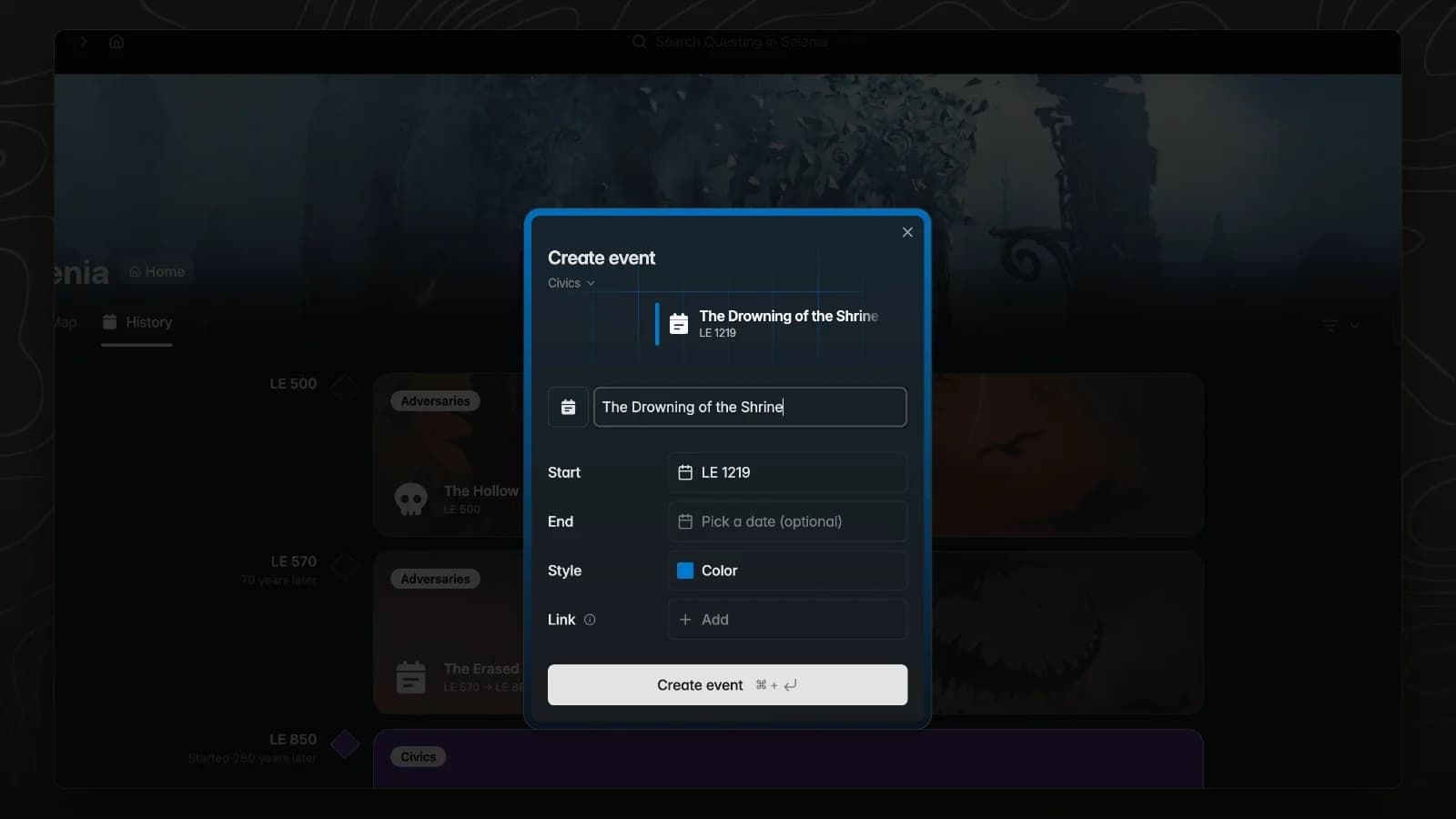
Timelines record your world's history. New events take their place in order.
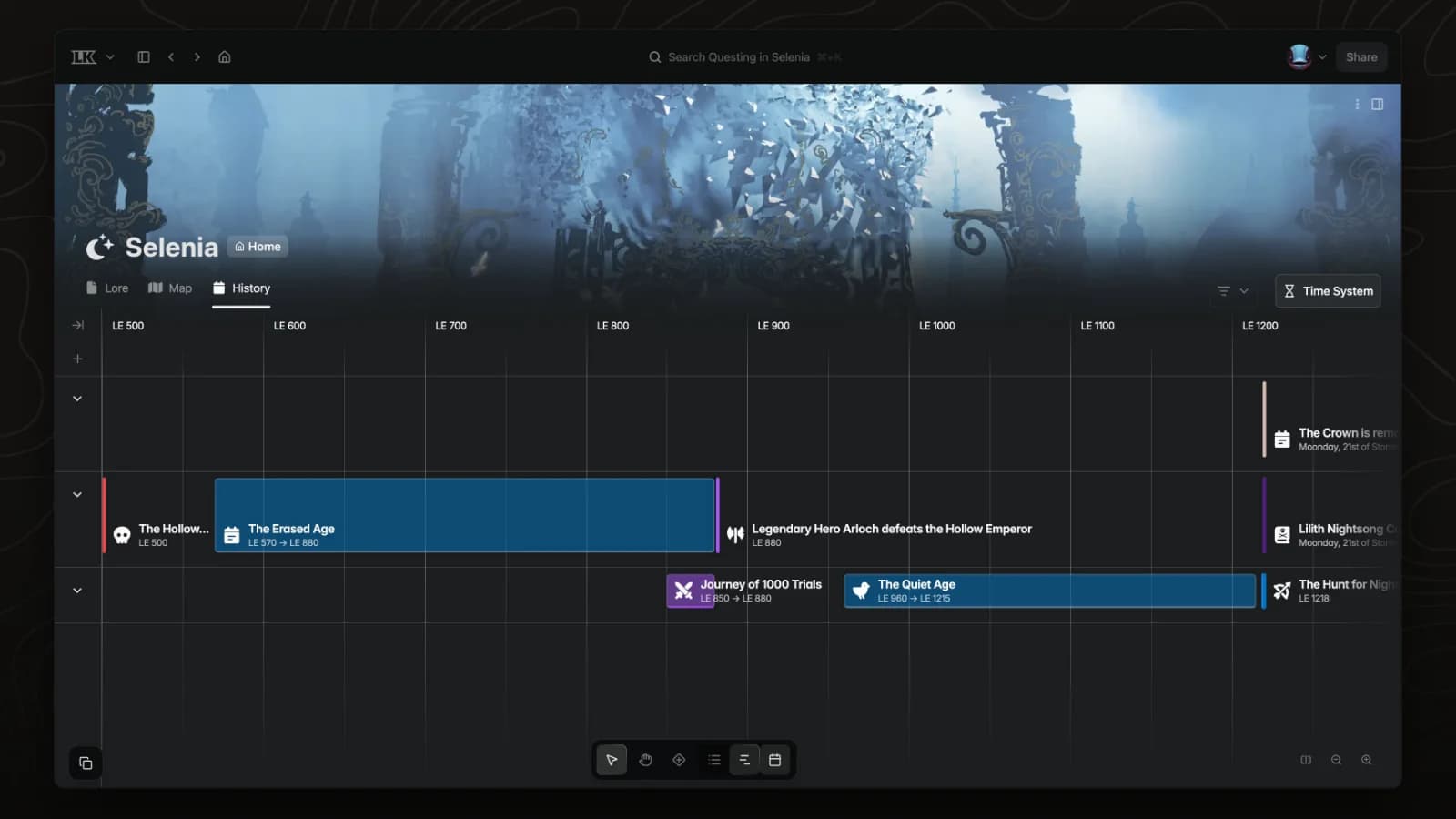
The timeline view lays out eras and events across time so overlaps and durations are visible at a glance.
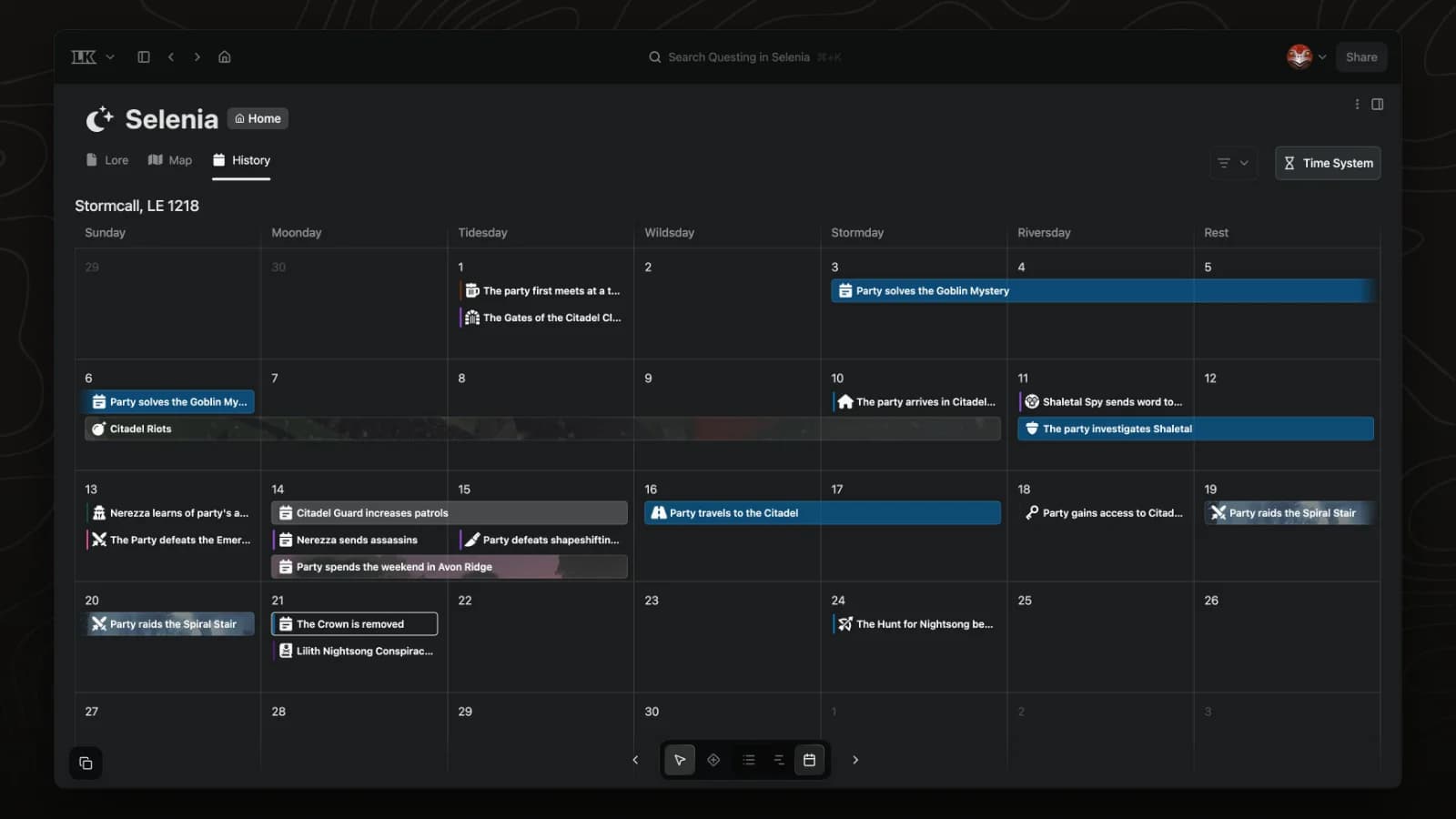
The calendar view shows timeline events on the days they happen, in your world's own calendar.
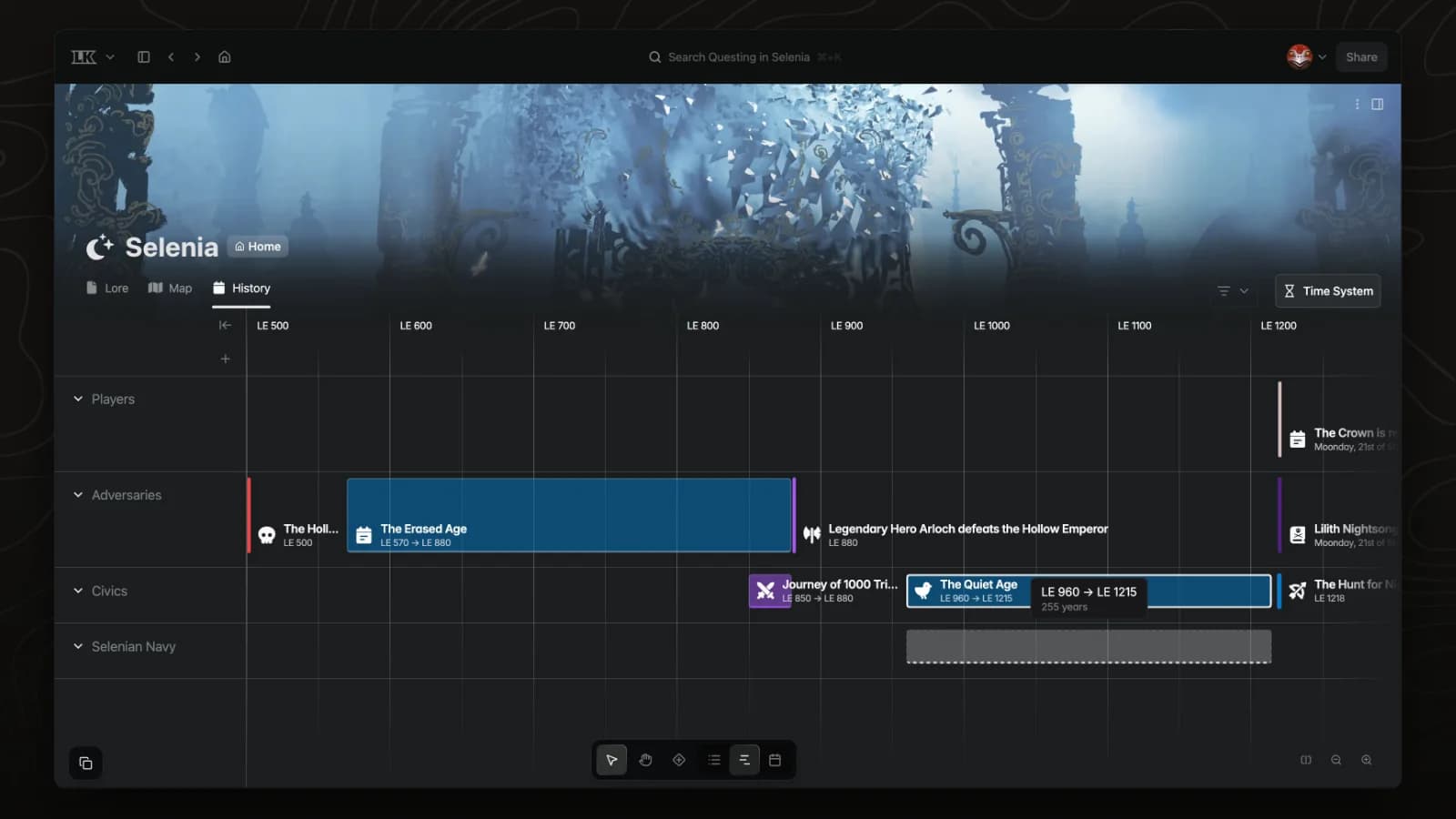
Groups split a timeline into lanes, such as one per faction or region. Each group has a name and a colour.
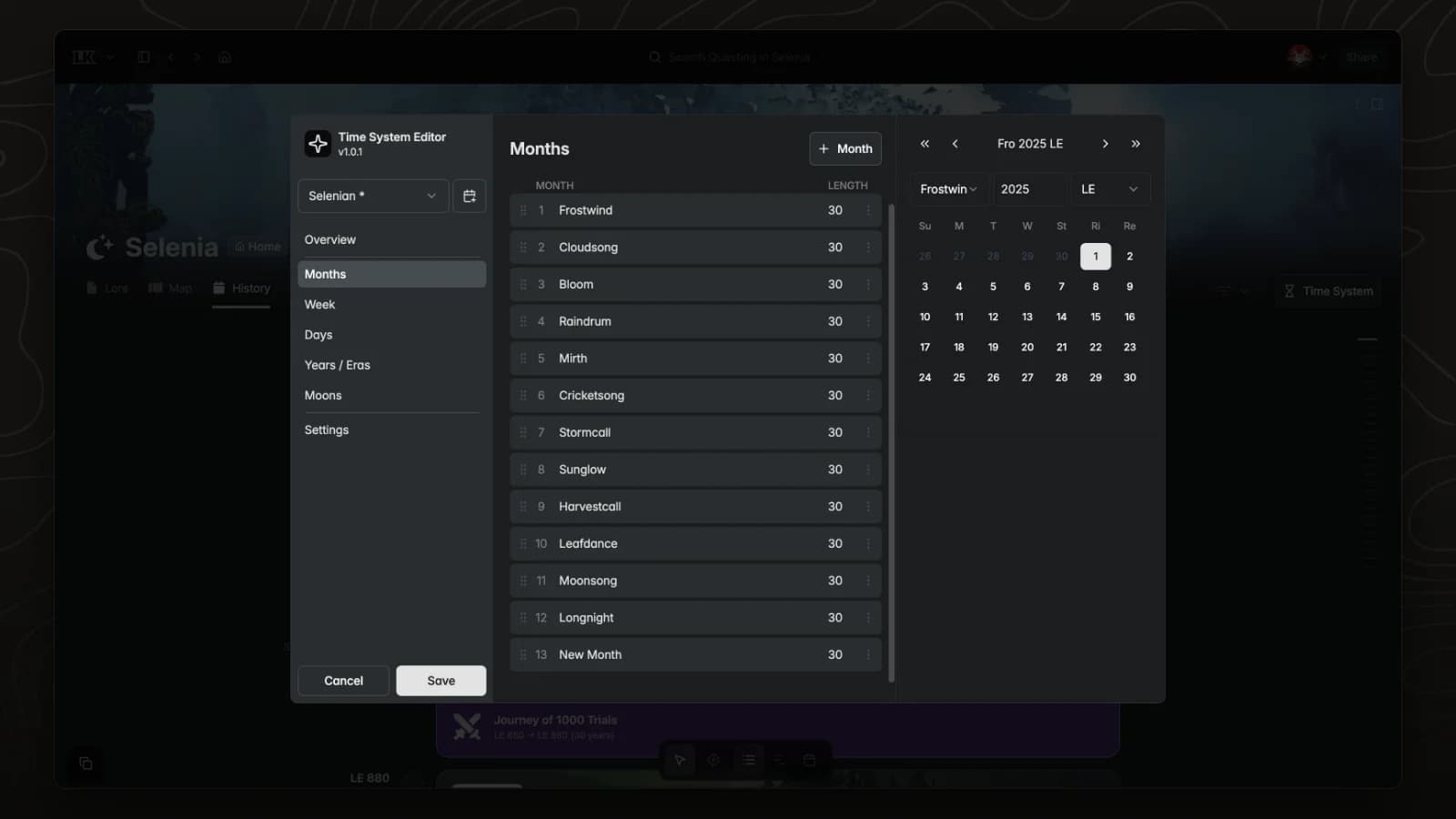
The Time System editor sets the months, weeks, eras and moons that a timeline uses. Each world can have its own calendar.
Freeform boards for laying out pages and how they connect.
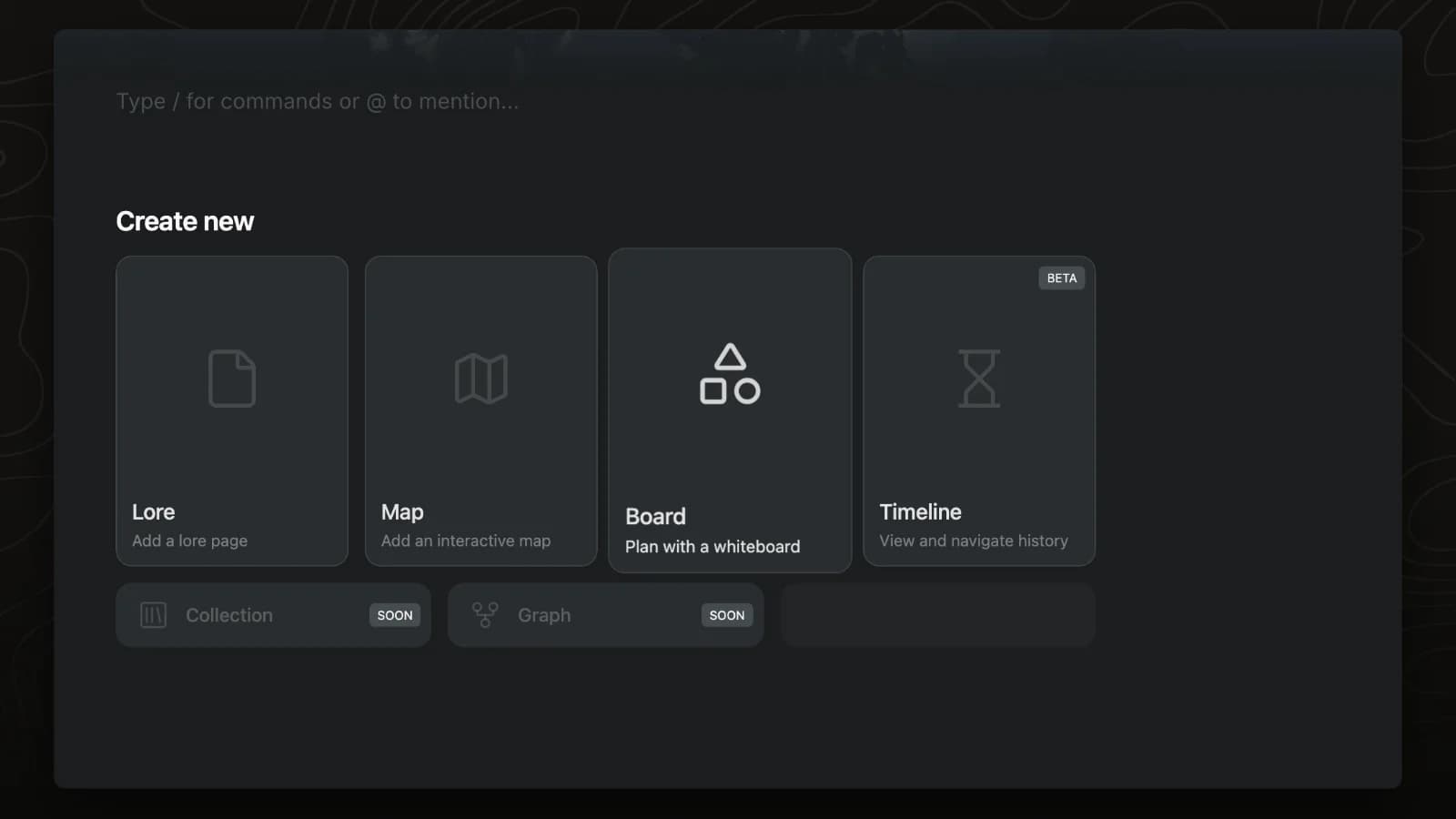
A board is a freeform whiteboard that lives in a page tab. This video adds a new tab to the Selenia page and turns it into a board.
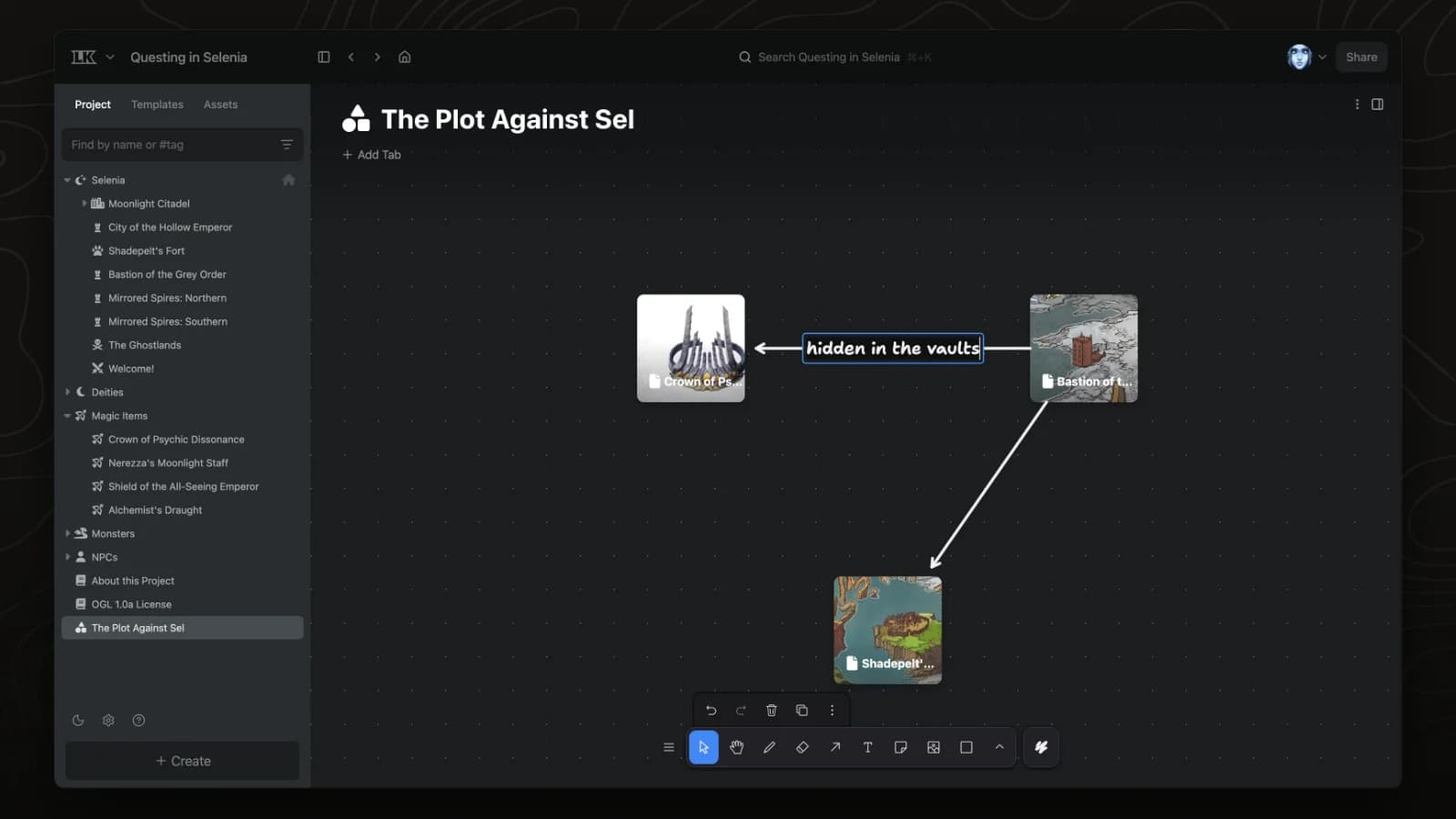
Boards are freeform whiteboards. Drag pages from the sidebar onto a board to lay out the characters, places and items in a plot.
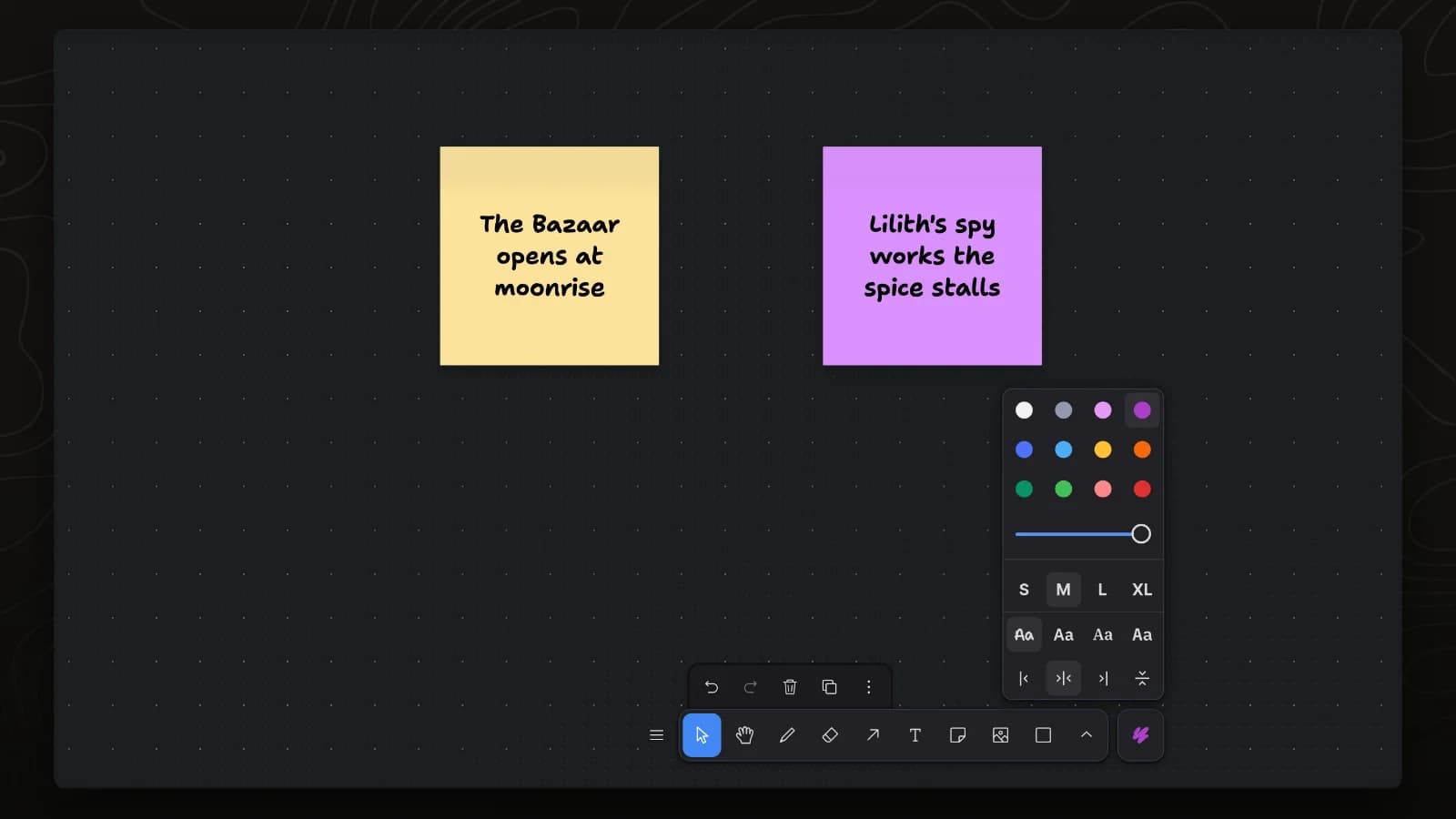
Sticky notes hold short ideas on a board. This video adds two notes and changes the colour of one.
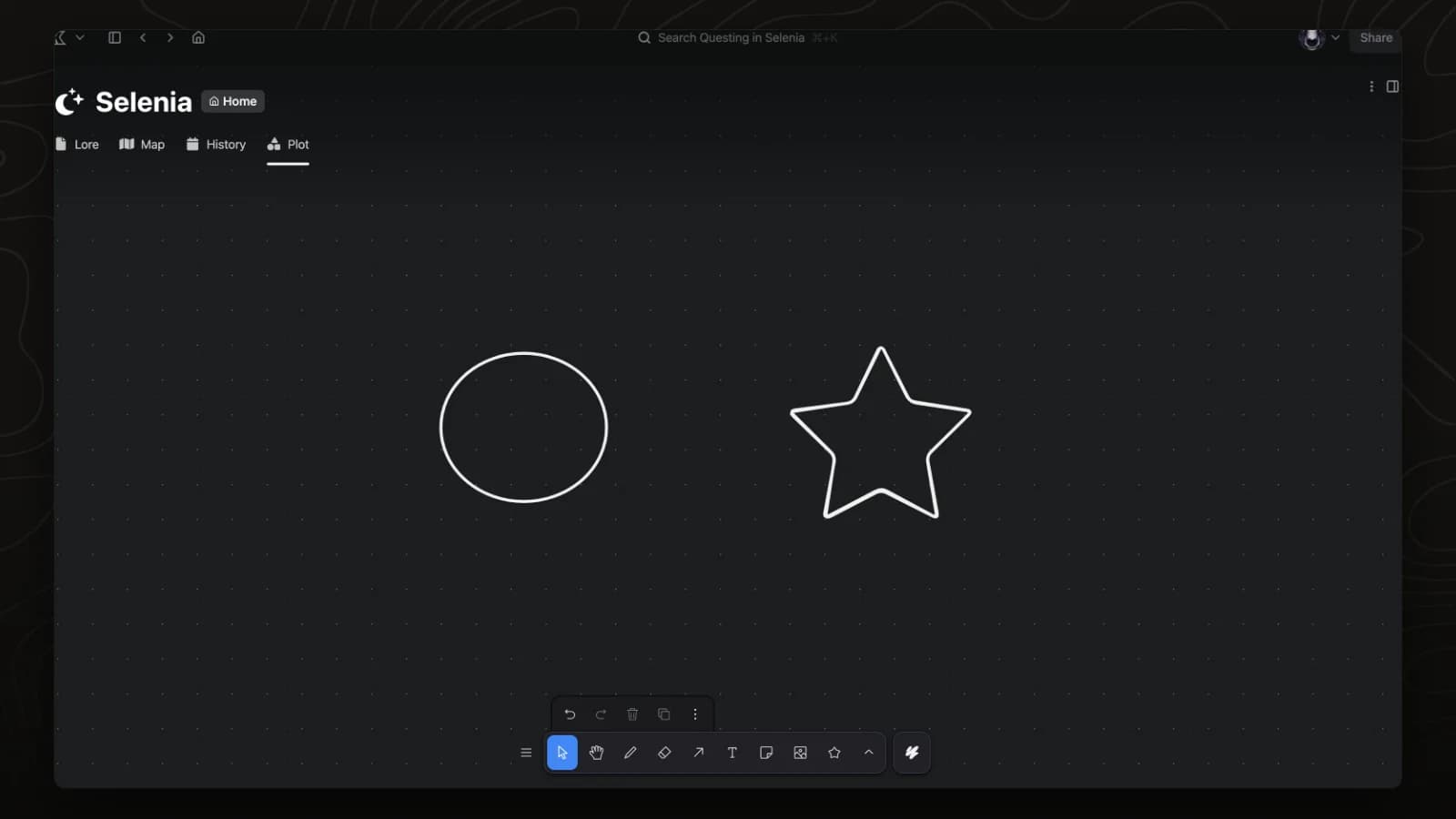
The board toolbar draws rectangles, ellipses, stars and other shapes. This video picks two shapes from the toolbar's shape menu and draws them.
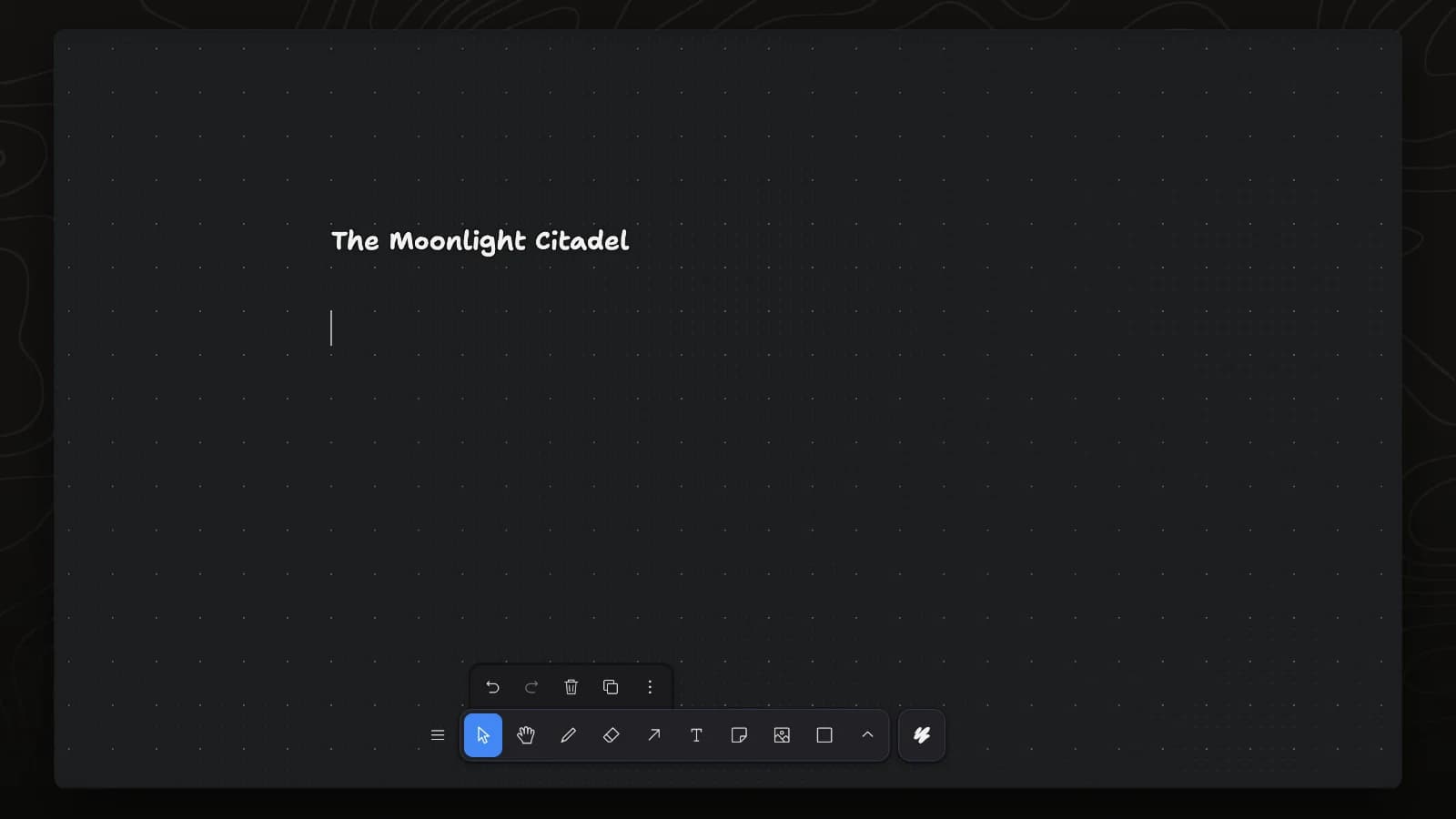
The text tool adds labels to a board. This video adds a title and a line of text under it.
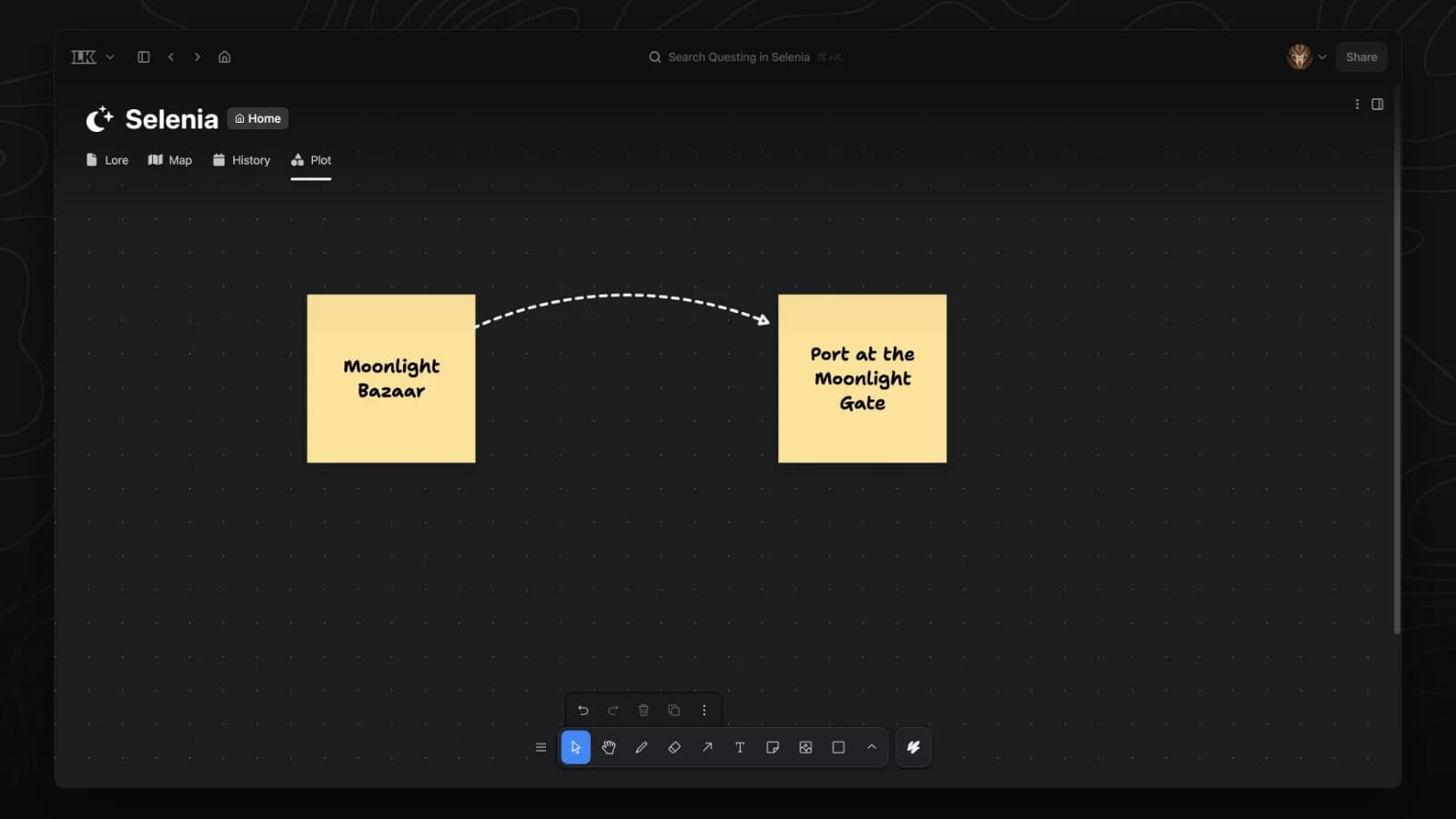
Arrows connect notes and shapes on a board and follow them when they move. This video draws an arrow between two notes, changes its line and arrowhead in Styles, and bends it.
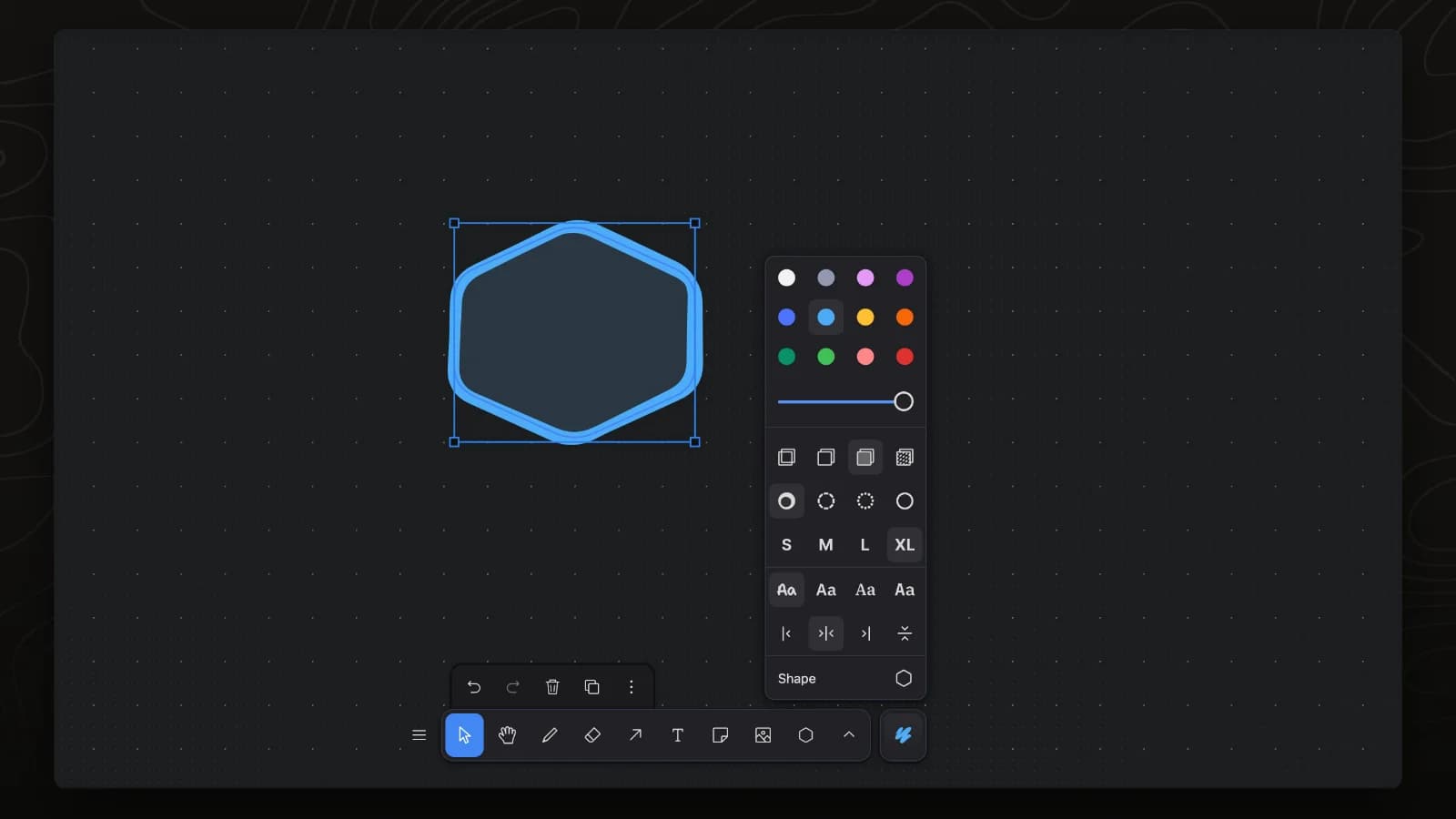
The Styles panel sets the colour, fill and line size of the selected shapes. This video changes all three on one shape.
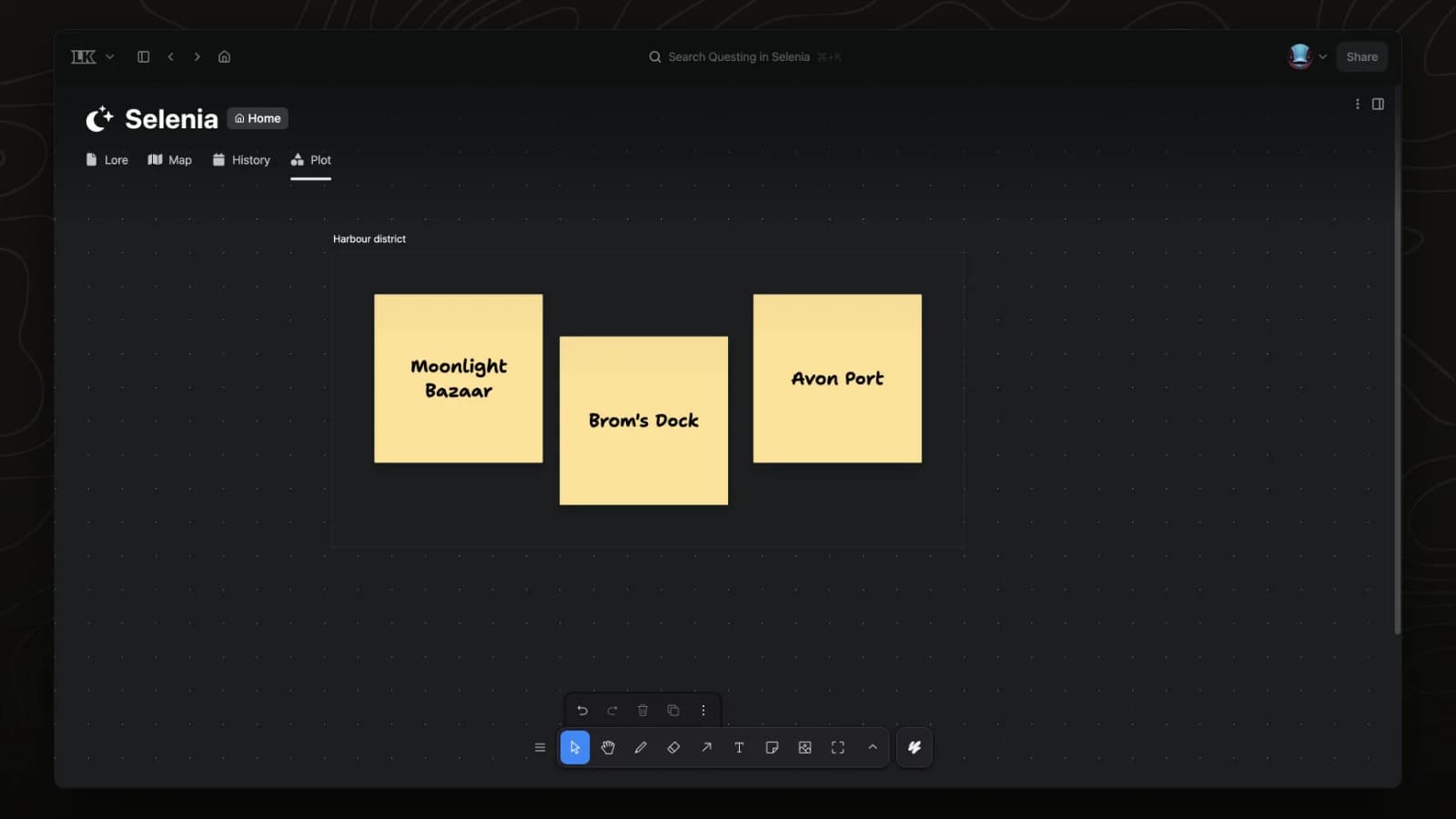
A frame holds a group of notes and shapes under one name, and they move with it. This video draws a frame around three notes, renames it and fits it to its contents.
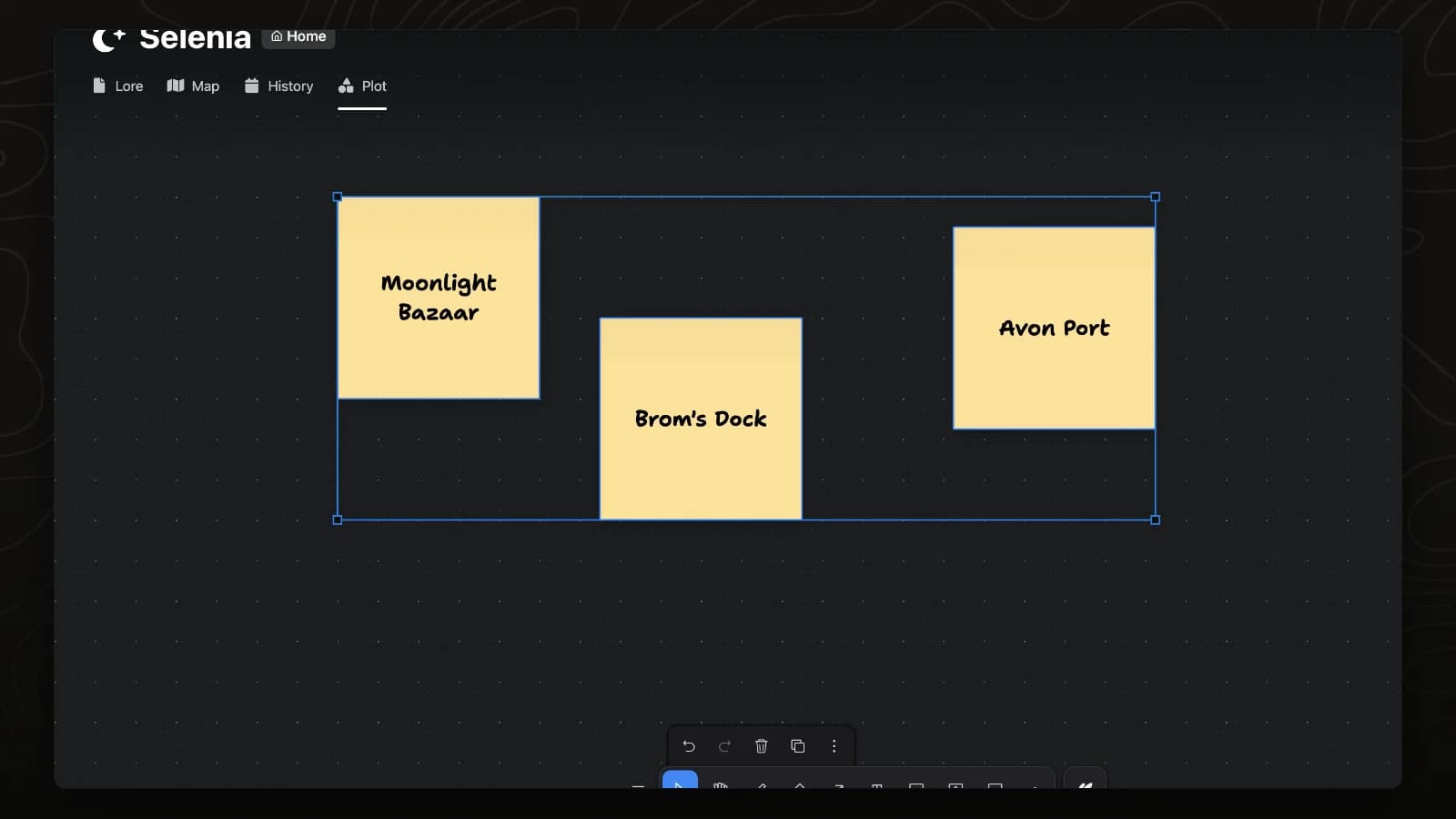
The Actions menu aligns and spaces the selected items, and grouping keeps them together. This video lines up three notes, spaces them evenly and groups them.
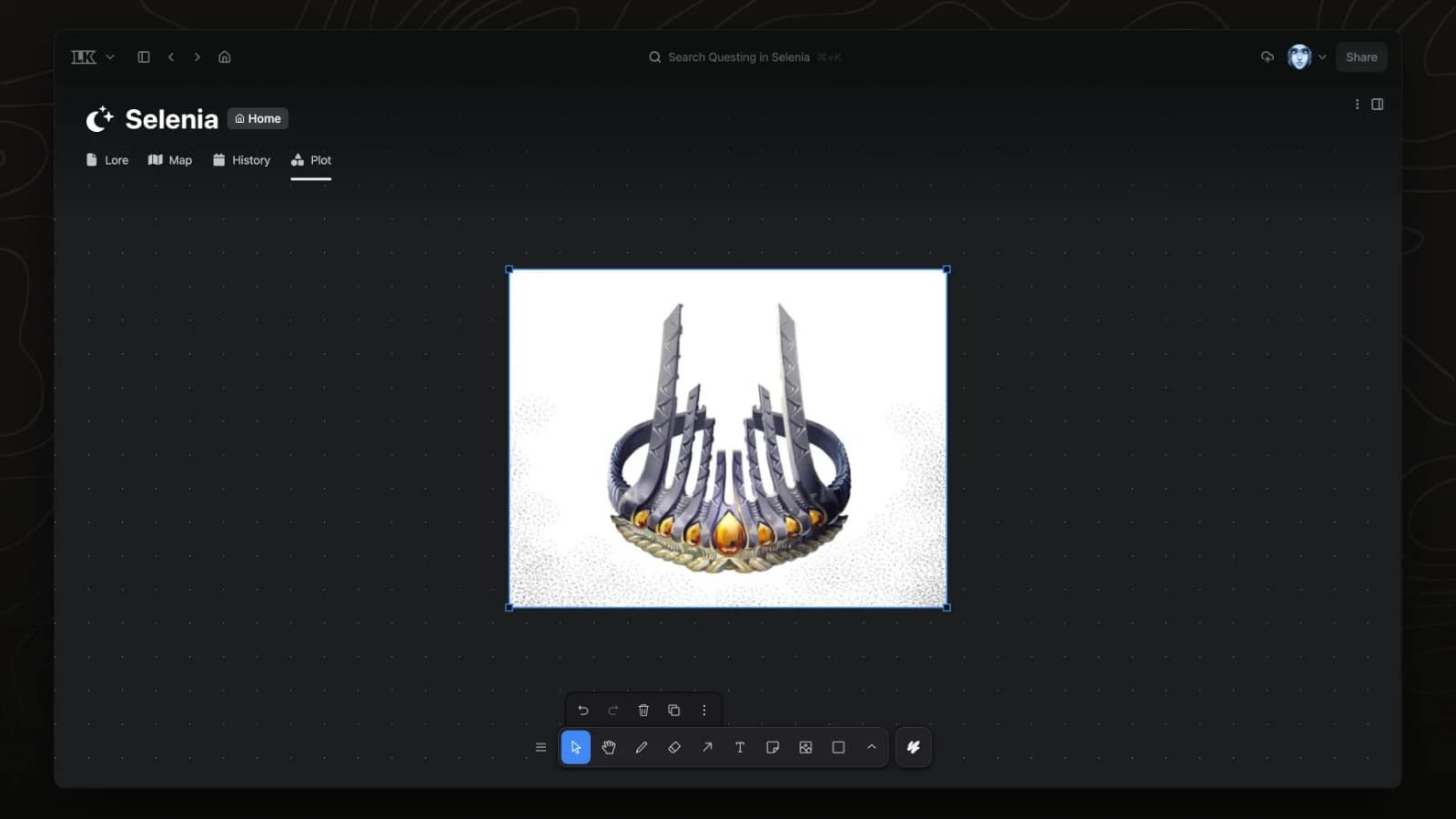
The image tool places pictures from the project's files on a board. This video places the art for the Crown of Psychic Dissonance on the board and resizes it.
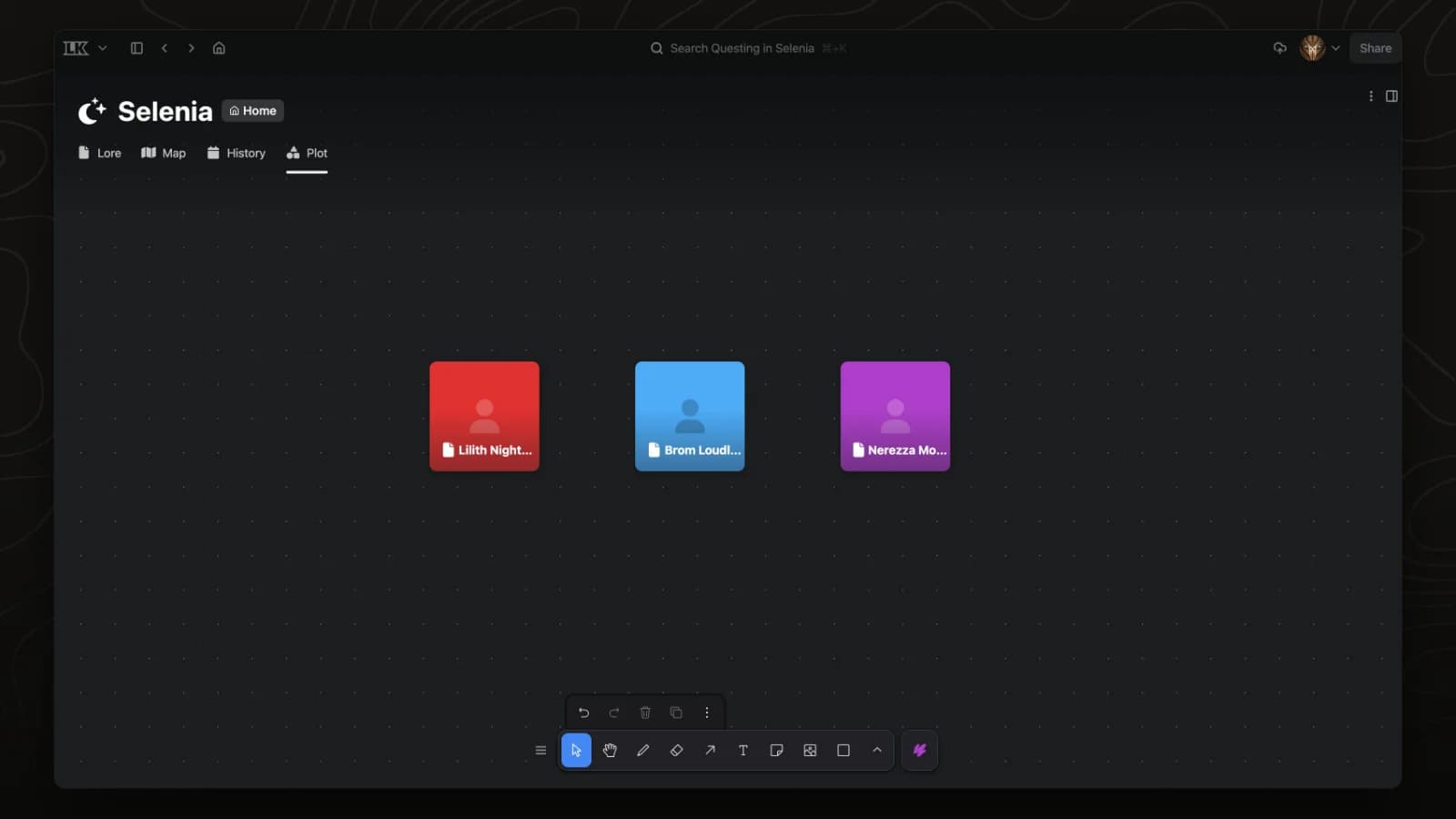
Any page can sit on a board as a card. This video right-clicks the board, chooses Link element and adds Nerezza Moonstone next to two other Selenia characters.
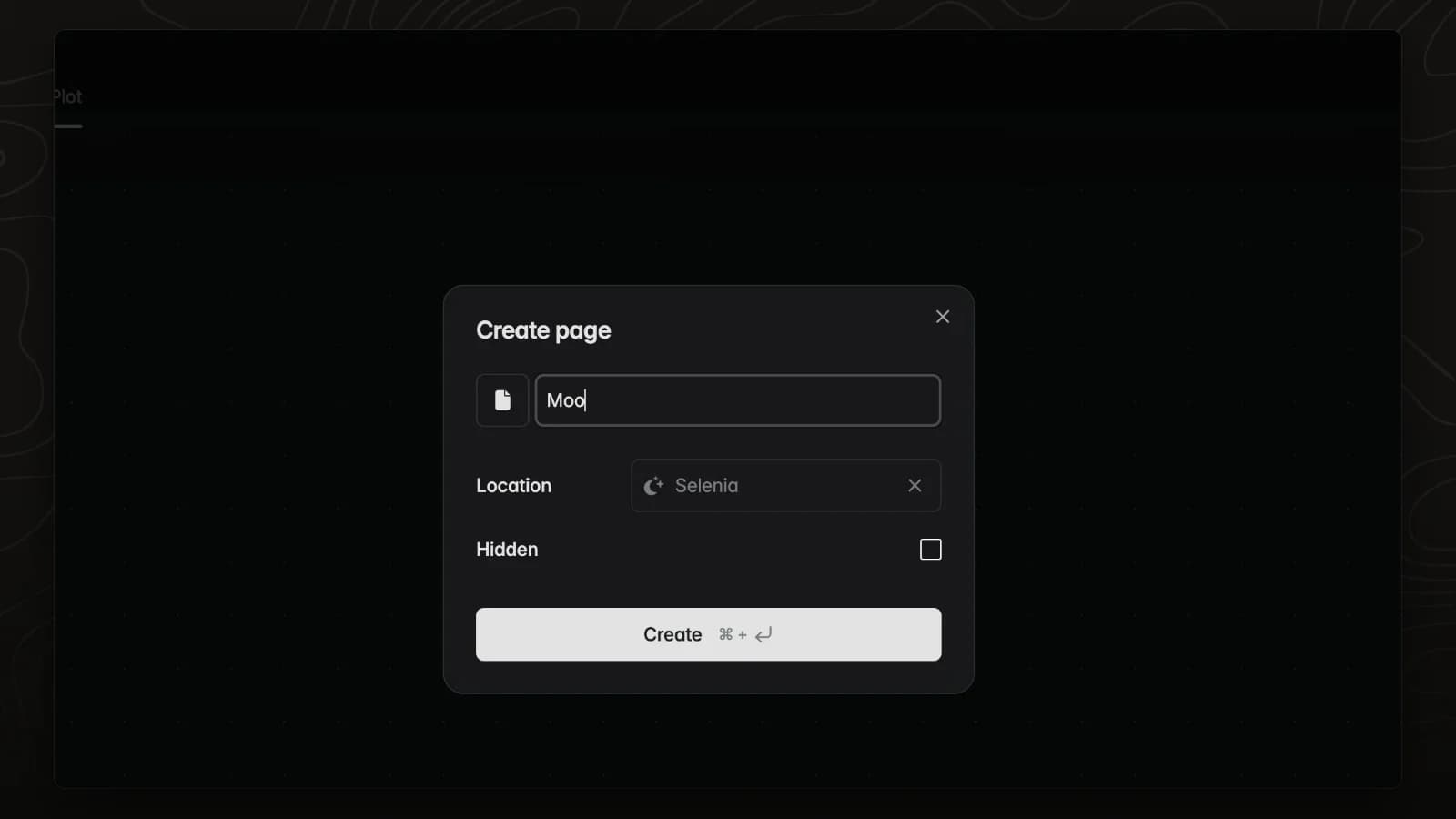
Create element makes a new page and places its card on the board. This video creates a page called Moonwell under Selenia.
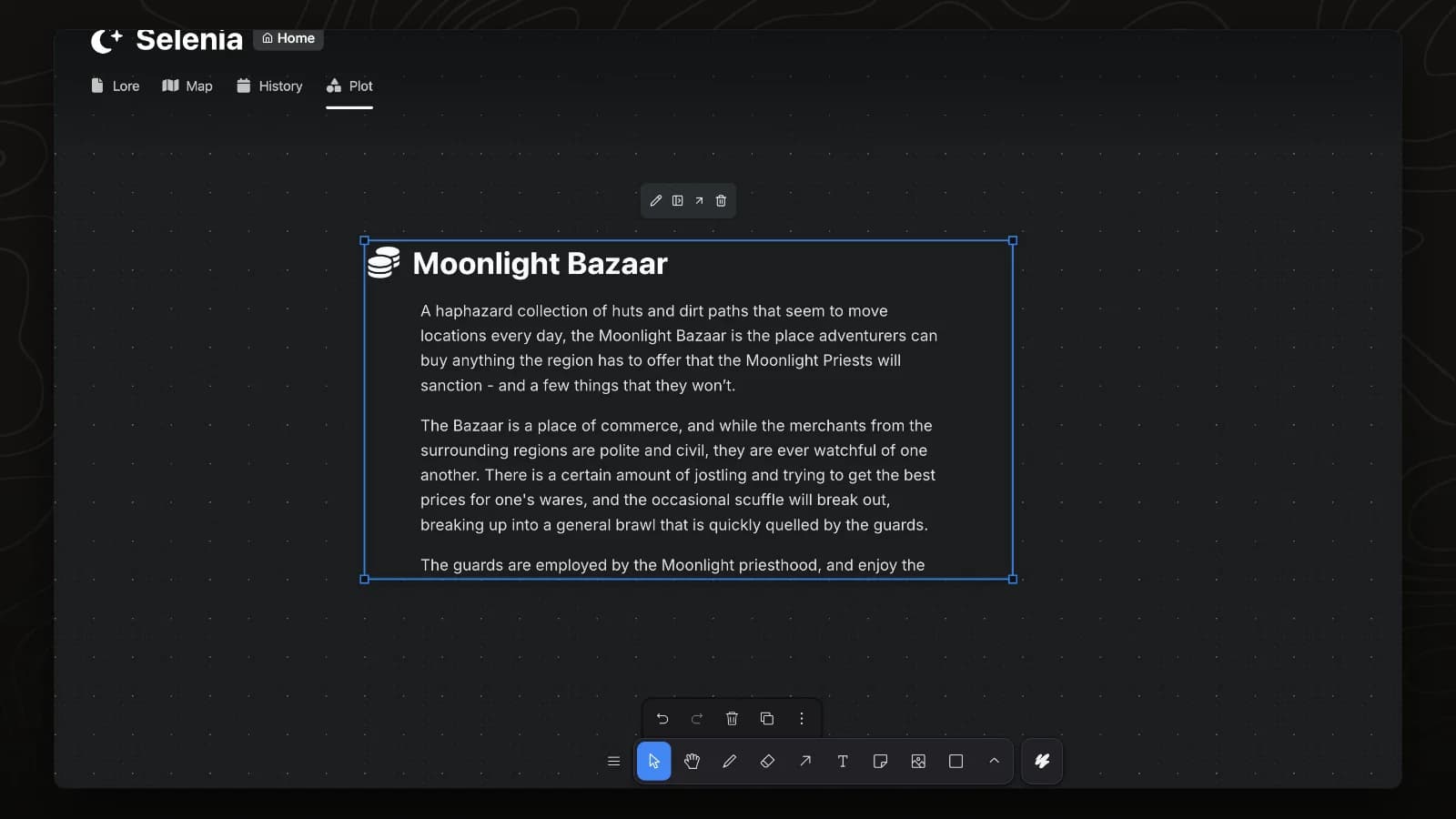
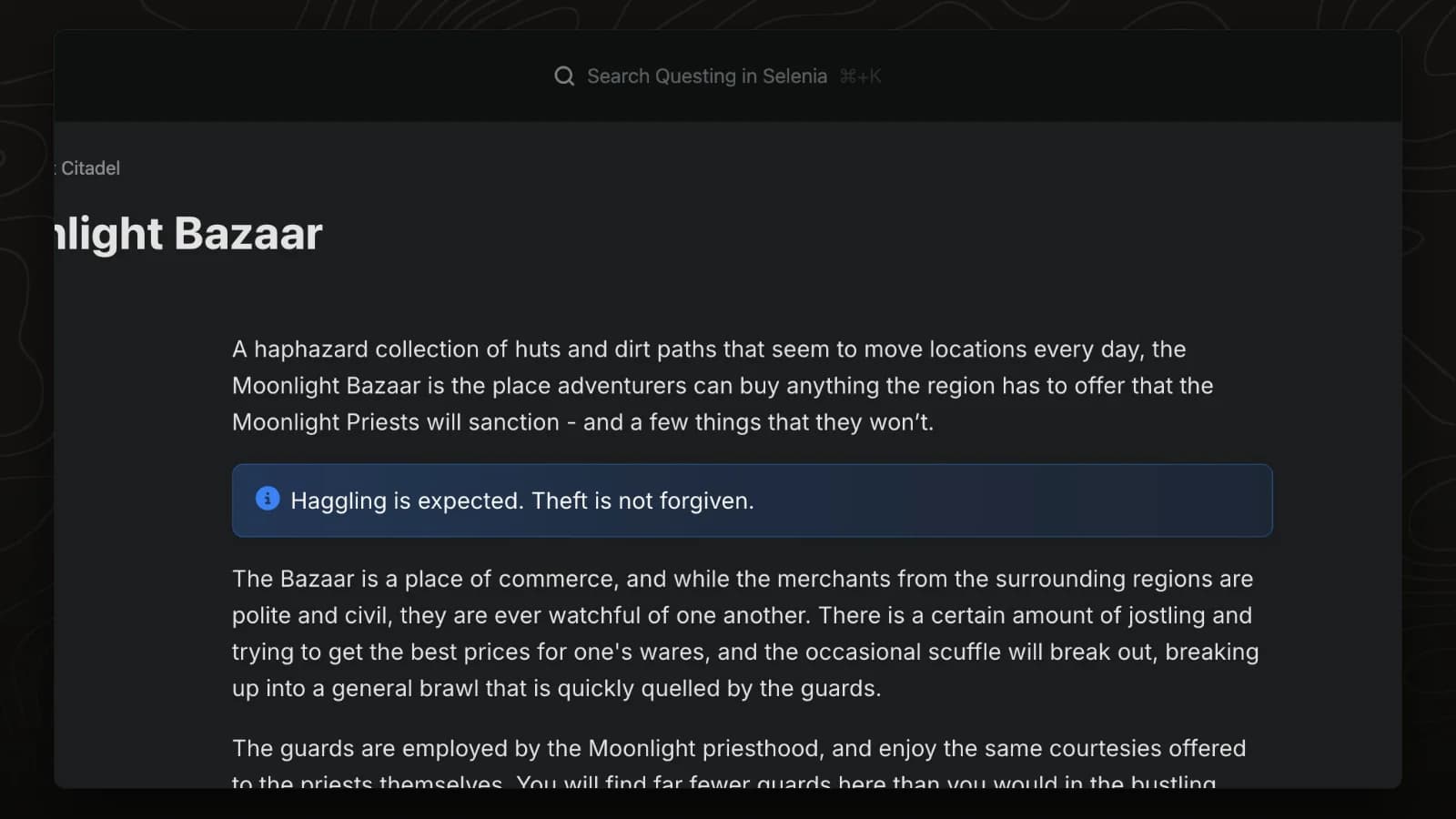
A page card that is large enough shows the page itself, and the text stays in sync with the page. This video enlarges a card for the Moonlight Bazaar and switches Allow embed off and on.
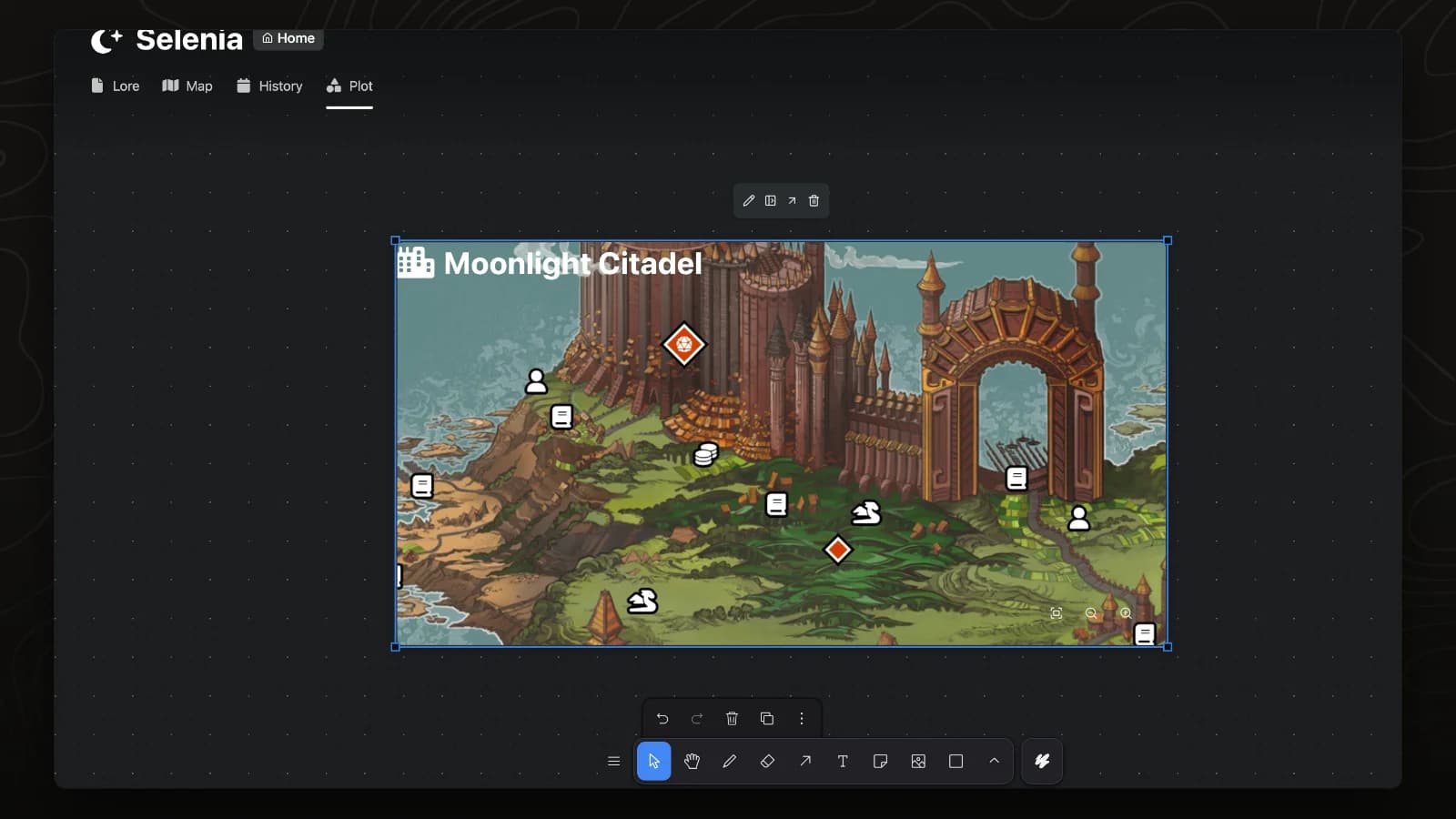
A card for a page whose first tab is a map shows that map. This video enlarges a card for the Moonlight Citadel, then zooms and pans its map.
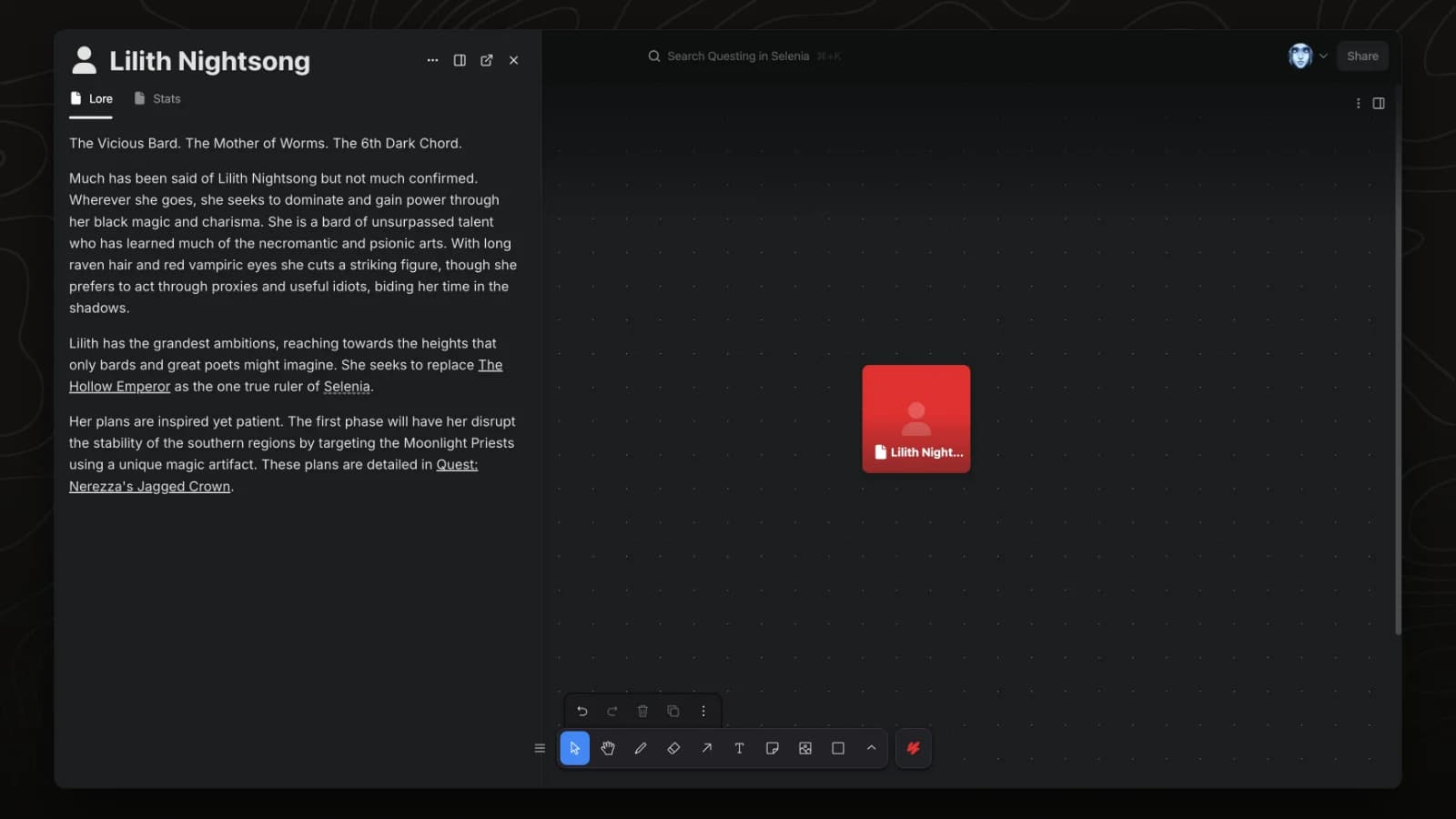
A locked card cannot be moved by accident, and clicking it opens the page in a side panel. This video locks a card for Lilith Nightsong and clicks it.
Move, find, tag and tidy the pages and files in a project.
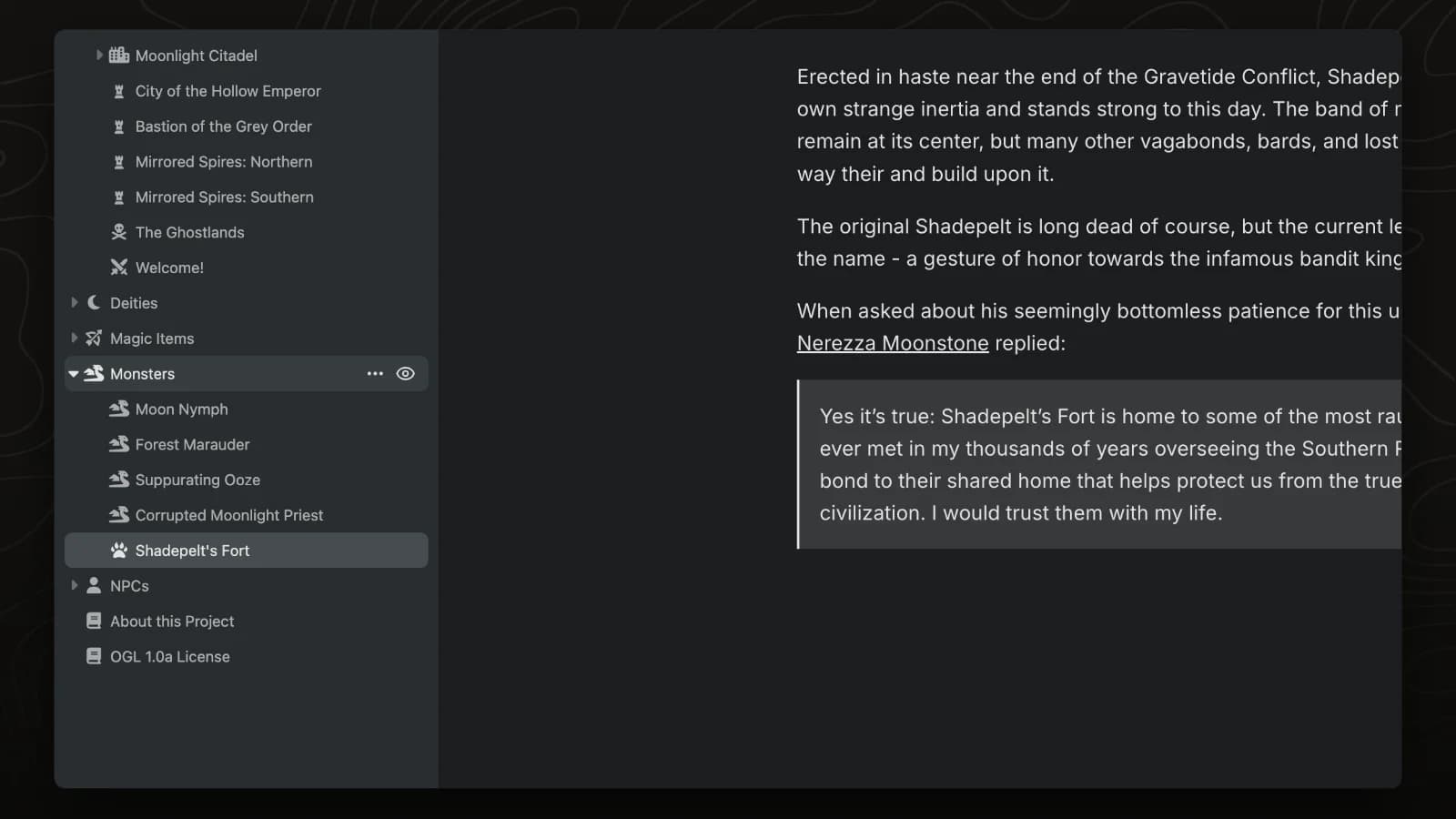
Drag a page onto another page in the sidebar to make it a sub-page.
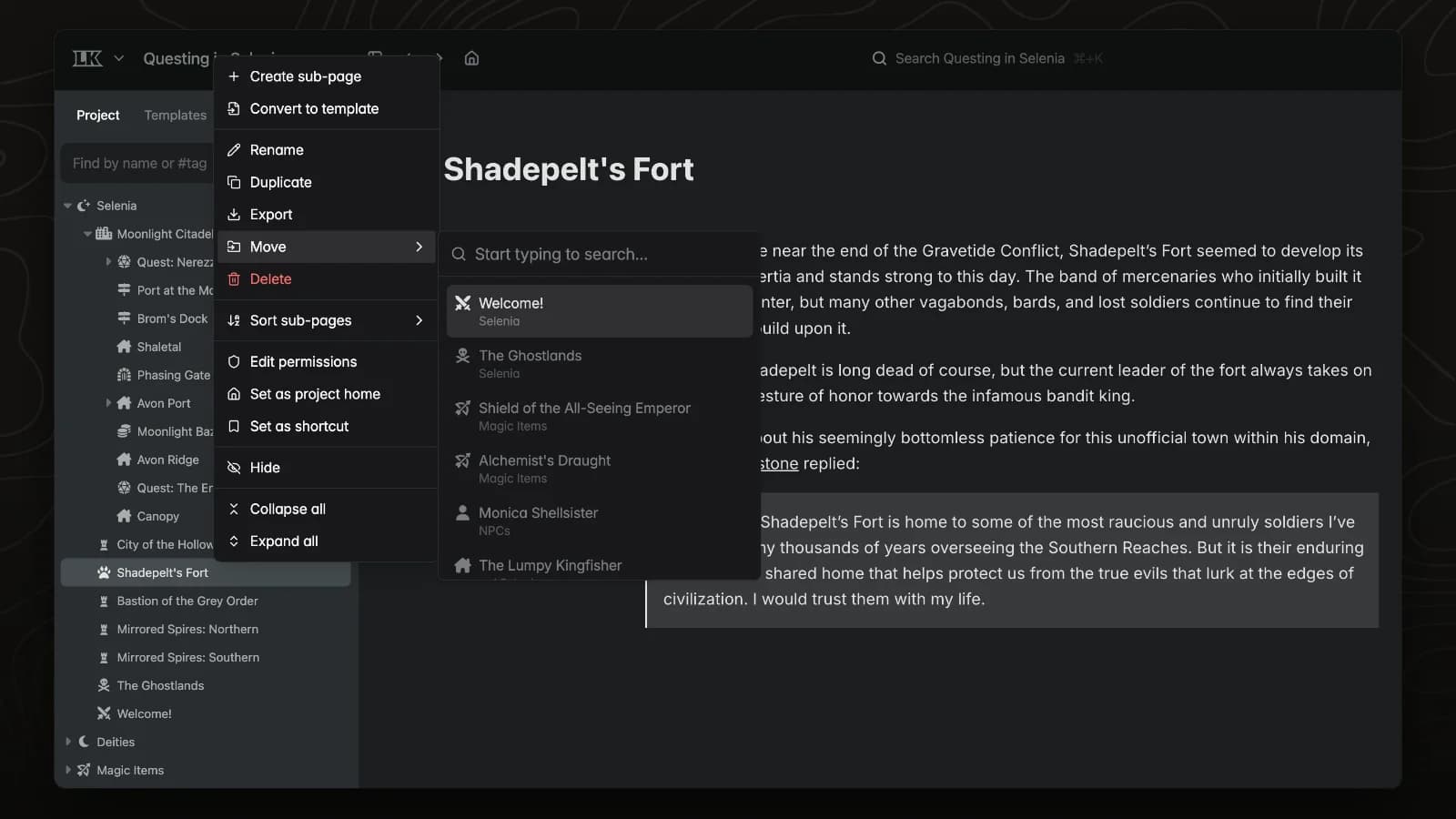
The Move menu relocates a page by searching for its new parent.
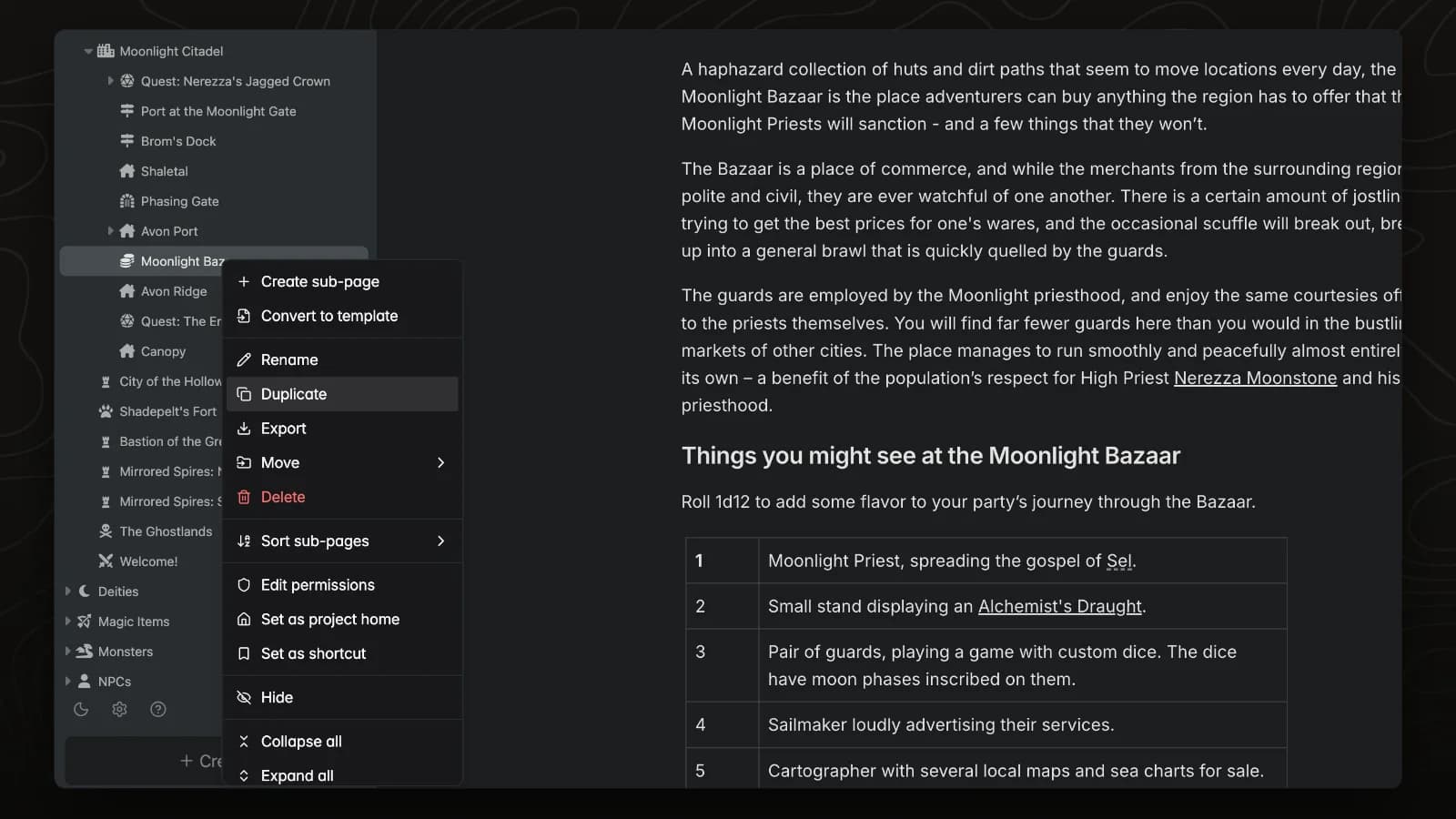
Duplicate copies a page, its tabs and content. The copy can include the page's sub-pages or only the page itself.
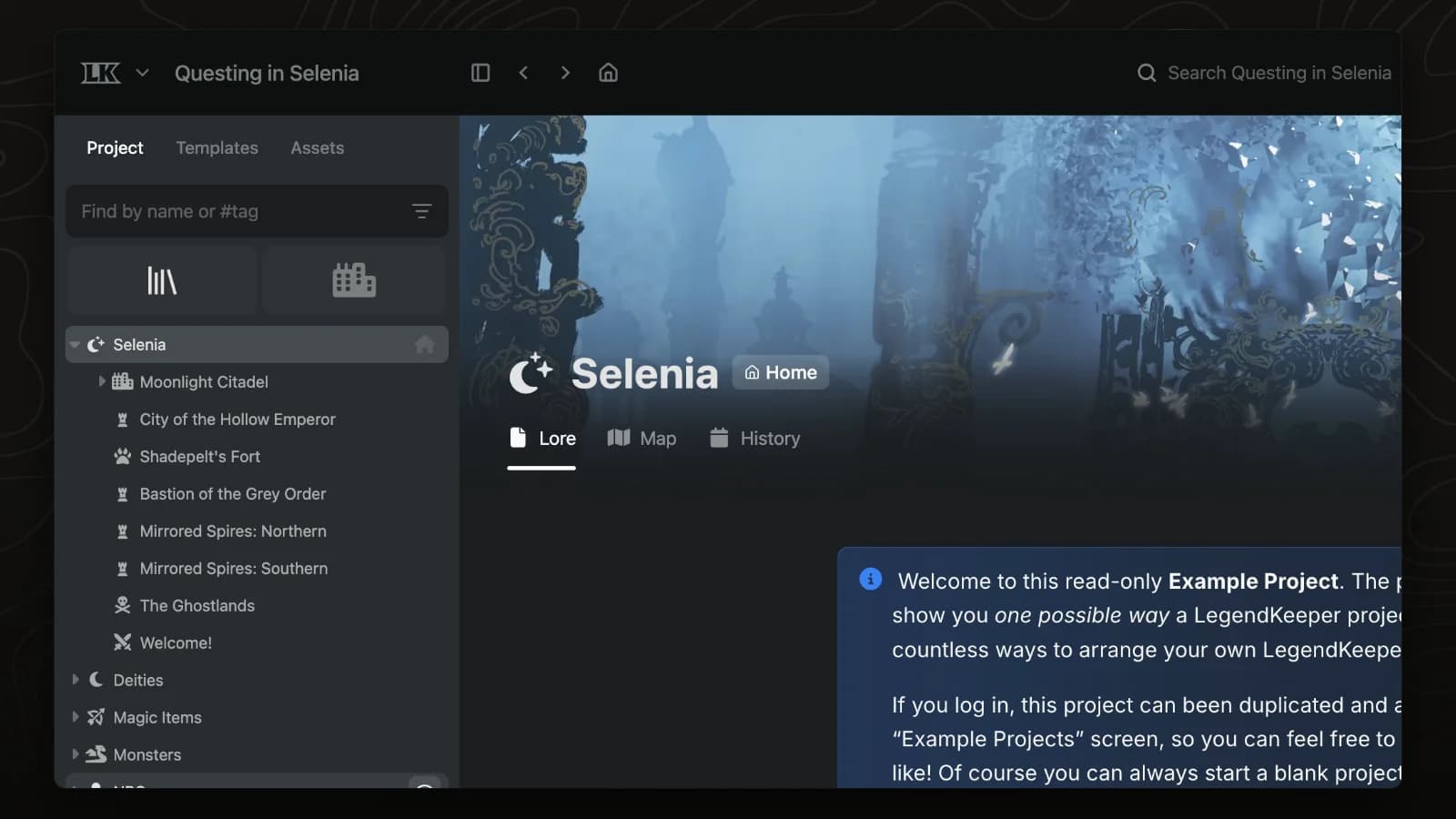
Shortcuts pin important pages above the sidebar tree. Click one to focus the tree on that part of your world.
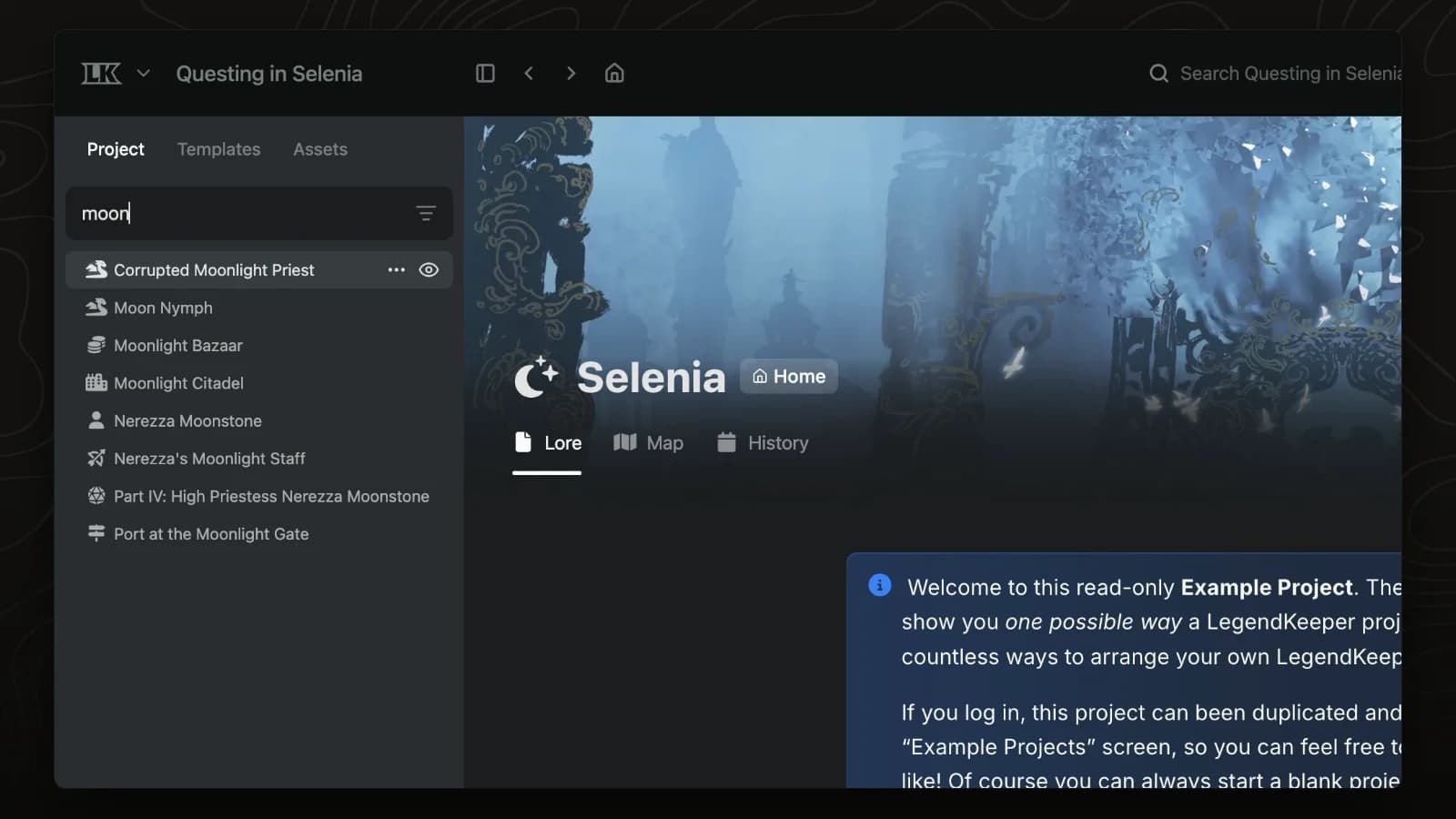
The sidebar filter narrows the page tree by name, or by #tag to show every page with that tag.
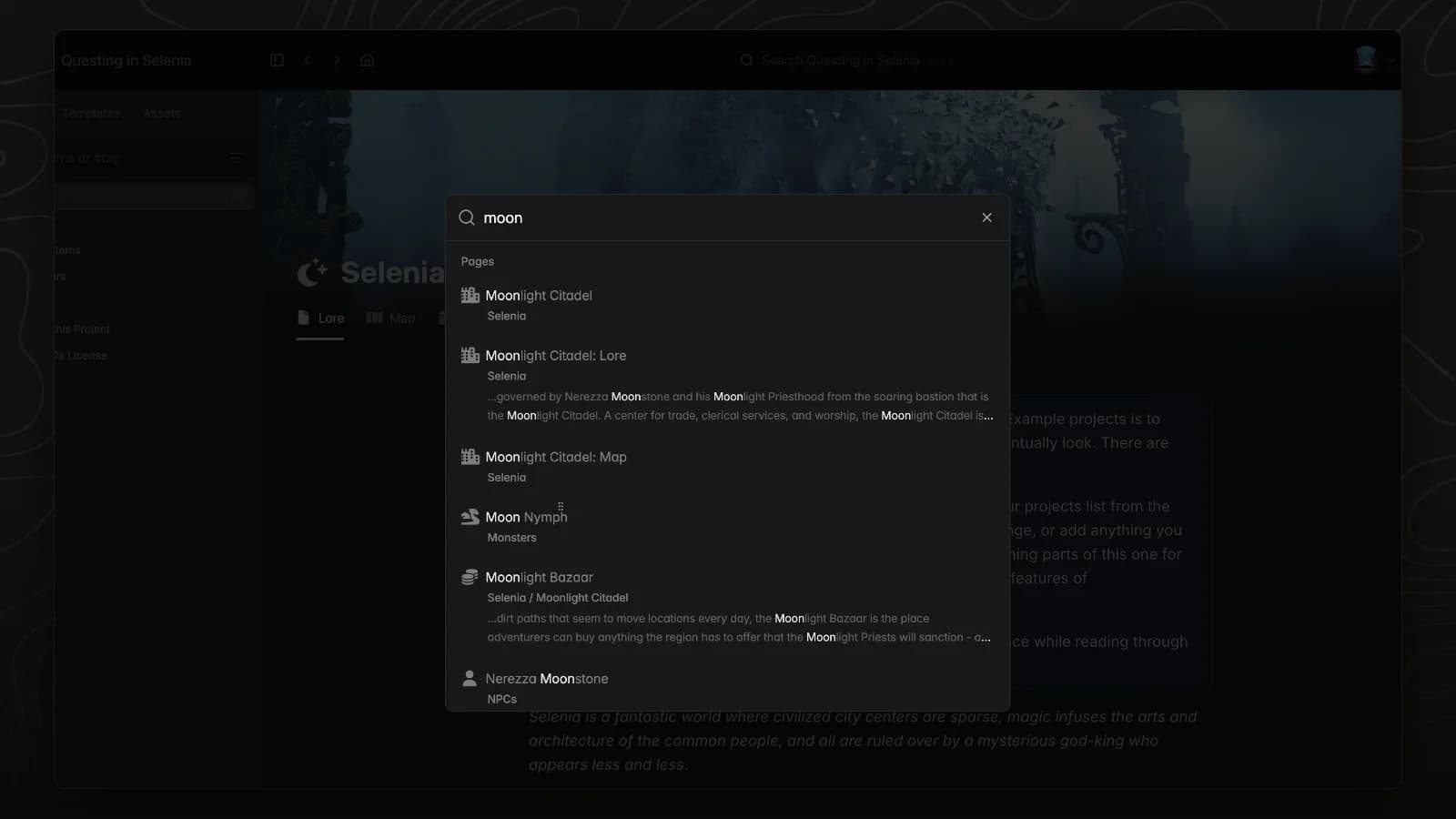
Press ⌘K (Ctrl+K on Windows) to search every page in your world and jump to it.
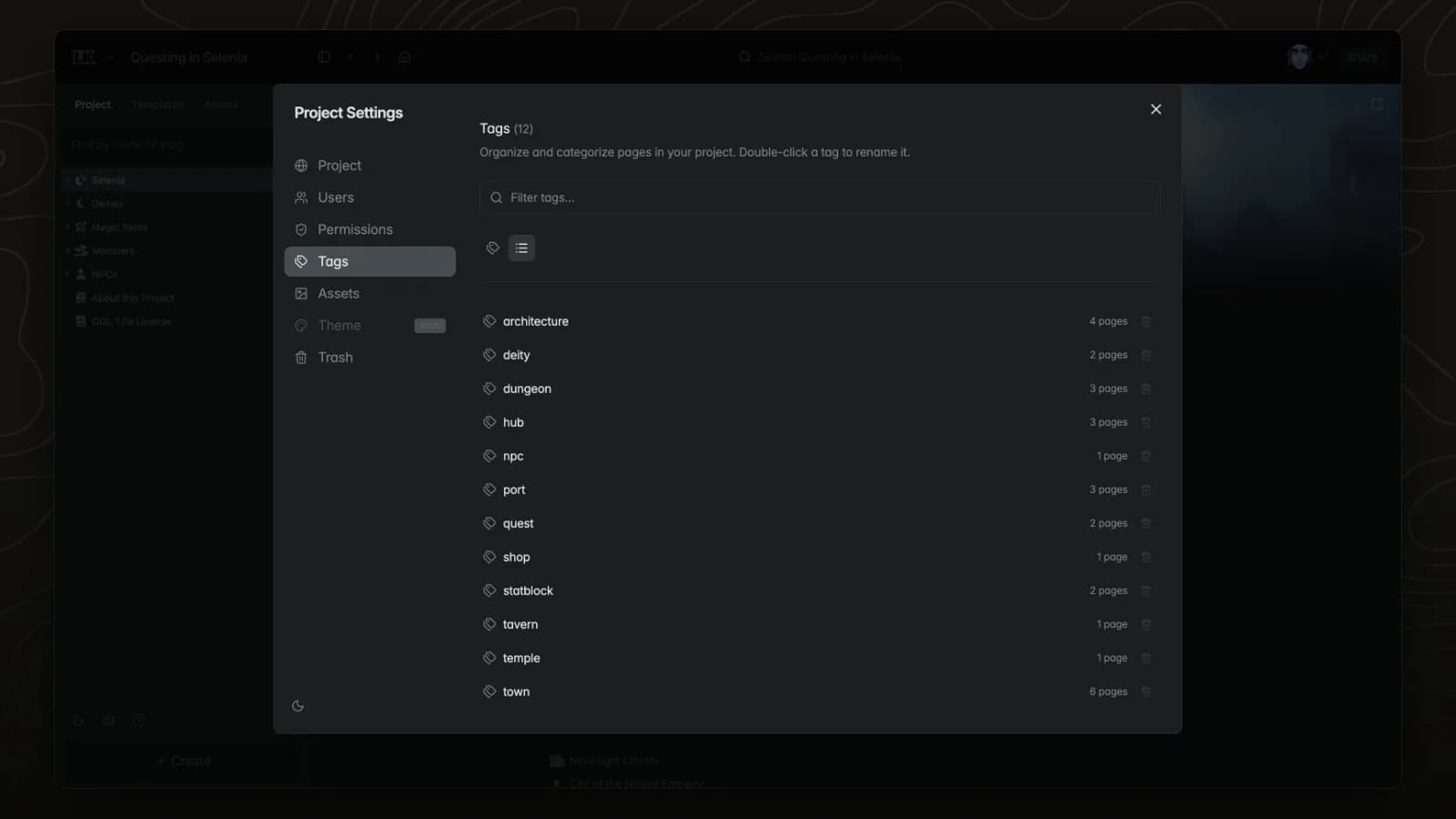
The tag manager in project settings lists every tag with its page count. Rename a tag once and it changes on every page that uses it.
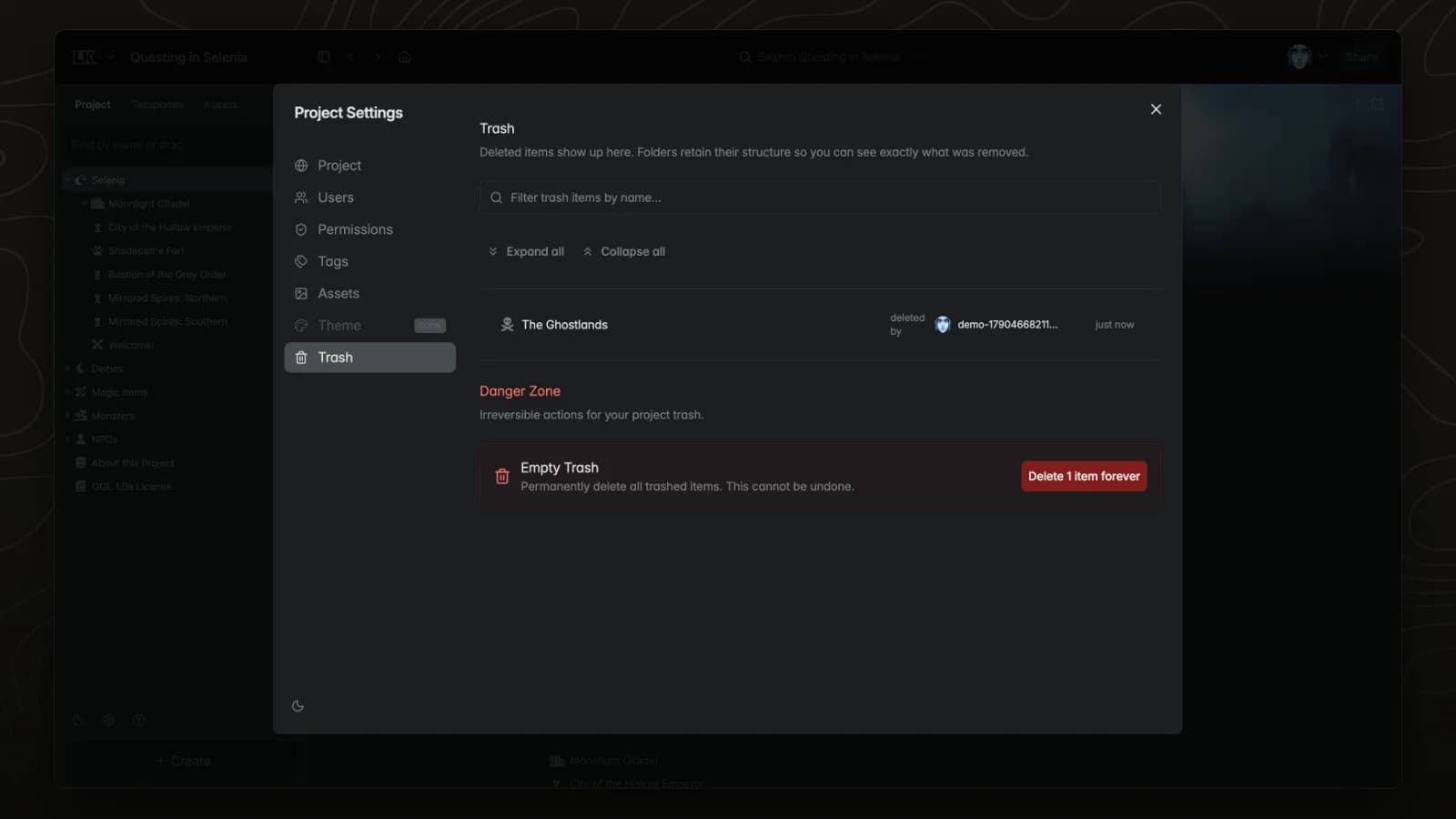
Deleted pages go to the trash in project settings, where they can be restored or permanently removed.
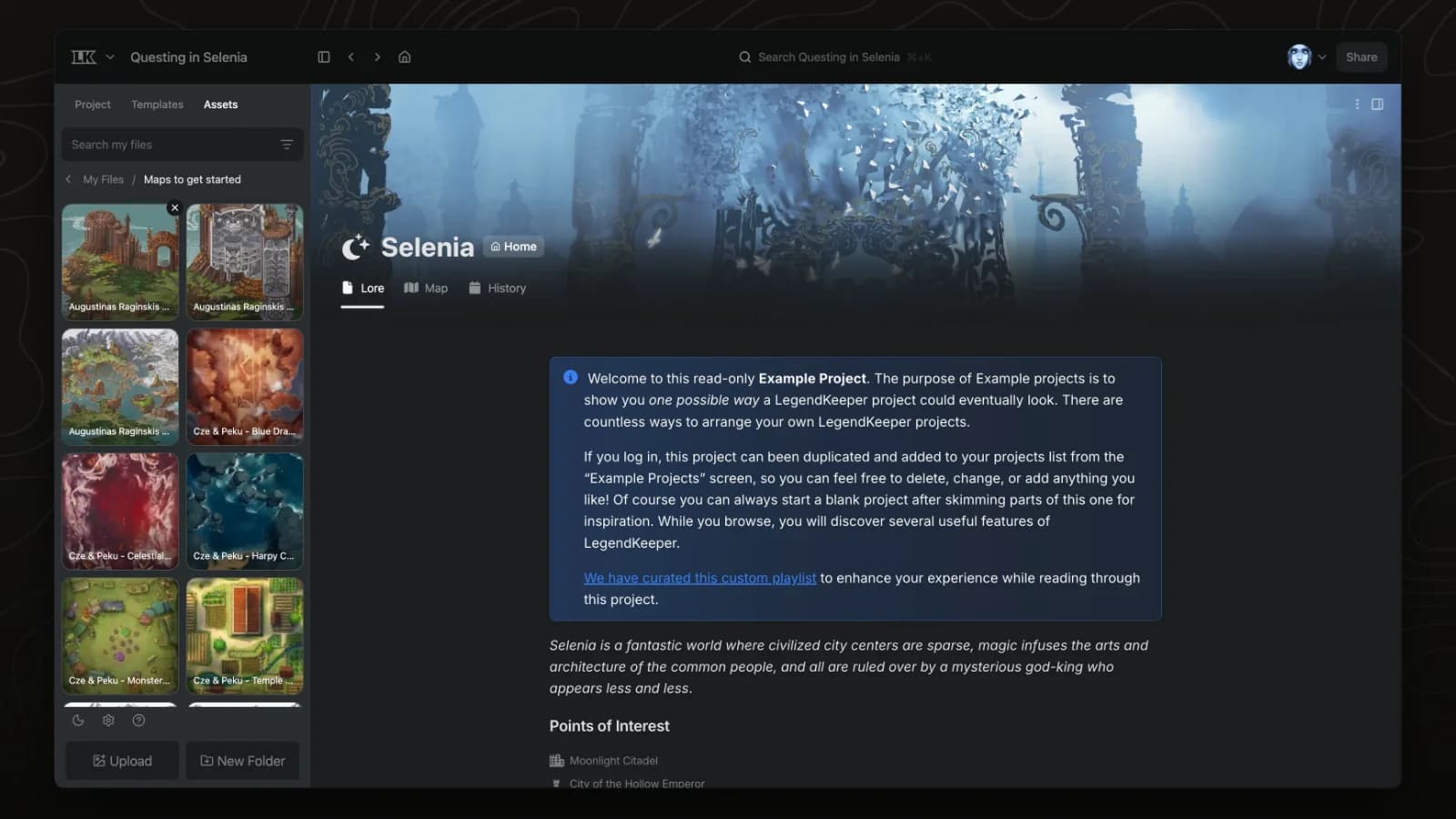
The Assets tab collects every image and file uploaded to a project, organised in folders, so maps, portraits and handouts are easy to find and reuse.
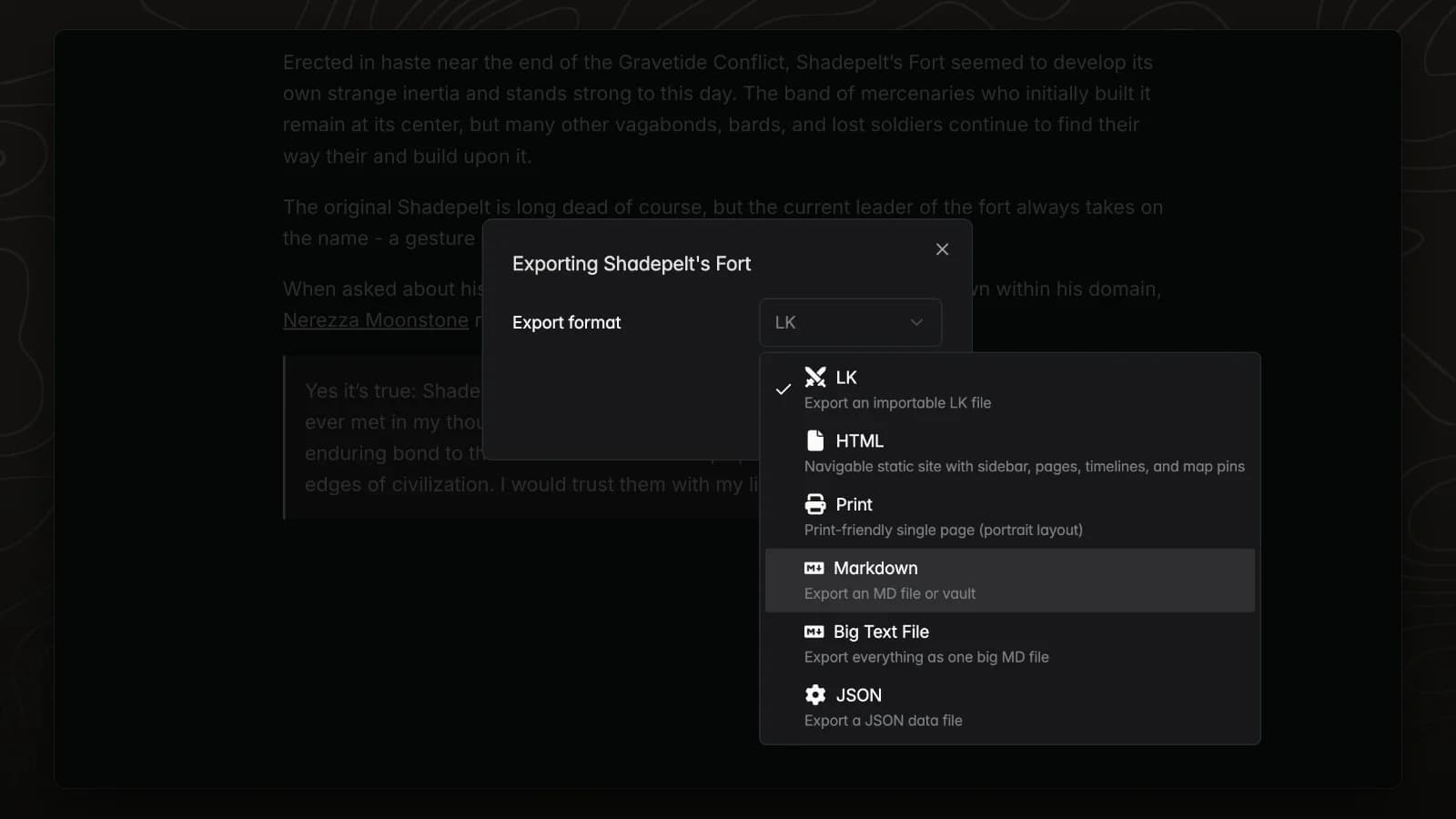
Export downloads a page as Markdown, HTML, JSON or a LegendKeeper file. Markdown keeps headings, lists and links.
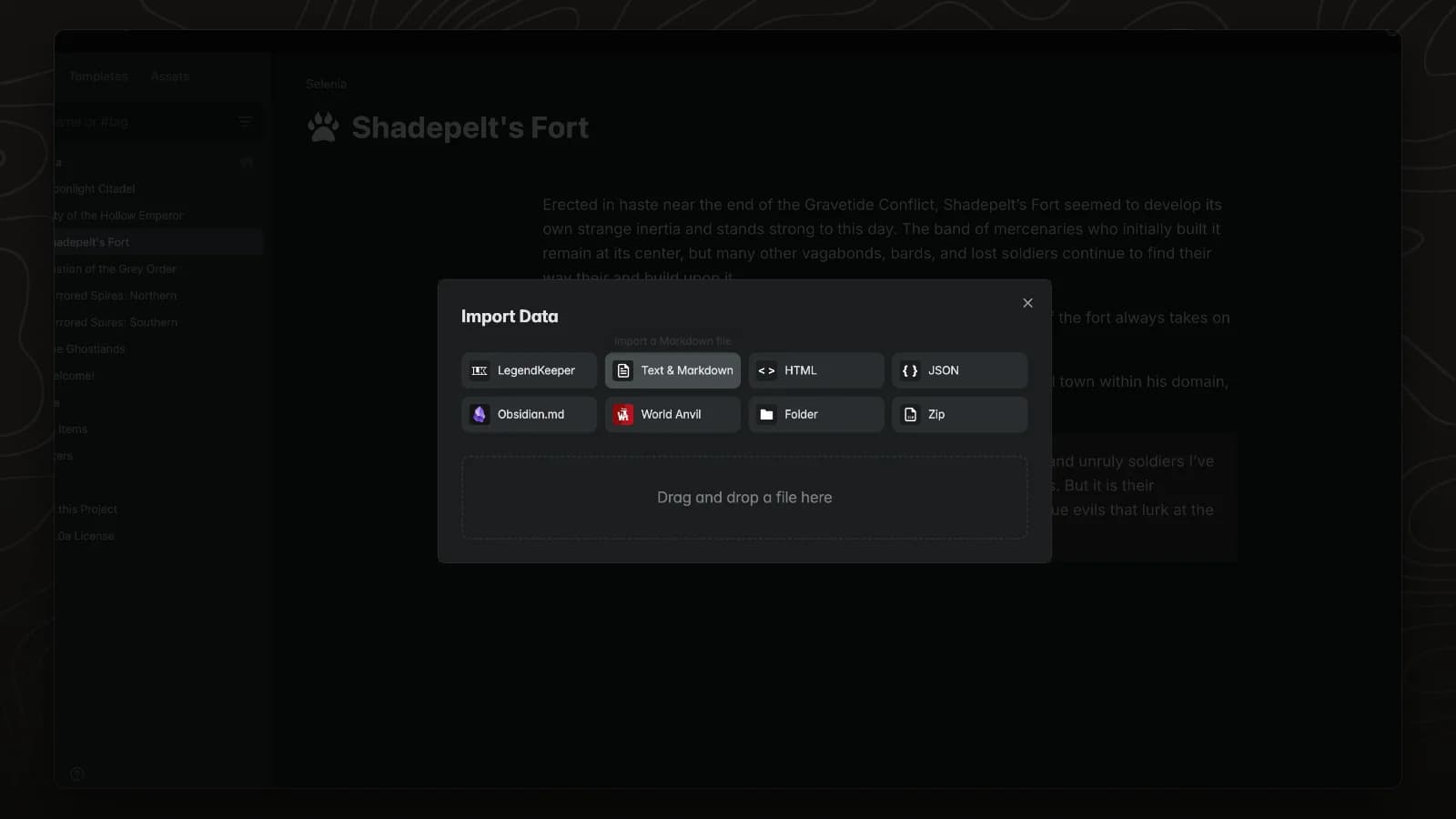
Import turns Markdown, HTML, JSON, Obsidian, World Anvil and LegendKeeper files into pages. Each Markdown file becomes one page.
Invite players, hide pages from them and choose which features a project uses.
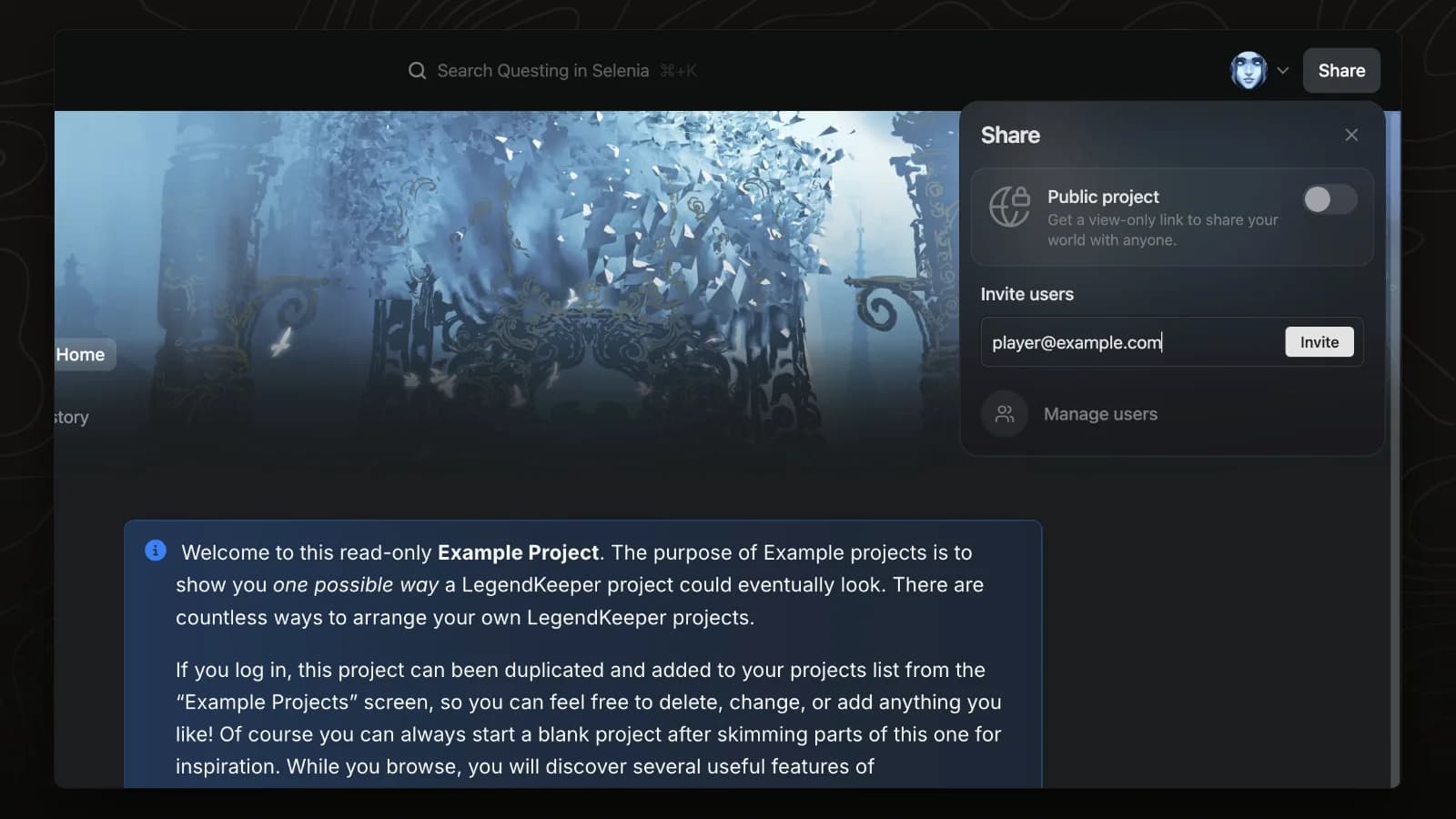
Invite players and co-authors by email from the Share panel. Everyone edits the same world in real time.
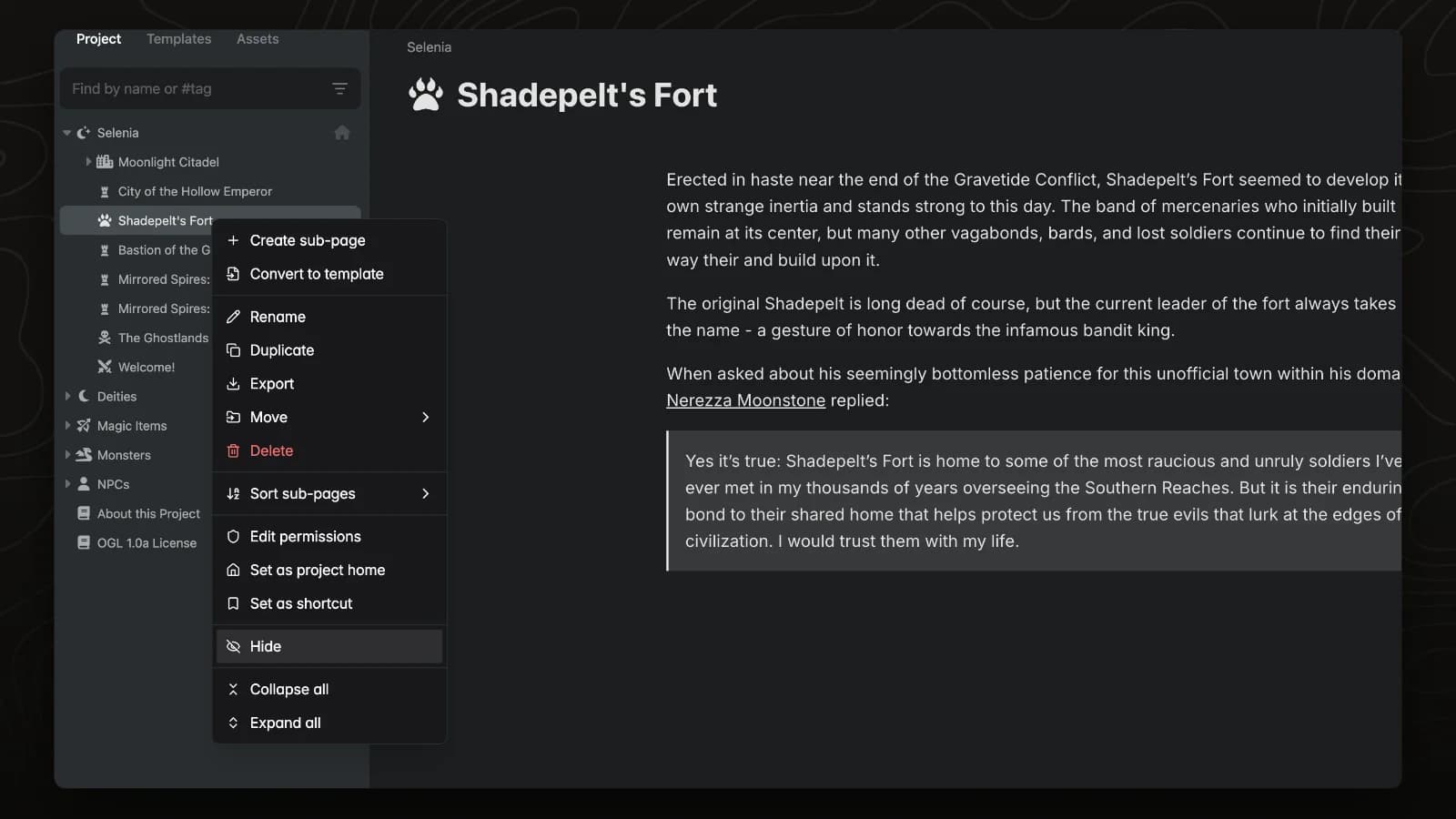
Hidden pages are visible only to admins. Use them for secrets, future plot and GM-only notes.
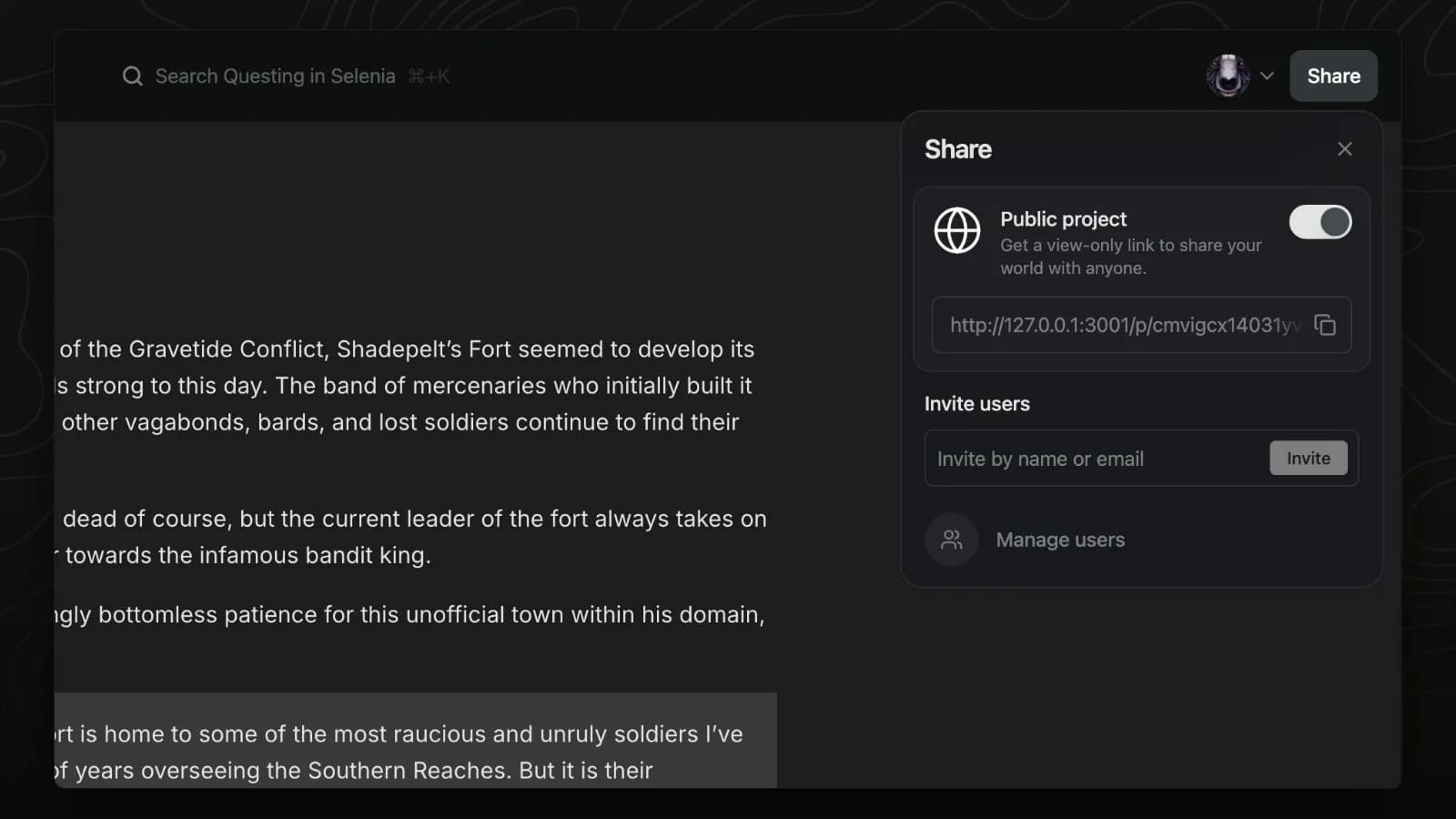
A public project can be read by anyone with its link, without an account. Hidden pages and secret blocks stay hidden.
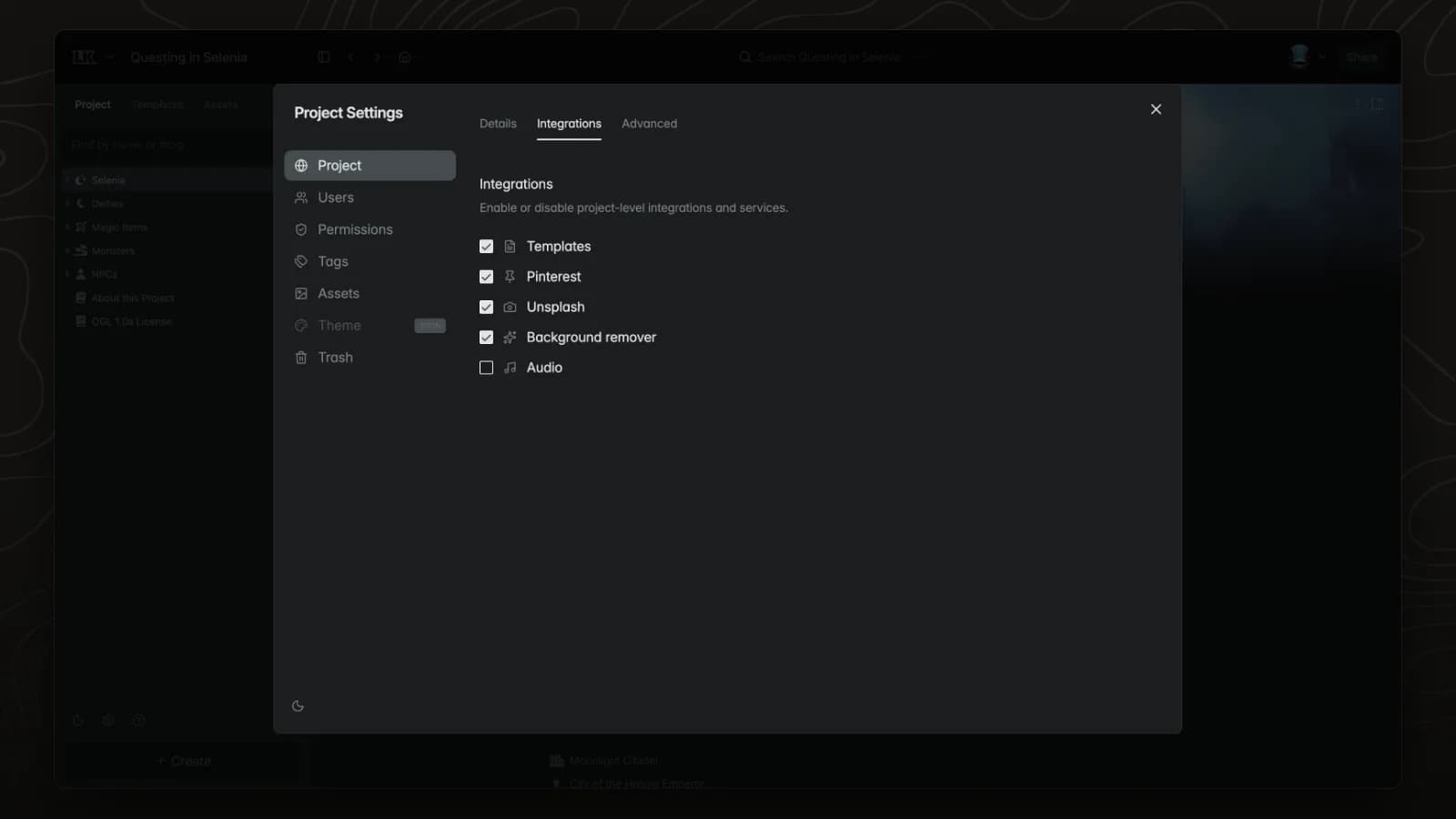
The Integrations tab in project settings controls which features, such as Unsplash and background removal, are available in a project.