
Move, find, tag and tidy the pages and files in a project.
Organizing
byBradenUpdated
In this section
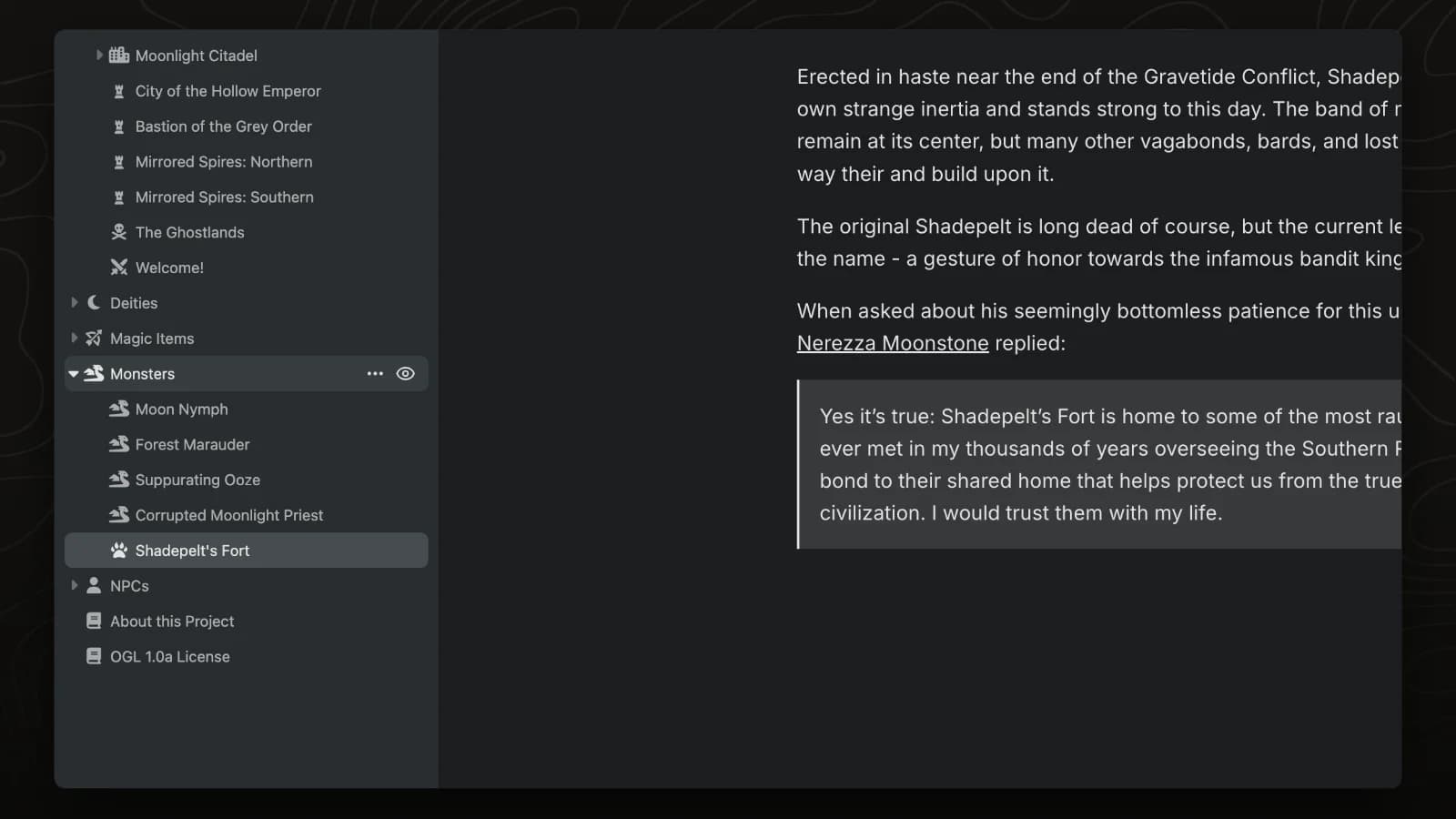
Drag to move pages
Drag a page onto another page in the sidebar to make it a sub-page.
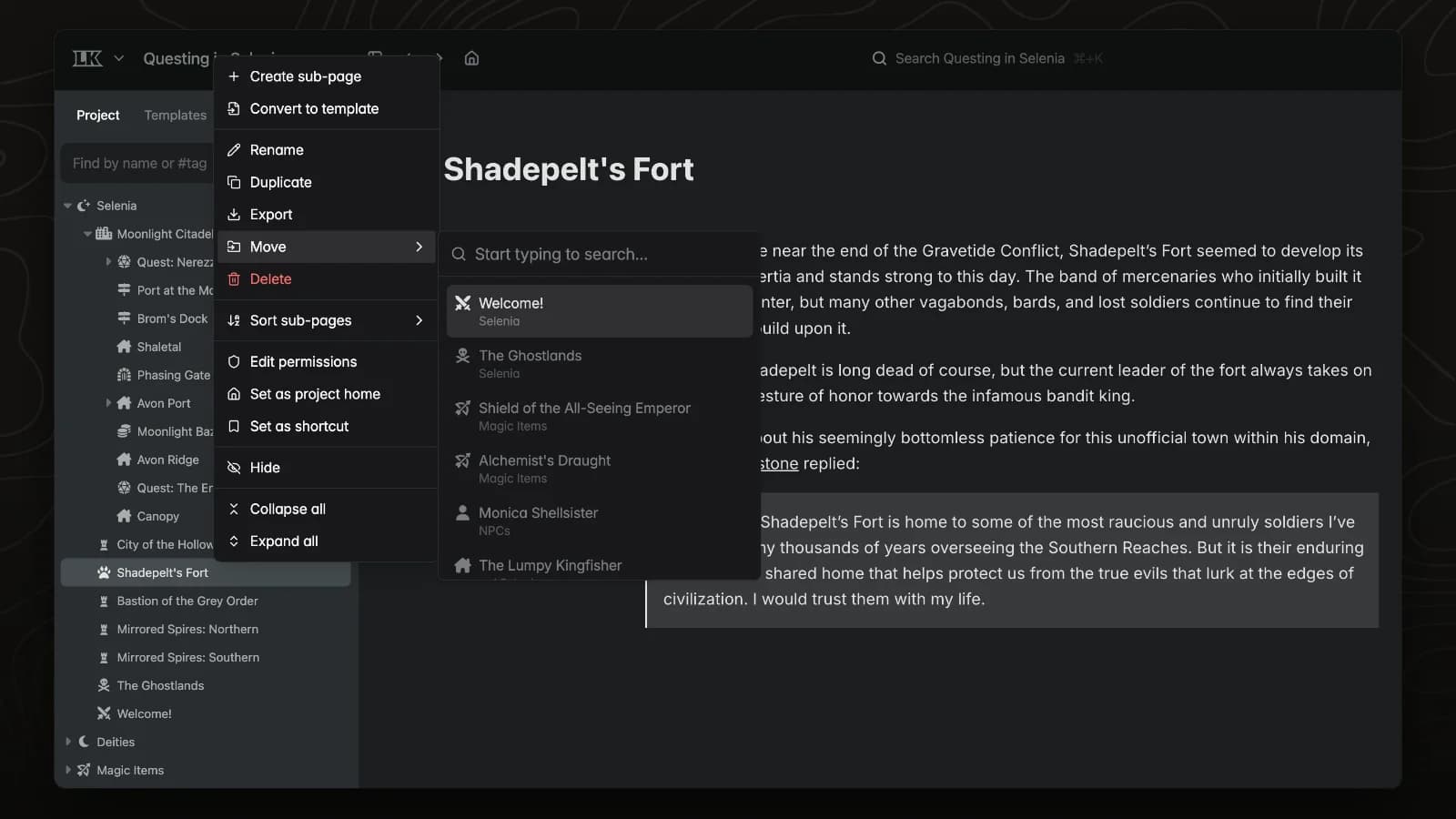
Move menu
The Move menu relocates a page by searching for its new parent.
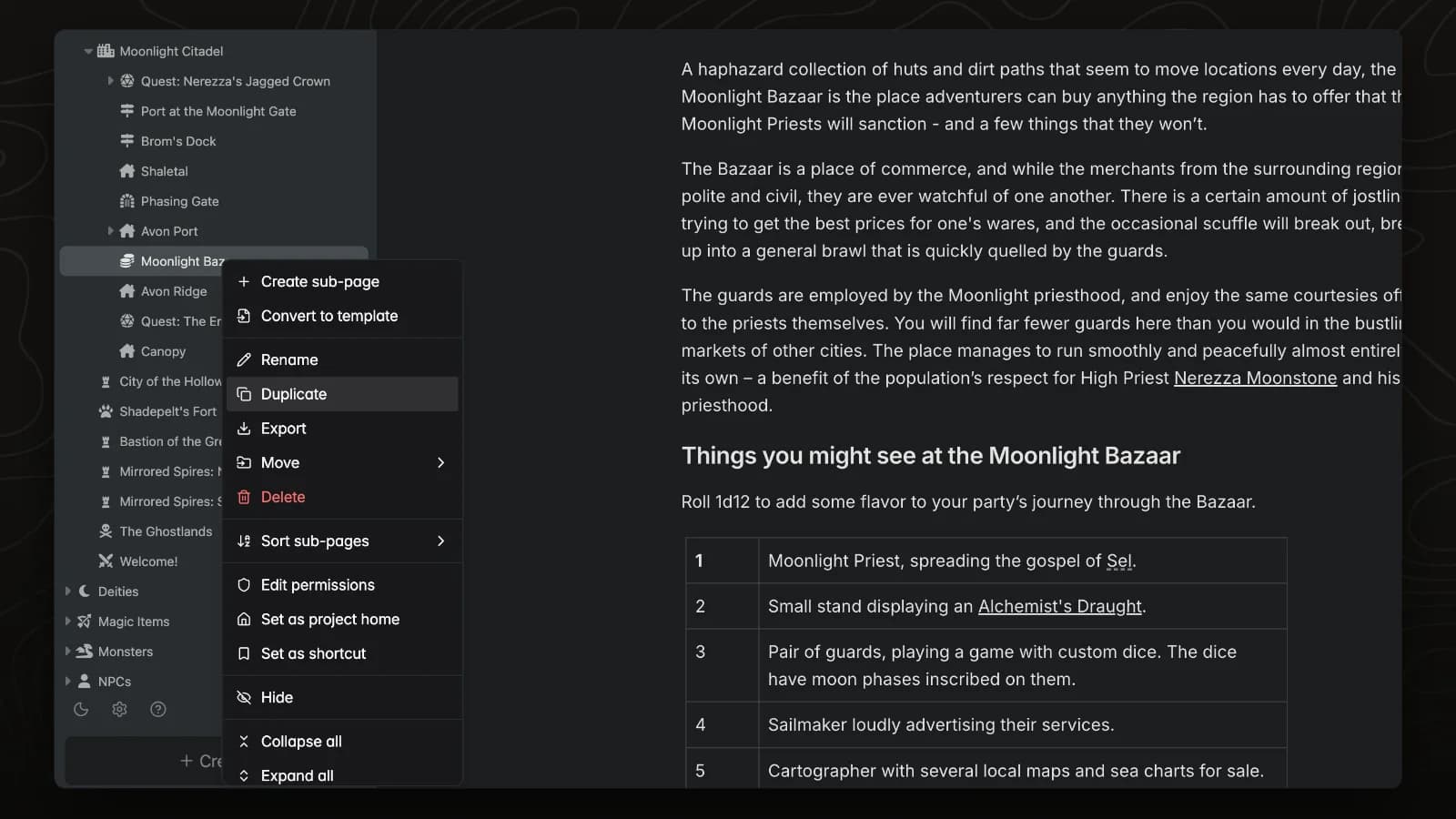
Duplicate a page
Duplicate copies a page, its tabs and content. The copy can include the page's sub-pages or only the page itself.
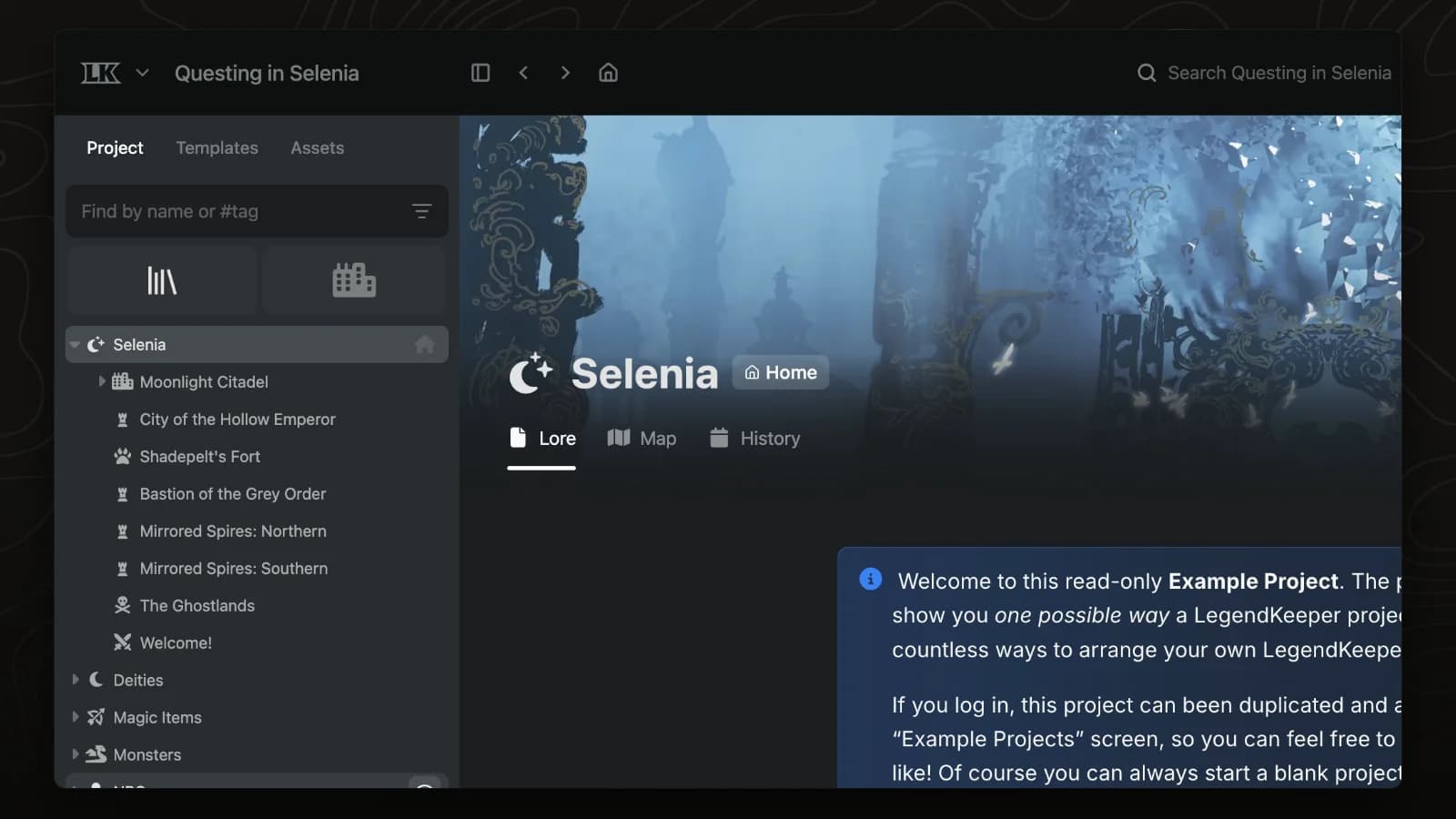
Shortcuts
Shortcuts pin important pages above the sidebar tree. Click one to focus the tree on that part of your world.
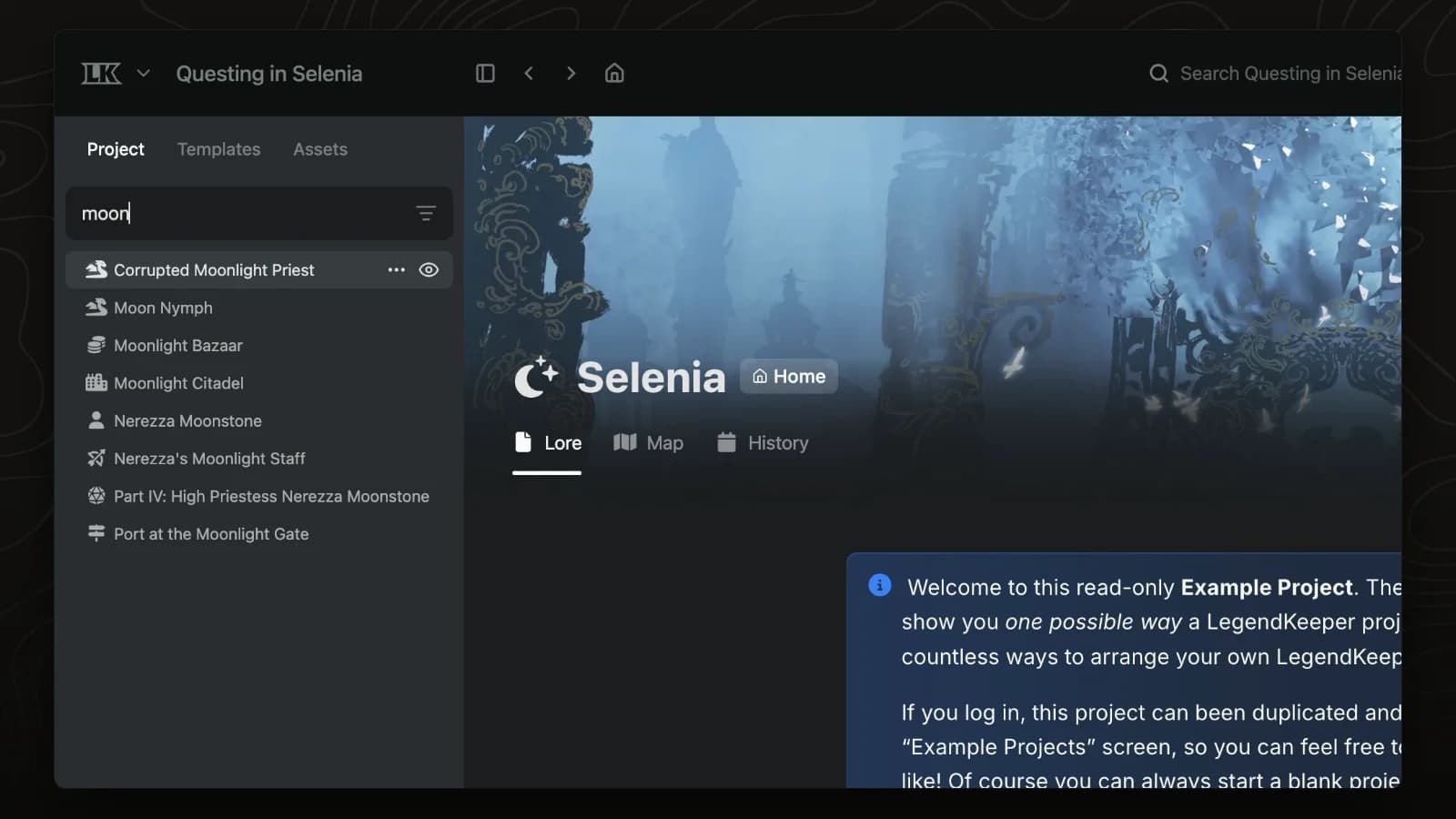
Filter the sidebar
The sidebar filter narrows the page tree by name, or by #tag to show every page with that tag.
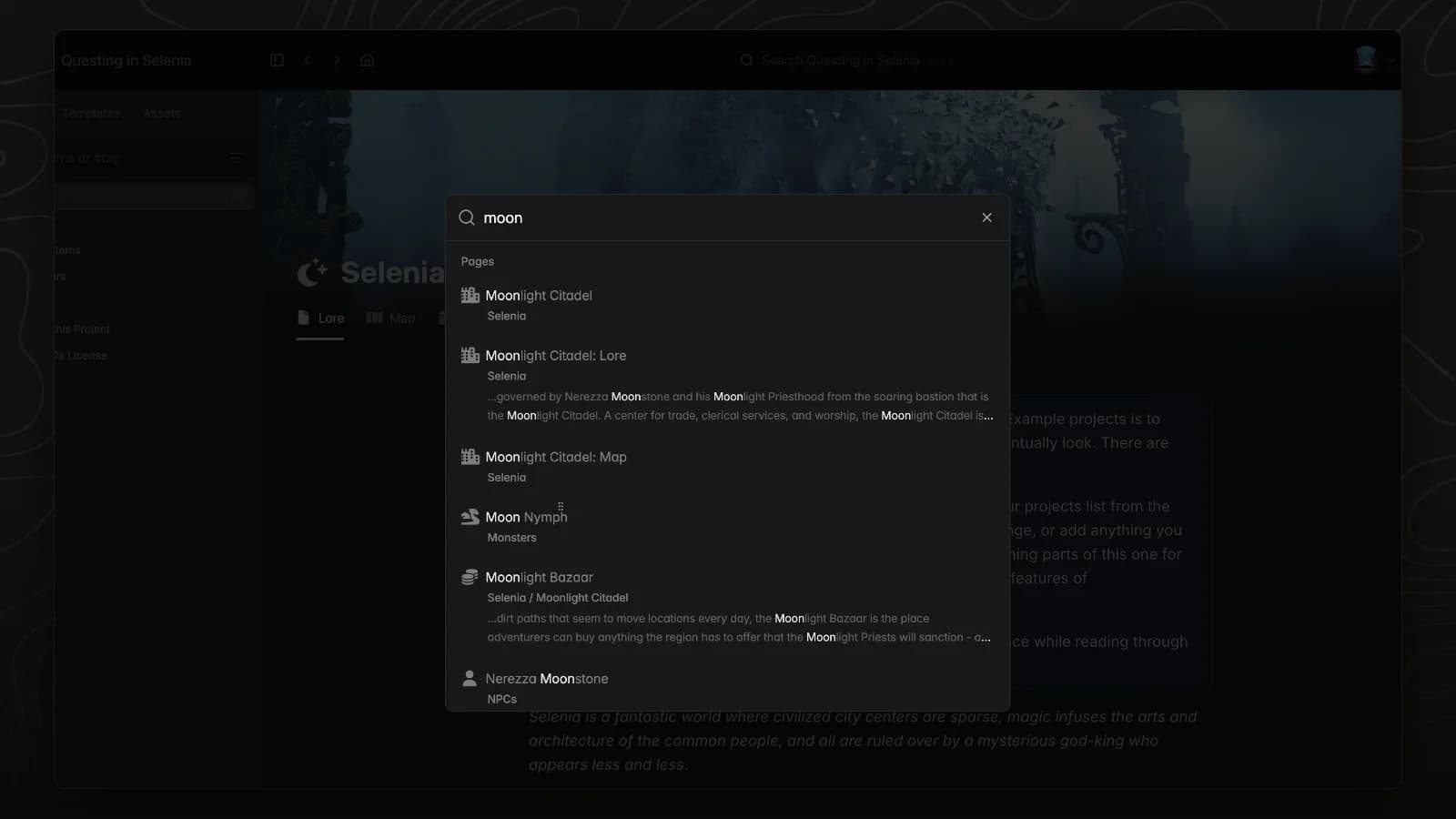
Search
Press ⌘K (Ctrl+K on Windows) to search every page in your world and jump to it.
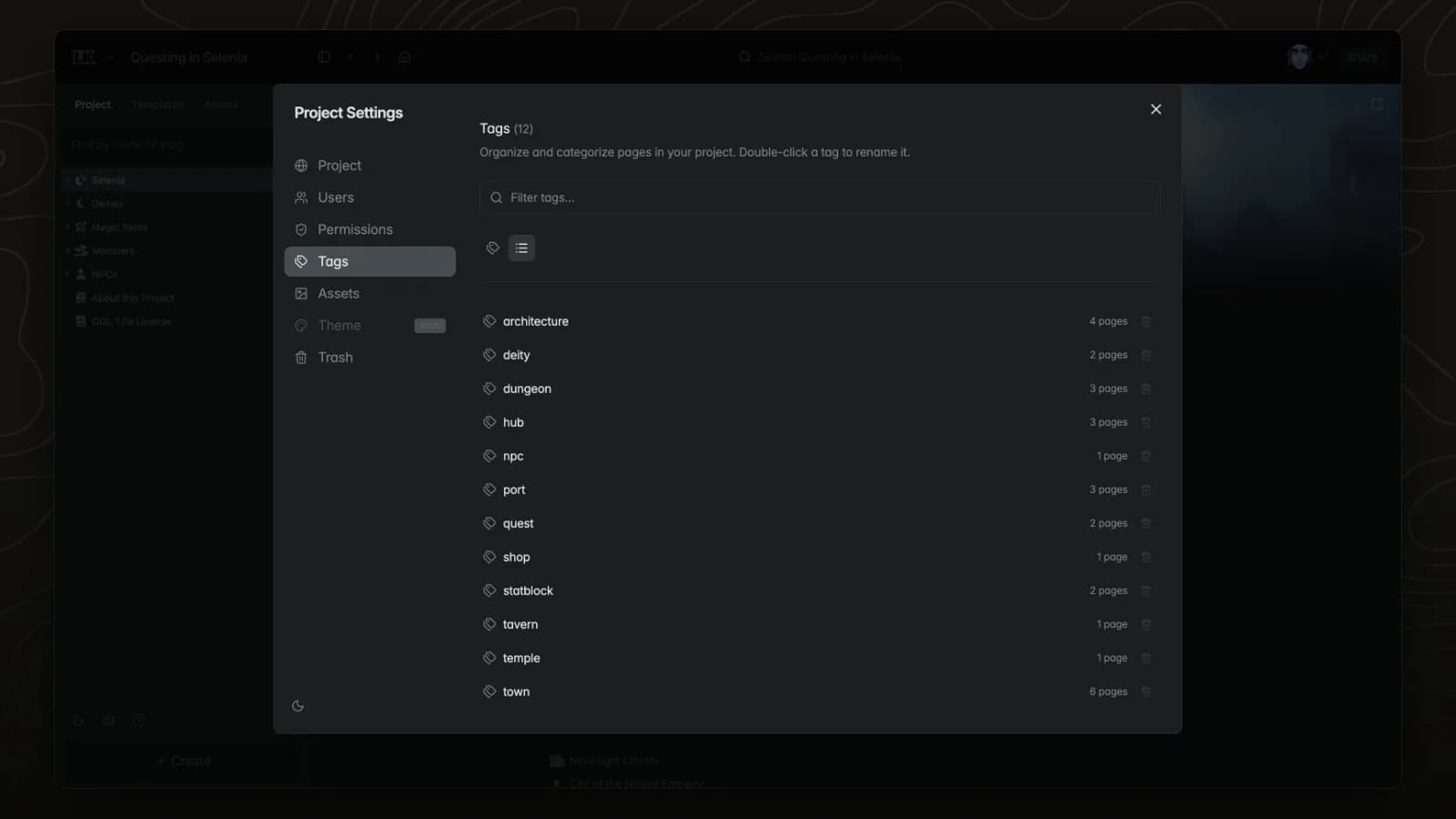
Tag manager
The tag manager in project settings lists every tag with its page count. Rename a tag once and it changes on every page that uses it.
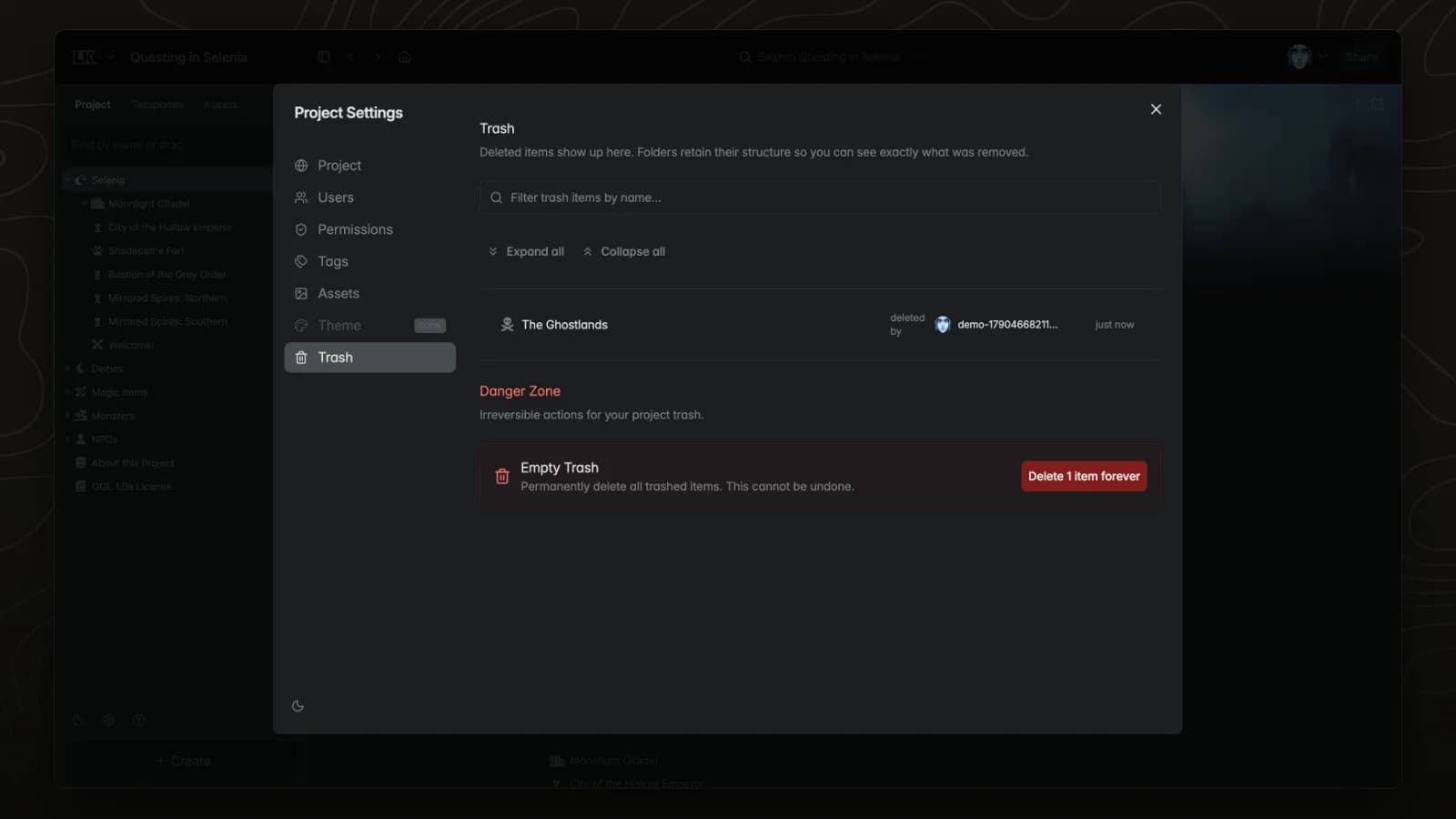
Trash
Deleted pages go to the trash in project settings, where they can be restored or permanently removed.
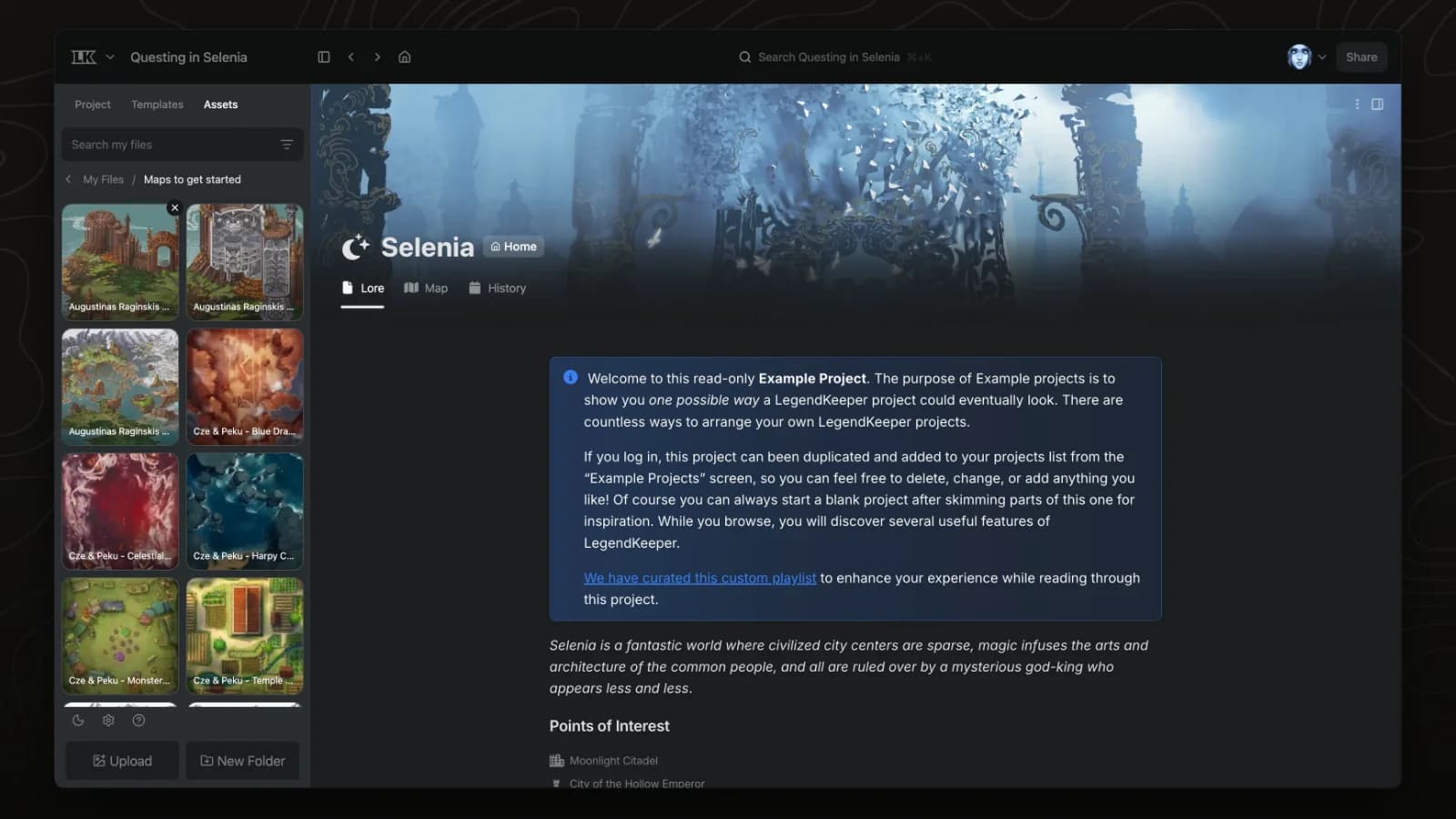
Assets
The Assets tab collects every image and file uploaded to a project, organised in folders, so maps, portraits and handouts are easy to find and reuse.
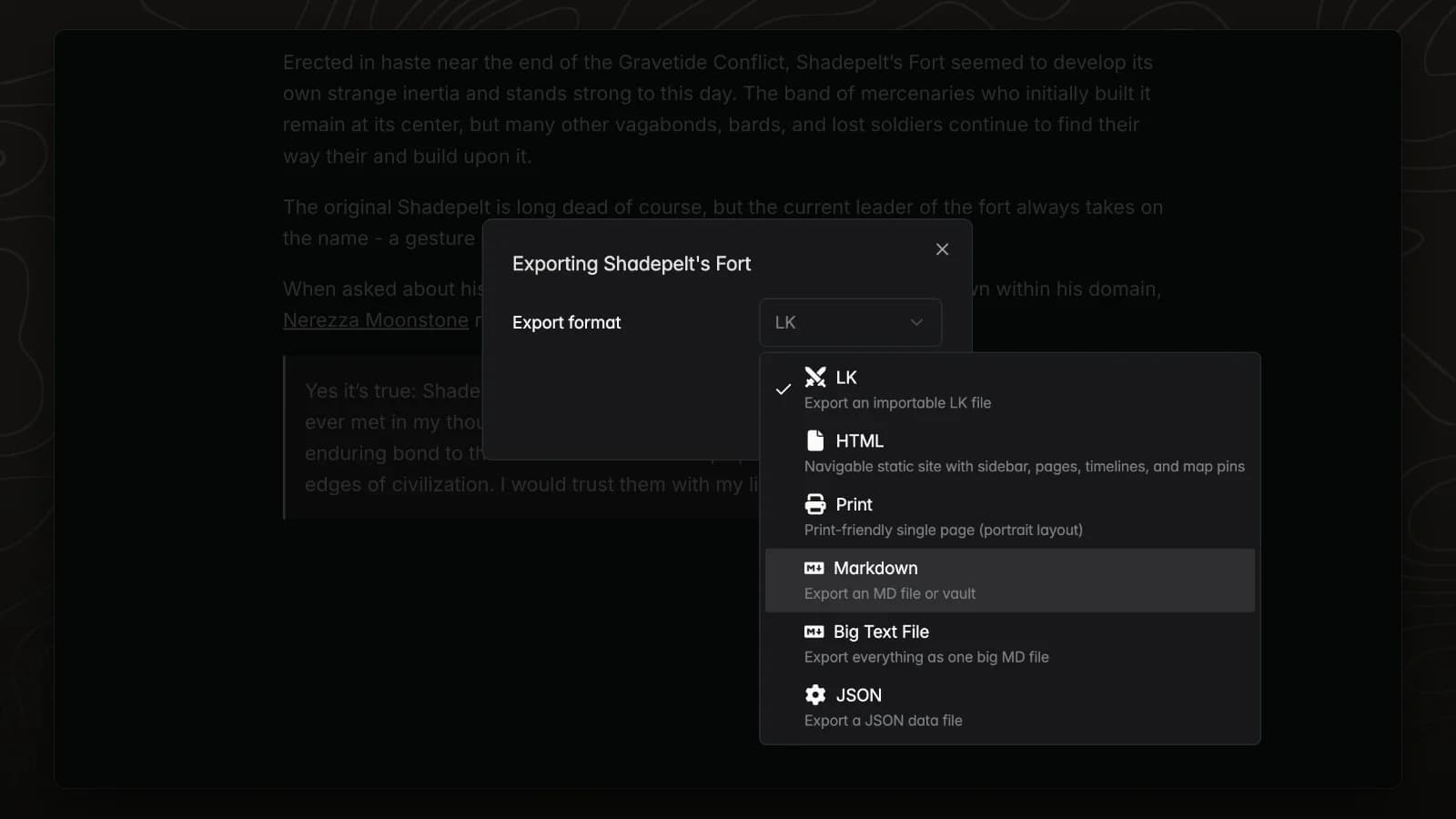
Export a page
Export downloads a page as Markdown, HTML, JSON or a LegendKeeper file. Markdown keeps headings, lists and links.
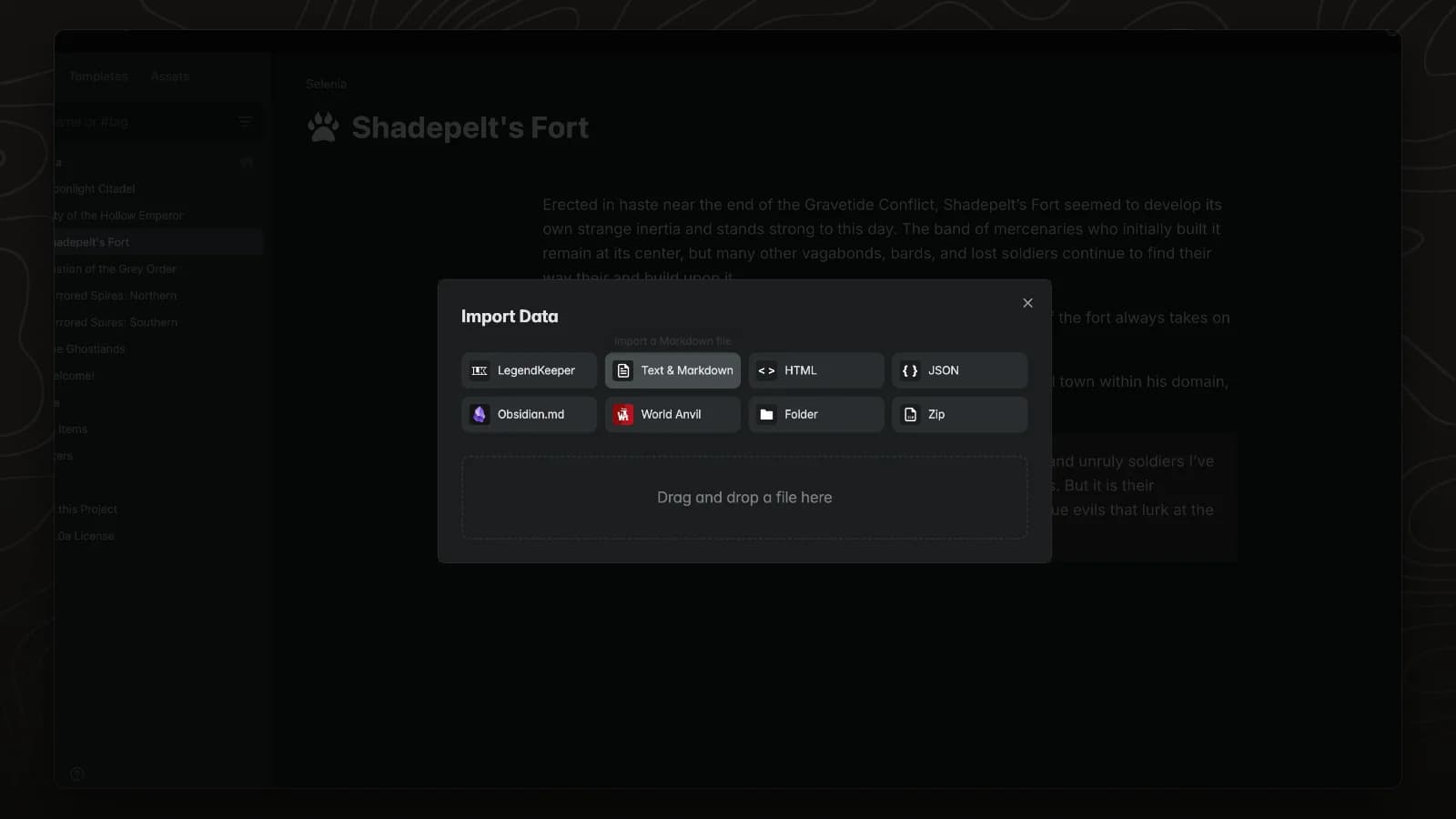
Import files
Import turns Markdown, HTML, JSON, Obsidian, World Anvil and LegendKeeper files into pages. Each Markdown file becomes one page.